Accessing a Synology NAS from Linux
20 Feb 2023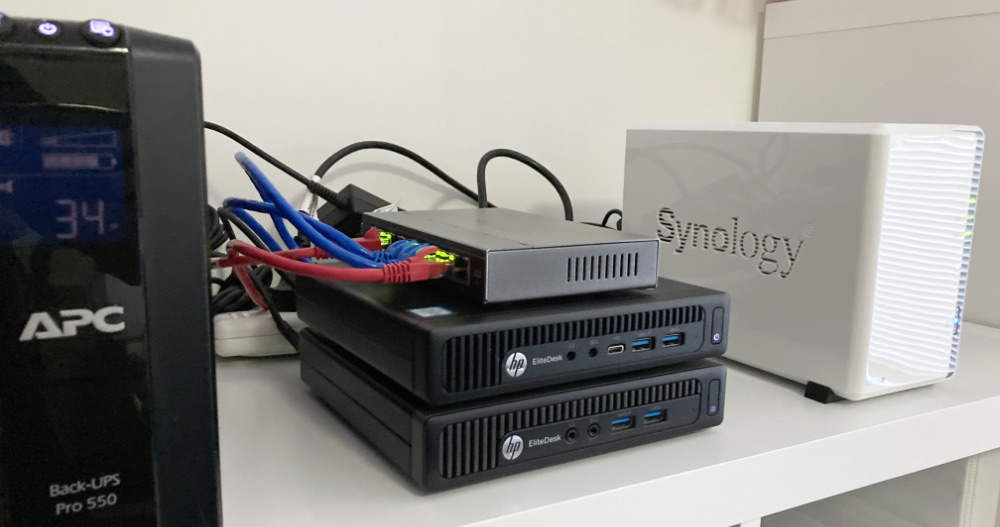
I picked up a Synology DS216j NAS from eBay to use for storage for the rapidly growing home lab. The eventual plan is that as well as my VM backups, it will host the media library, and eventually (when this has all proved itself reasonably bullet-proof) my current DropBox contents. That won’t all fit on the 2x2TB drives that the DS216j came with, and I have a pair of 8TBs on hand, but I wanted to set it up and checked it all worked.
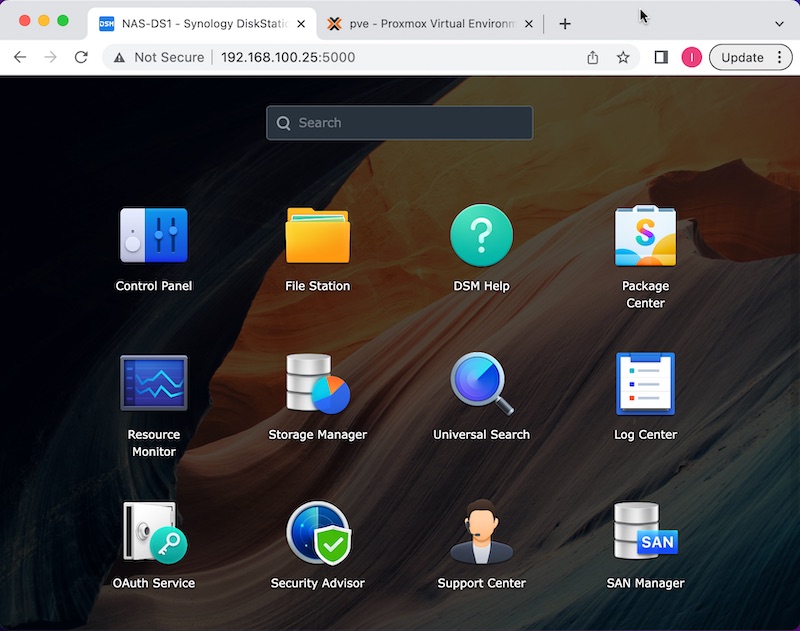
Configuration of the NAS was a ‘follow the prompts’ exercise for the most part. The Synology OS is a Linux port called DSM, but it’s intended to be an appliance so all the interactions are through the web client. I’m using RAID 1 since the plan is that the production segment of the homelab will all be high-ish available. There’s a few options to install extras (such as Tailscale), but these little ‘j’ models don’t run an x86 processor, so no docker etc.
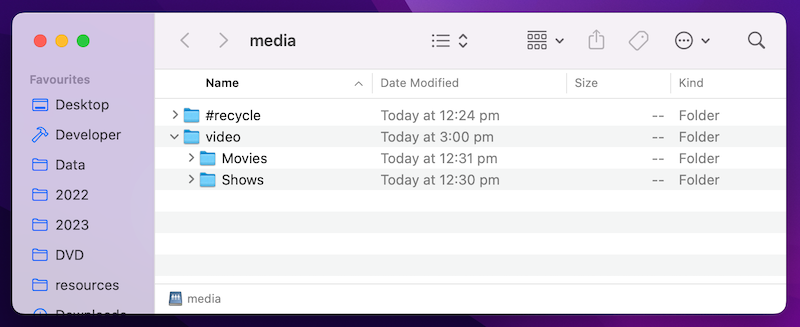
Once I’d got through all of that, I created a share in ‘File Station’ and copied a couple of files in. By default, Samba shares are on (with the name WORKGROUP - so I guess this is aimed at making it simple for Windows users) but NFS are not. I know nothing about NFS, so this suits me for the moment. Additionally, my WD-TV shares it’s attached USB drive using Samba, so I’m used to accessing it from the MacBook. Let’s try the NAS from the MacBook:
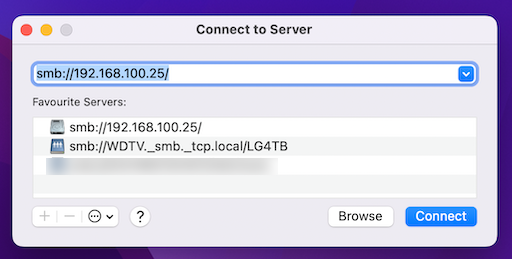
It asked for the login details, then I was in. Could not have been much easier.
Accessing from Linux
I’m planning on running Jellyfin in an LCX container. So I’ll set that up for this test too. I stood it up with the Debian server .iso in Proxmox and specified it should be a ‘privileged’ container, and in the Proxmox options for the LXC ticked ‘SMB/CIFS’. This process is not just for Synology - it will work to mount any samba share on a network to your Linux machine.
We need to make an empty directory to mount to:
mkdir /mnt/media
Then edit (I use nano) the file /etc/fstab to include:
//192.168.100.25/media /mnt/media cifs username=jelly,password=jellypass,uid=1000,gid=1000,file_mode=0660,dir_mode=07
etc/fstab runs at startup, and if the shares are available (cautionary note about booting up your lab after a power outage) it will set them up. There’s a fair bit going on in the command, perhaps we should pull it apart:
//192.168.100.25/media /mnt/media | The first directory is the share, the second is the empty directory on this machine we are mounting the share to. |
username=jelly, password=jellypass | Our credentials needed to log into the share. Actually I used my root credentials, but obviously a good idea would be to make a user on the NAT for this specific purpose with only access to the share they need to operate. |
uid=1000, gid=1000 | Okay, we're about to enter the Linux zone... These numbers are a Linux user id and a group ownership id that Linux assigns to resources - you know, for chown and stuff like that. If you type in id at the CLI you can see your numbers. For some reason code examples often use 1000 for both, and things seem to work so I don't worry about it. |
file_mode=0660, dir_mode=07 | More Linux permission stuff. Used in combination with the previous two parameters, and will probably cause me problems later. |
Note that a couple of other posts on the internet about mounting samba shares thought I’d have to do one or both of these commands to install extra samba goodness:
apt install smbclient
apt install cifs-utils
But it turns out I didn’t. I suspect that was something to do with ticking the box for SMB/CIFS when I was creating the LXC container in Proxmox.
Once you’ve saved that command in /etc/fstab, reload the mounts with:
mount -a
If there’s no errors, you are probably right to go. Have a look at your mount point to see your shared files.
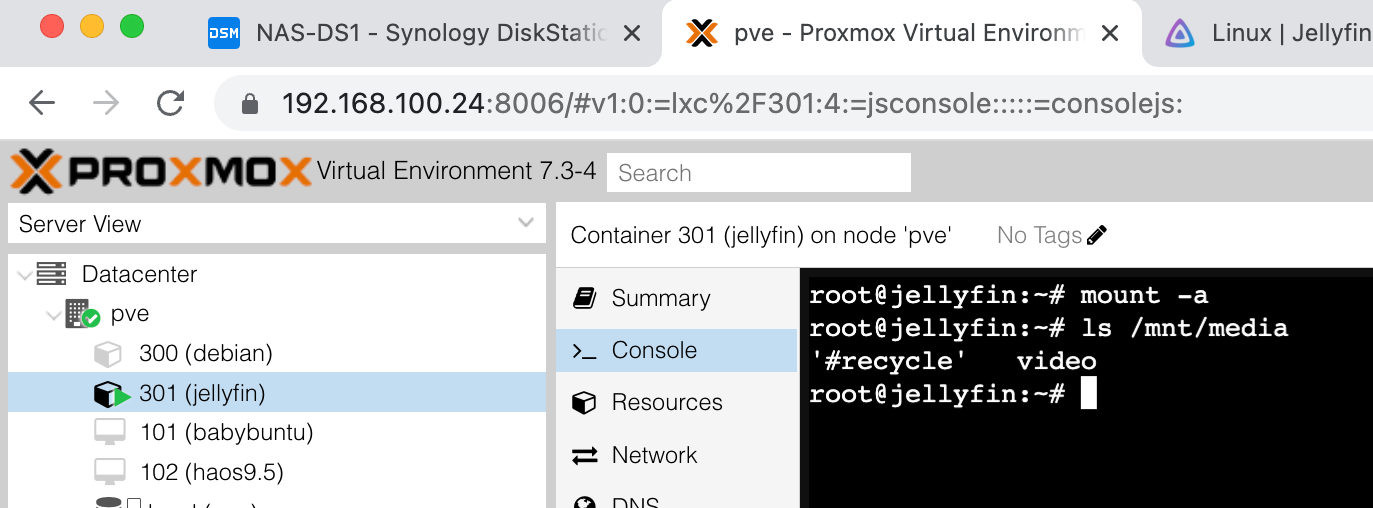
Since the mount command is in the /etc/fstab file, this mount will be durable - as long as the share is available, it will be mounted every time this machine starts.