Getting Ghostty to Work on Synology
28 July 2025Ghostty is a terminal application that I don’t really need (it’s listed features either already exist in the MacOS terminal, or seem so esoteric or marginal that I can’t imagine any real benefit from them in my normal use), but I wanted to be one of the cool kids, so I thought I’d give it a try.
After fiddling around with the themes for a bit I renamed it to ’term-ghosty.app’ so I’d remember to use it (ie when I pop up spotlight and type ’term’ it will come up) and got on with my day. Ten minutes later I’d run into a problem.
The Problem
I was ssh’d into a Synology NAS, and needed to use a command from two commands ago, in my long experience, pressing the up arrow twice works universally well, but not in Ghostty on this host:

This is a purely visual glitch - if I press return at this stage, it will run command one.
My first thought was to CTRL-U to clear the line:
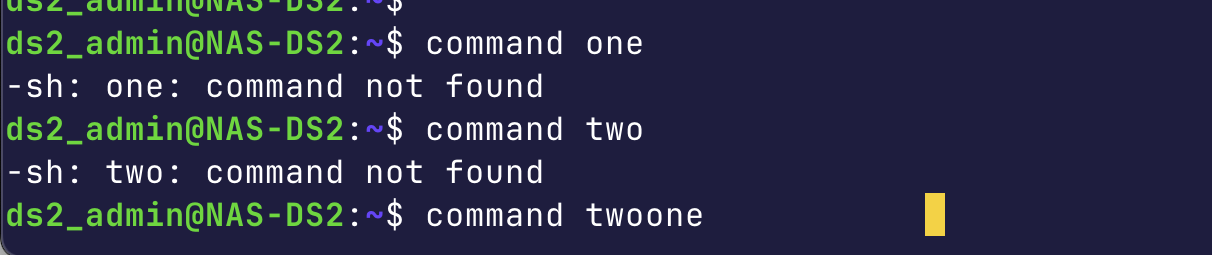
I guess not. Oh well, lets clear and try all this again.
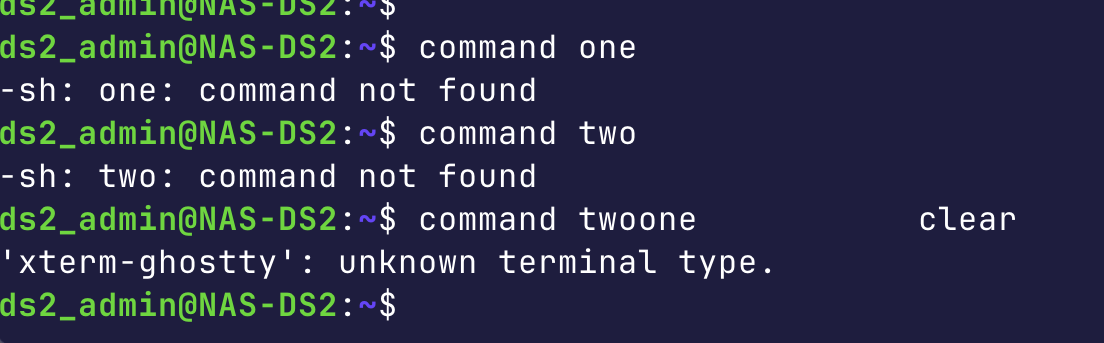
So - a clue. This is a Ghostty problem, not a weird shell issue. Also, this wasn’t just a visual thing - the command was also not working.
I logged in with regular terminal to confirm that everything was still working with that.
xterm-ghostty
If you google ‘ghostty arrow history problem’ you’ll likely find a number of github issues that are all closed after the developer has posted a link to this part of the docs explaining that you need to compile the Ghostty’s terminfo into the config on this host.
At first I was a bit aghast at this complicated solution - but we need to keep in mind this is a terminal program that I’m sure is only used by tech orientated people who love fiddling with things. This is reflected in other design choices in Ghostty (going into ‘Settings’ from the menu just opens the config file in a text editor).
I downloaded iTerm2 as a likely competitor to Ghostty and tried it on the same host - everything worked perfectly. I tried Ghostty on several of my VM’s, VPS’s and LXC’s. All no problem. So what’s going on?
What’s Going On?
If you open your terminal, and type echo $TERM it will tell you the TERM value. This is used by the shell to know how to interpret the inputs it’s receiving (for example, what to do when the user wants to clear the screen). Unless you are using Ghostty, it will almost certainly be set to xterm-256color

In Ghostty, it will say xterm-ghostty
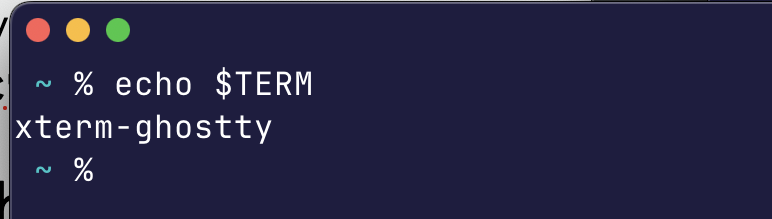
The reason I don’t have this same problem with Ghostty on my MacBook or the Debian base hosts is that those operating systems have the Ghostty ’terminfo’ entries in them, whereas apparently Synology does not (or not yet anyway).
But that does that explain why iTerm2 works on Synology. Let’s look at it’s TERM value.
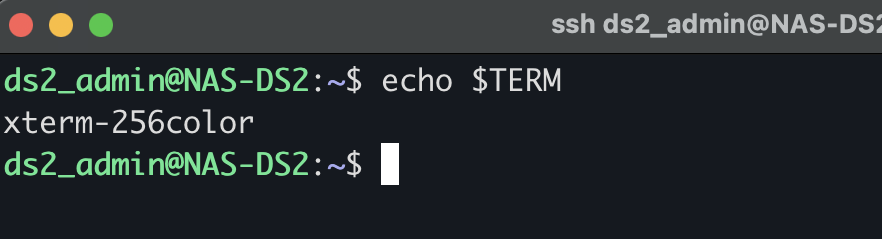
Ah, so it’s just claiming to be xterm-256color the same as the mac terminal emulator - which all hosts will know since it’s an ancient thing. (xterm is the terminal from the X-Windows systems of the 1980’s).
This is a developer choice, Ghostty could also claim it was an xterm-256color and this problem would not have popped up. I’m assuming they have decided this short term pain is worth it for some long term gain (of being able to do things an xter-256color terminal emulator can not).
Choices
Now we have two choices to fix this:
- Override the TERM choice the Ghostty developer has made for this host
- Compile the correct
terminfointo the config on this host
Option one means we’d lose any special sauce Ghostty does (which I already said I don’t need, but could conceivably regret in the future if they do something cool).
Option two feels like the proper (and is the one that Ghostty recommends).
I suppose there is a third choice - wait until Synology includes the Ghostty terminfo in their distro. I get the vibe from the slightly scary MOTD when I ssh in that they would really prefer you did not, so I can’t seem them going out of their way to include it. Also they are not based on another distro as far as I can see, so they are not going to accidentally include it from an upstream. I feel this choice will never bear fruit.
Overriding the TERM
ssh can have a config set for a host so we can override the TERM value. If you have something like this in ~/.ssh/config we can fix the issue.
Host NAS-DS2
  SetEnv TERM=xterm-256color
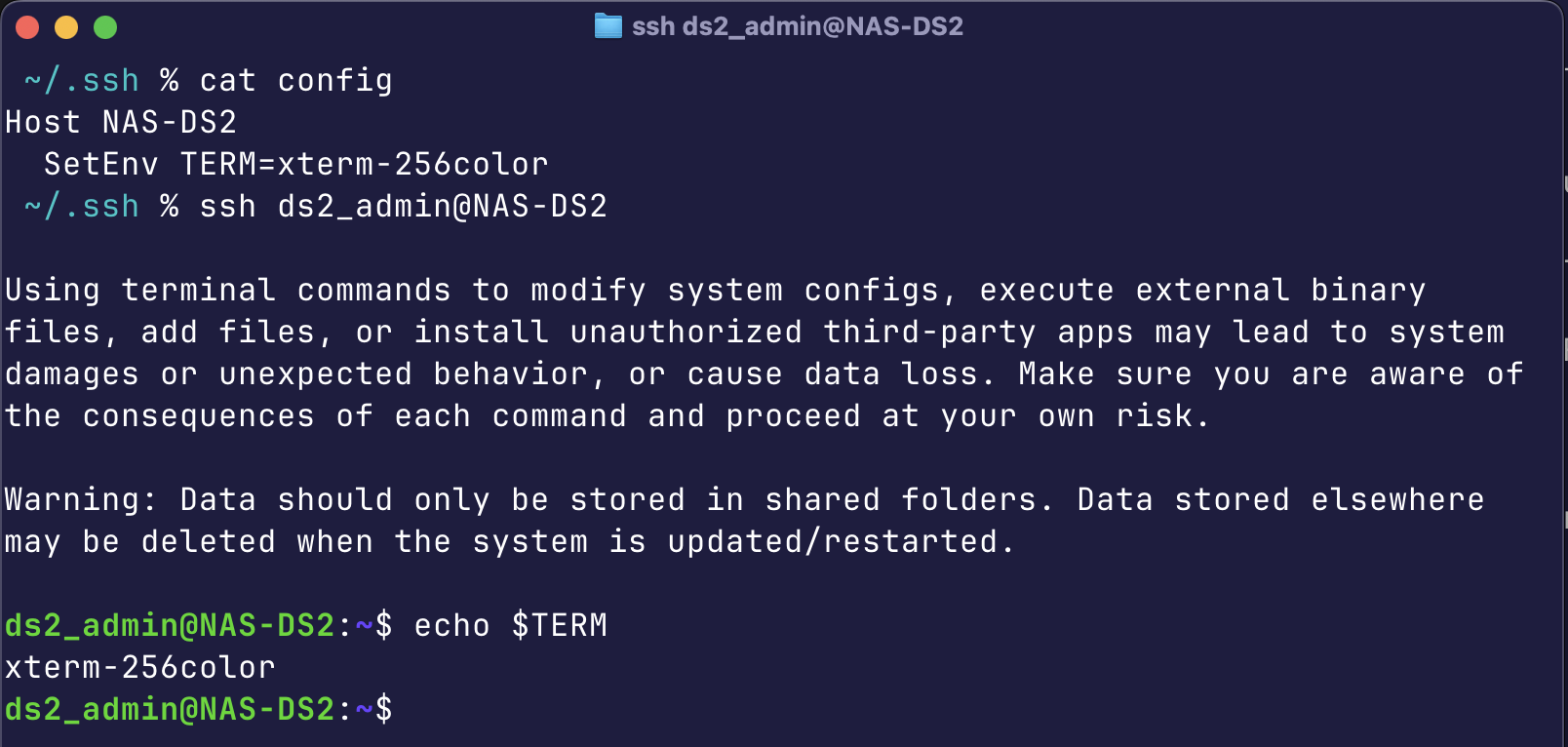
And everything works again - I can up arrow to access the history without problems and the clear command works as advertised. Note that I didn’t need to reload the ssh config - it gets read every time you run the ssh command.
An extra reason for using this approach is that if you have a good naming convention for your hosts (I worked in the ‘data processing’ department of a bank in the 1990’s so I learned good naming conventions for hosts) then you can wild-card this entry to for all of them. You might have guessed that all the Synology NAS’s I manage are named NAS-DS<some positive integer>. Let’s change the config to say:
Host NAS-DS*
  SetEnv TERM=xterm-256color
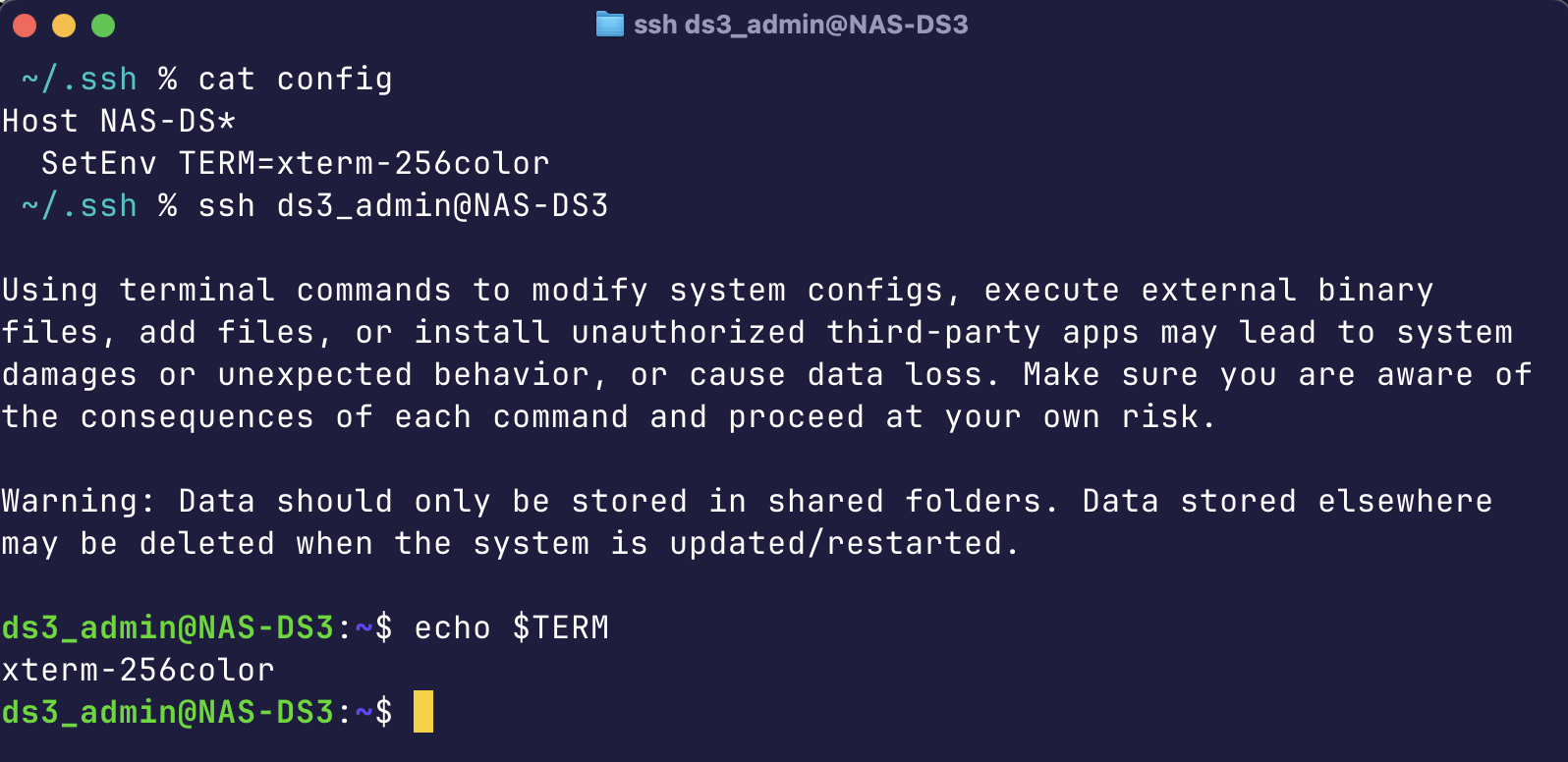
Nice. If I had hundreds of these to deal with, that’s definitely the solution I’d be going for. Also, if you’ve come here because you had this exact problem stop here. This is the best you are going to do.
Installing the terminfo
The alternate approach is to extract the xterm-ghostty terminfo off the current machine (in my case a MacBook) to the other host, and compile it into the available terminfo’s there. This seems more invasive, but it’s a per user thing and can be reversed.
The command given in the Ghostty docs is:
infocmp -x xterm-ghostty | ssh YOUR-SERVER -- tic -x -
Let’s try it:

This is not that surprising - Synology DSM is minimal (I think it uses busybox) so it’s missing lots of these commands. You might think that’s okay, I’ll compile it on this machine then scp it across. That would be something like this:
infocmp -x xterm-ghostty > xterm-ghostty.src
tic -x -o ./terminfo xterm-ghostty.src
scp -r ./terminfo/78 ds2_admin@NAS-DS2:~/.terminfo/
But that won’t work because you don’t have scp on the Synology either. So perhaps you think you’ll enable rysnc in the NAS GUI and rsync the file in:
rsync -av ./terminfo/78 ds2_admin@NAS-DS2:~/.terminfo/
Which will copy the file over, but it still won’t work. It’s just too minimal.
I imagine this process works for other distros or it wouldn’t be in the Ghostty docs. But it does not work for Synology NASs in 2025.