Moving a VM between two Proxmox hosts
16 Feb 2023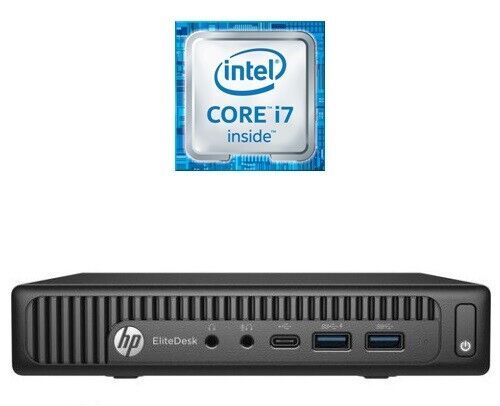
So, the very small datacentre has undergone a major hardware upgrade today. The HP 800 G1 is joined by an HP 800 G2. Four core i7 vs the old two core i5. Double the RAM to 16GB, four times the disk. The old machine will become a dev/play machine - still virtualised, and the new machine will run the production apps, mostly in Docker containers.
Since everything is containerised, I did consider running Unbuntu Server on the bare metal of the new machine, but running it on Proxmox will give me some flexibility, and since we’ve stepped up the underlying hardware resource so substantially, performance will be well in front anyway. Plus it will give me some flexibility if needed in the future.
Another massive benefit of virtualisation is the ability to backup a VM to a single file.
I’ve invested several hours in the old server - downloading ISOs, updating everything, installing Docker, adding my containers, reserving the IP addresses in DNS and so on. Wouldn’t it be amazing if I could stop my main VM, back it up, copy the backup to the new server, then boot it there and have every thing just work.
In theory this should be entirely possible. So let’s give it a go.
In the Proxmox web interface, you can execute a backup on a VM. There’s three flavours with STOP being the most reliable as it actually stops the VM to grab it’s copy. On this system I can easily afford to stop everything for ten minutes so I’ll actually be shutting down my VM and doing this sort of back up. We do this by clicking on the VM, then selecting backup. At the top is a backup button.
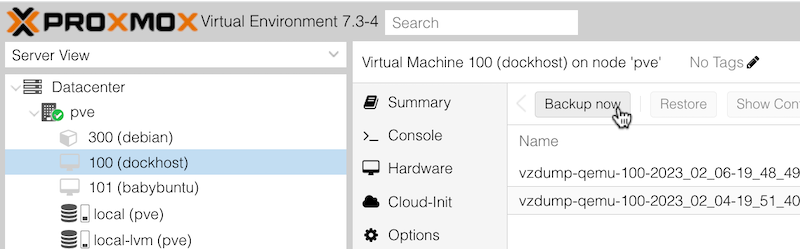
Once you’ve done your backup it appears in a couple of places in the web interface - in this backup screen associated with the VM, but also if you select the local disk then backup.
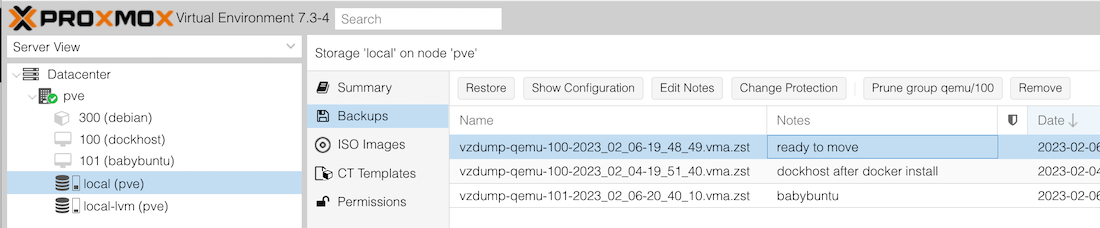
So that’s my VM nicely backed up into a single tarball, now I want to download it. I really feel the Proxmox interface should have buttons for Download and Upload on this screen - that would make this operation even easier. But it does not.
The first problem is to find where these files are stored. Thanks to u/walalauw’s answer in this reddit thread , it sounds like they are at /var/lib/vz/dump I head there in FileZilla, and find:
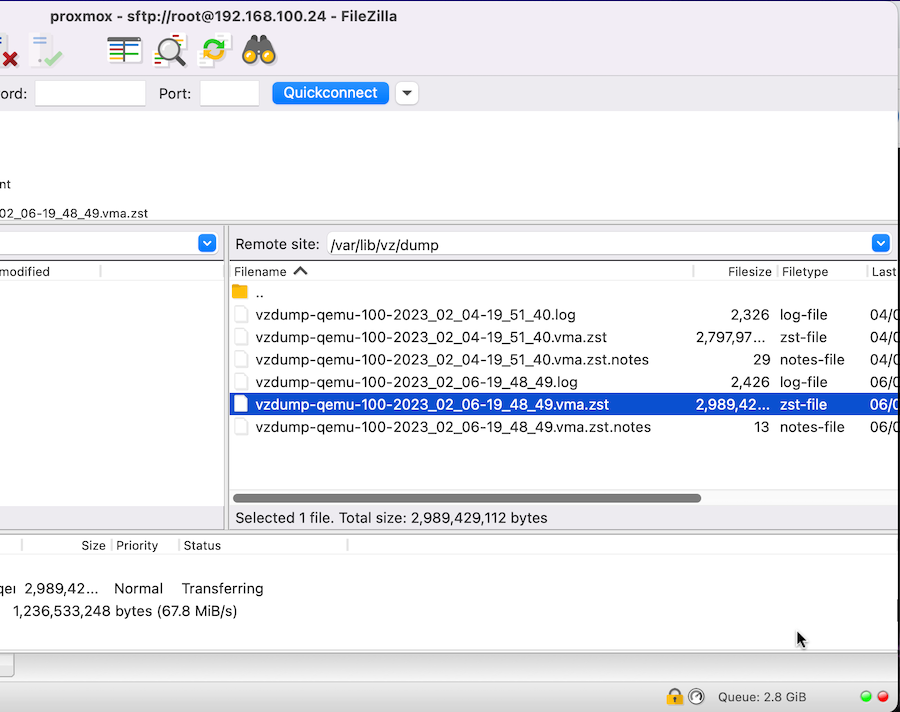
You only need the .zst file, but neat freaks can grab the the .notes as well. It contains the text you wrote for the backup - in the previous screenshot you can see I’d written “Ready to move” for this one.
Copy this file somewhere - I copied it one to my local machine, then from there to the new Proxmox (same /var/lib/vz/dump directory) since I was using FileZilla, but a hardcore scp user would have gone direct between the two servers and saved a bit of time.
Now on the new server, I can see my backup! All you do then is select it and hit the Restore button.
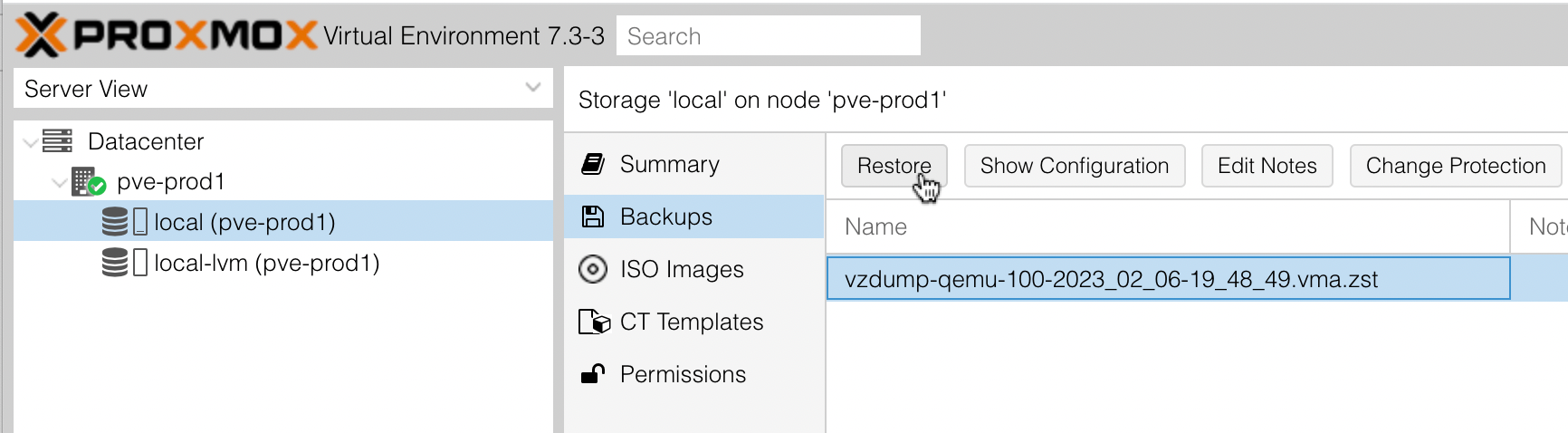
A minute or two later, the VM “dockhost” is in the list. I press Start, and it boots, my containers all start. And magically, amazingly it all works perfectly.
If I wasn’t already sold on virtualization, this would definitely sell me on it. I understand there are other ways of moving VM’s between hosts, but this is hard to beat for simplicity if you can afford the downtime. This was the first time I’d ever done this, and I was stopping to screenshot things along the way. From the time I stopped the VM, to the time my last container went green was only nine minutes.