Moving from Docker volumes to bind mounts
5 Aug 2024
When I started with Docker, the docs seemed to suggest that using Docker volumes was a good thing. With a Docker volume, you just create the volume and Docker manages the rest. You don’t have to worry about where it is, or really ever think about it.
Here’s a docker-compose for Uptime Kuma using a volume.
services:
  uptime-kuma:
    image: louislam/uptime-kuma:1
    container_name: uptime-kuma
    volumes:
      - kuma_data:/app/data
    ports:
      - 80:3001
    restart: unless-stopped

volumes:
  kuma_data:
This is telling Docker we want to create a volume called “kuma_data” and then map it into the container file system at /app/data
I don’t love this for a couple of reasons. The first is that I don’t know how to back that volume up - although this is a commonly quoted reason for using them. And the second is that, in order to make moving containers around easier, I have settled on a sort of standard setup. All Docker containers are in a subdirectory in my home directory where the subdirectory is their name. In that subdirectory is a docker-compose file to manage them, and a further subdirectory named ‘data’ that holds all their data.
For example, here’s my Jellyfin directory. The Jellyfin docker container needs two ‘volumes’ - config and cache:
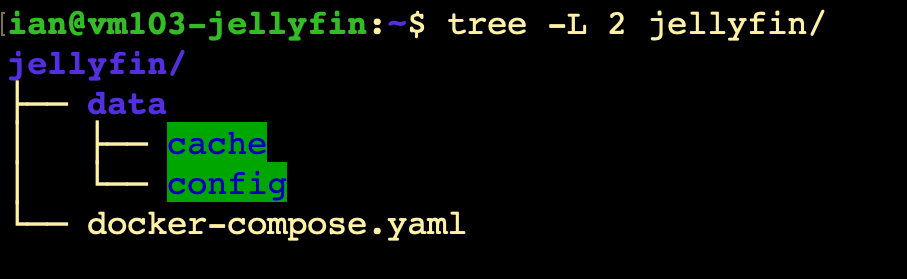
So if I ever needed to move this somewhere, I could docker compose down, then rsync the whole directory somewhere, then docker compose up -d, and I’d be in business.
Instead of using Docker volumes, I’m using ‘bind mounts’ to those sub-directories. The docker-compose is not more complicated, if anything, it’s simpler since we don’t need the volumes part at the bottom.
services:
  jellyfin:
    image: jellyfin/jellyfin
    container_name: jellyfin
    network_mode: host
    ports:
      - "8096:8096"
    volumes:
      - ./data/config:/config
      - ./data/cache:/cache
      - /mnt/media:/media
    restart: unless-stopped
Pros and Cons
Many people and projects prefer Docker volumes. My system of just using bind mounts might increase the likelihood of me breaking something by monkeying around with the files - and volumes reduce that possibility since they’d be hidden away somewhere and I guess owned by root. There are also some performance considerations if running under Mac or Windows since Docker Desktop in those cases is really running your container on a VM, and if you let it manage the volumes it can do so in the native file system.
Another downside is that bind mount locations are not automatically initialised in the same way as volumes.
Nevertheless, for my use, I like to use bind mounts and keep everything together.
Moving advice
Since I started with volumes, I now needed to be able to change over to using bind mounts, and the first advice I googled up (such as here and here ) made it sound like it was going to be complicated. The advice was that the hidden file location of the volumes in the host system had some sort of magic about it and we needed to use a docker cp command to access it or create a temporary container with the named volume and the bind mount you want to move it to, then copy the data across from inside that container.
Ignoring advice
As long as the container is stopped when you access the files, I can’t see why we can’t just copy them as normal. Of course, I could be totally incorrect about this, but I’ve done it a number of times now, and not had any disasters. Of course, I always snapshot the VM before I start in case it doesn’t work, and you should as well. If you like to yolo your production data, here’s how.
Where is it?
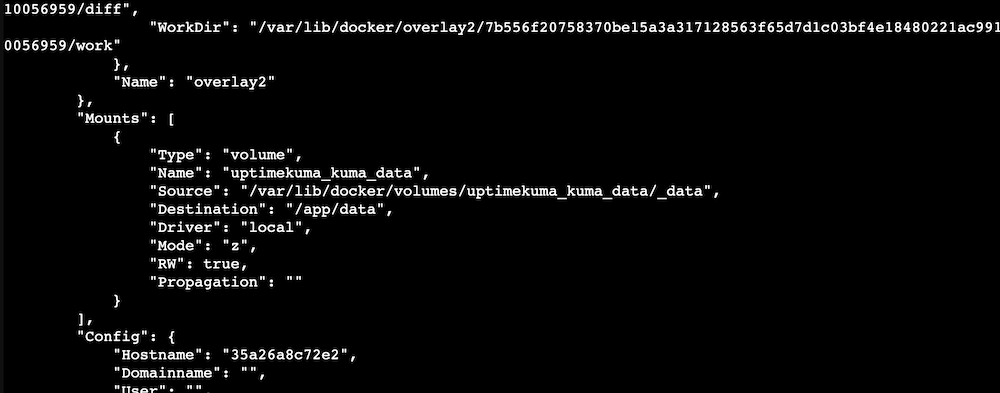
To find the actual location of the data in the host system, use the docker inspect command on the running container. You’ll get a bunch of JSON. About a third up from the bottom of that there’ll be a section called “Mounts” that will have the real location for each volume. (if you’re looking at a “Mounts” section that doesn’t have the “Source” line, scroll down a bit).
Copying
Next thing, I’ll make a data sub-directory for it. mkdir ~/uptimekuma/data
The (with the container stopped), copy the data over.
sudo cp -a /var/lib/docker/volumes/uptimekuma_kuma_data/_data/. ~/uptimekuma/data
After checking that’s actually worked, I’ll kill the volume. We need to get the volume name first if you haven’t figured it out from the location path.
ian@ct390-test:~/uptimekuma$ sudo docker volume ls
DRIVER    VOLUME NAME
local     uptimekuma_kuma_data
ian@ct390-test:~/uptimekuma$ sudo docker volume rm uptimekuma_kuma_data
uptimekuma_kuma_data
Now we’ll need to update the docker-compose.yaml file from the top of this post so it bind mounts the sub-directory that we’ve copied to instead of the named volume.
services:
  uptime-kuma:
    image: louislam/uptime-kuma:1
    container_name: uptime-kuma
    volumes:
      - ./data:/app/data
    ports:
      - 80:3001
    restart: unless-stopped
Once that’s done, docker compose up -d should get things running. And now we have a nice situation with the docker compose and all the data for the container together in one spot.