Proxmox VM Memory Upgrade
19 Mar 2023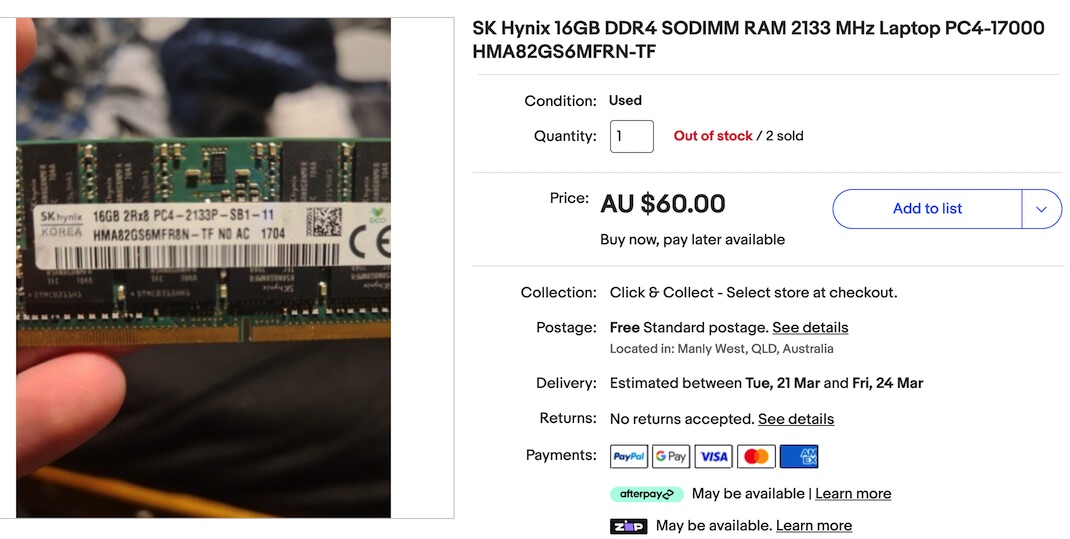
I ordered some RAM this week for my production server - it’s quickly becoming clear that memory is the limiting factor when running lots of services and VM’s that don’t get much use - rather than processing power. I’m not really a hardware guy, so figuring out exactly what RAM I need is a slightly fraught process - I won’t be fully confident I’ve ordered the right thing until I install it, boot up, and see my G2 800 come to life maxed out at 32GB.
Something that’s not fraught however, is upgrading the RAM in a virtual machine (VM) running under Proxmox .
RAM Hunger
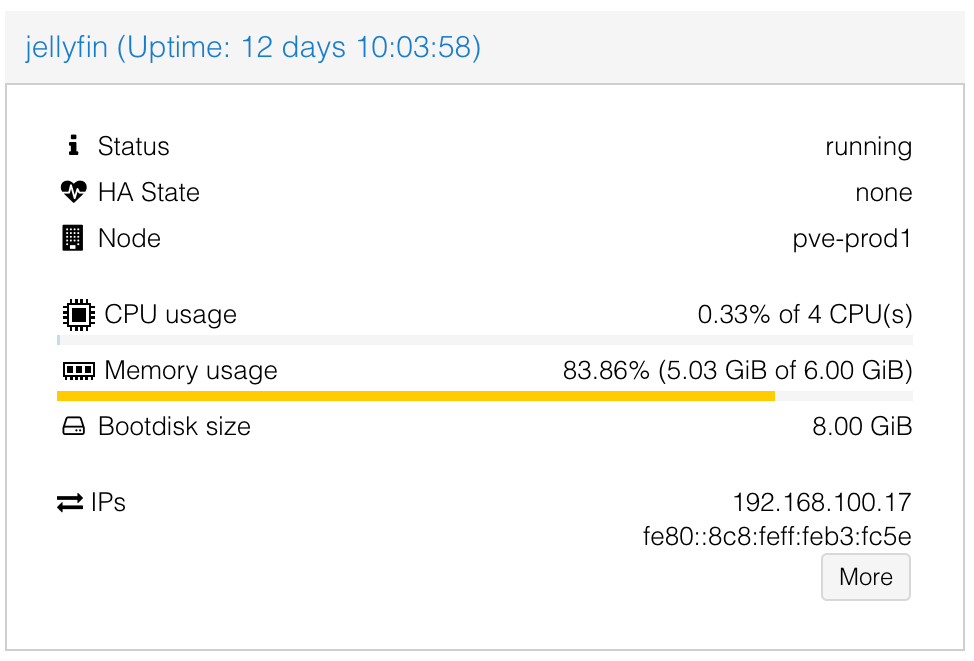
I run two VM’s full time on the production node - a general docker host for a variety of small services, and a separate VM for Jellyfin . I’d allocated 6GB for this VM, but when I checked tonight ProxMox was reporting that 5GB was already being used.
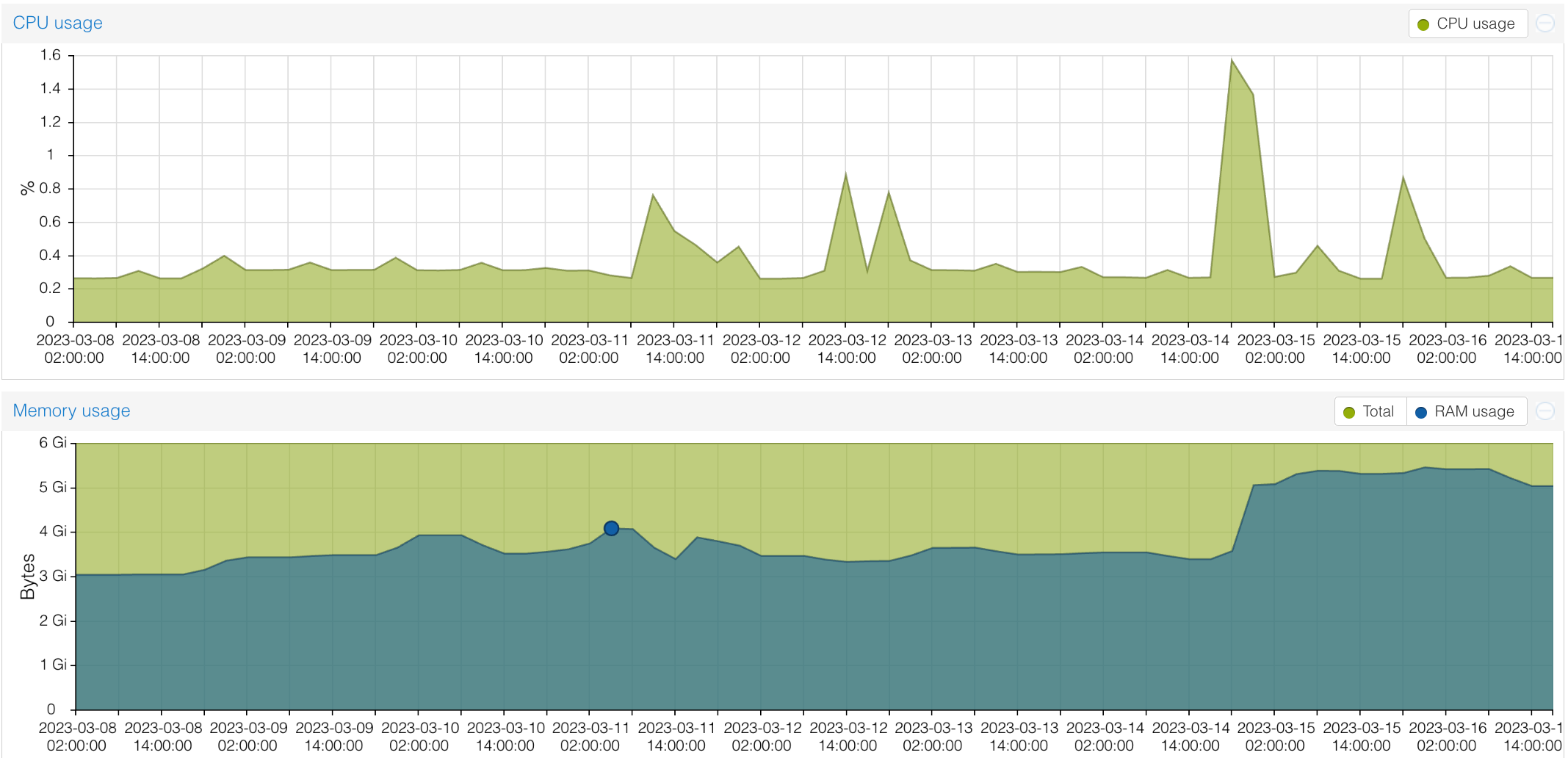
I have noticed that the Jellyfin memory usage seems to slowly grow over time. That might be related to my current usage pattern - I’m frequently re-scanning the libraries as I check and update the metadata.
In any case, it needs more RAM, and I’ve got some up my sleeve on this physical machine so let’s allocate some more to the Jellyfin VM.
Normally, you specify the amount of RAM to allocate when you’re creating the machine, but it’s quite straightforward to change it afterwards. With your VM selected, click into the “Hardware” page. Then if you double click on “Memory” a dialogue will open up to
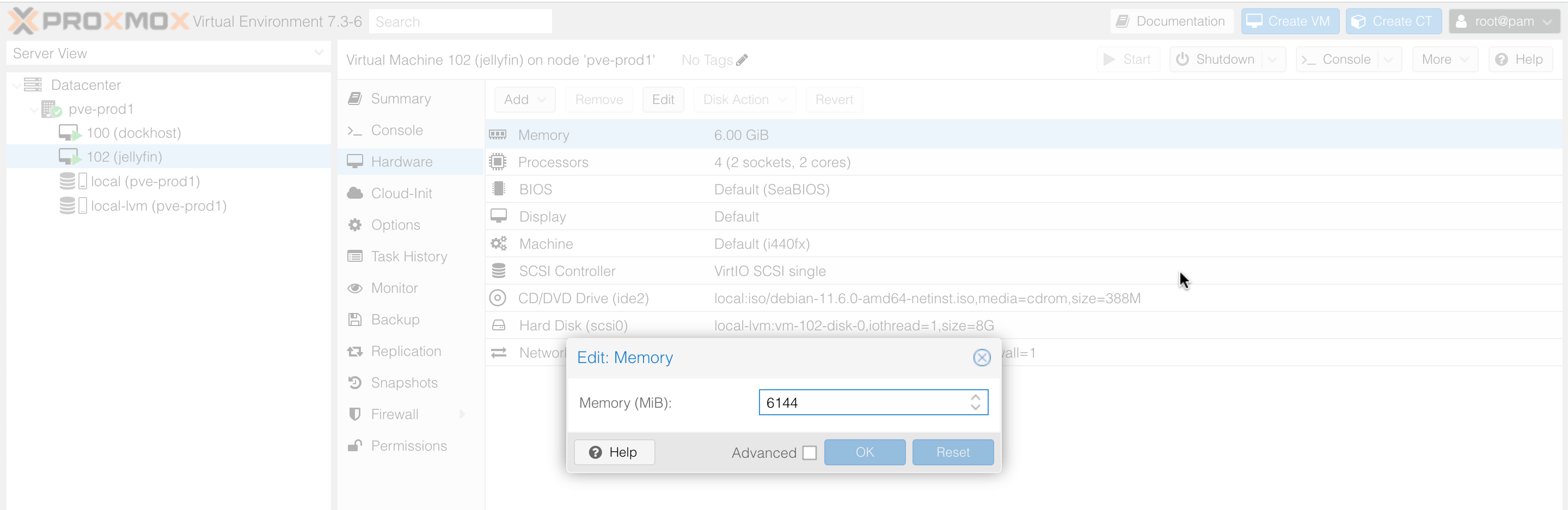
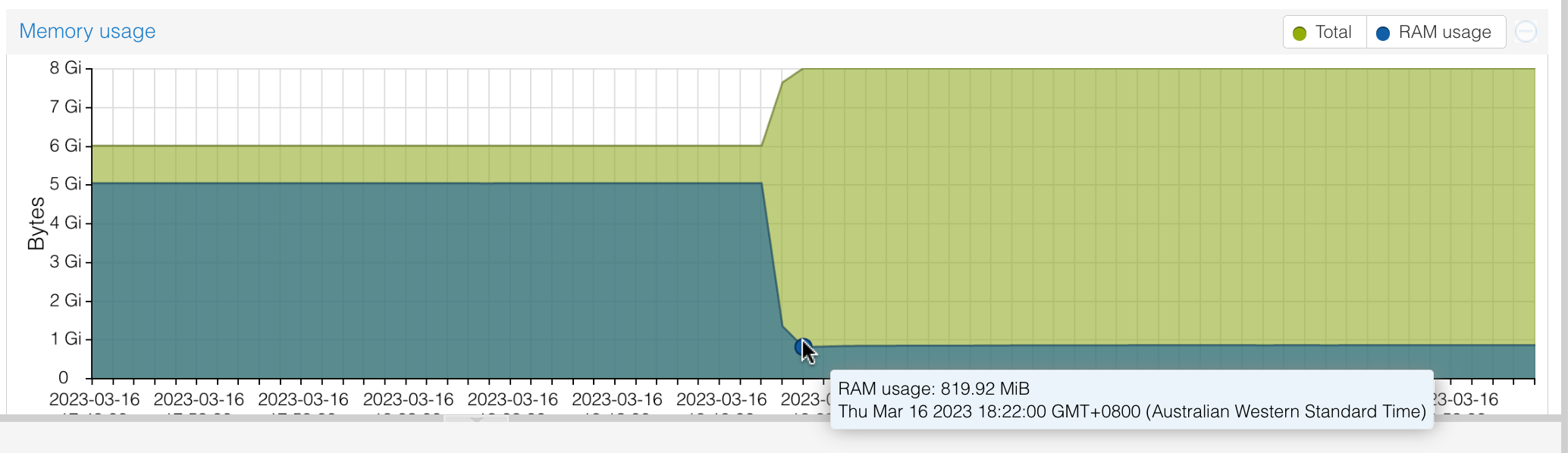
You can just edit this number, in MB. Once you OK it, there will be two values listed for memory in the Hardware specs. The first is what the VM is running with now, and the second, orange value is what you are changing it to. In my case, I’ve bumped it up to 8GB from 6.
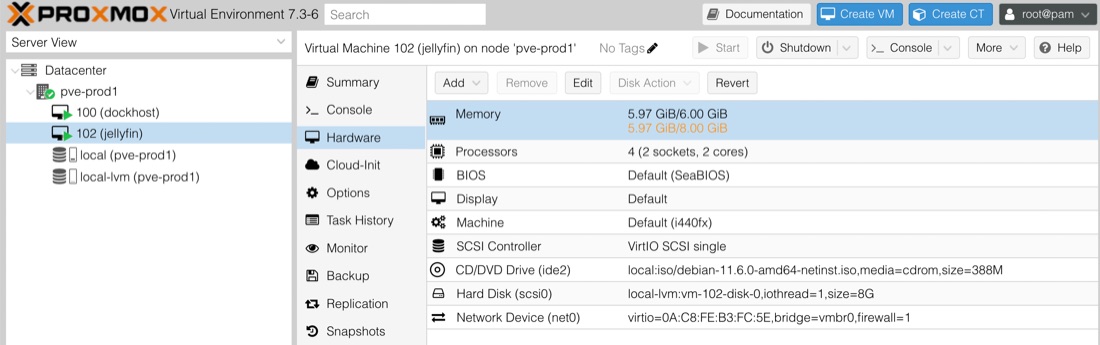
It’s not possible to change the memory dynamically - it requires a reboot. Of course, rebooting the machine also restarts Jellyfin, so after the reboot we have plenty of headroom.