Recursive list of files in Linux
8 Mar 2023
I’ve spent a few hours over the weekend migrating a media library from an external USB drive to the NAS, and in the process reorganised it, and in many cases bulk changed file names. I’ve also added a heap of metadata.
I’d like to check that I haven’t missed any files, but a side by side listing of each data source won’t do the trick, so I’ll probably end up pulling the data into a spreadsheet, but I’d like to get as close as possible with Linux-fu first.
Before I go over my trial and error, and eventual solution, here’s how I’ve set up my test data for the examples. I thought I’d better start with something simple and small for testing commands.
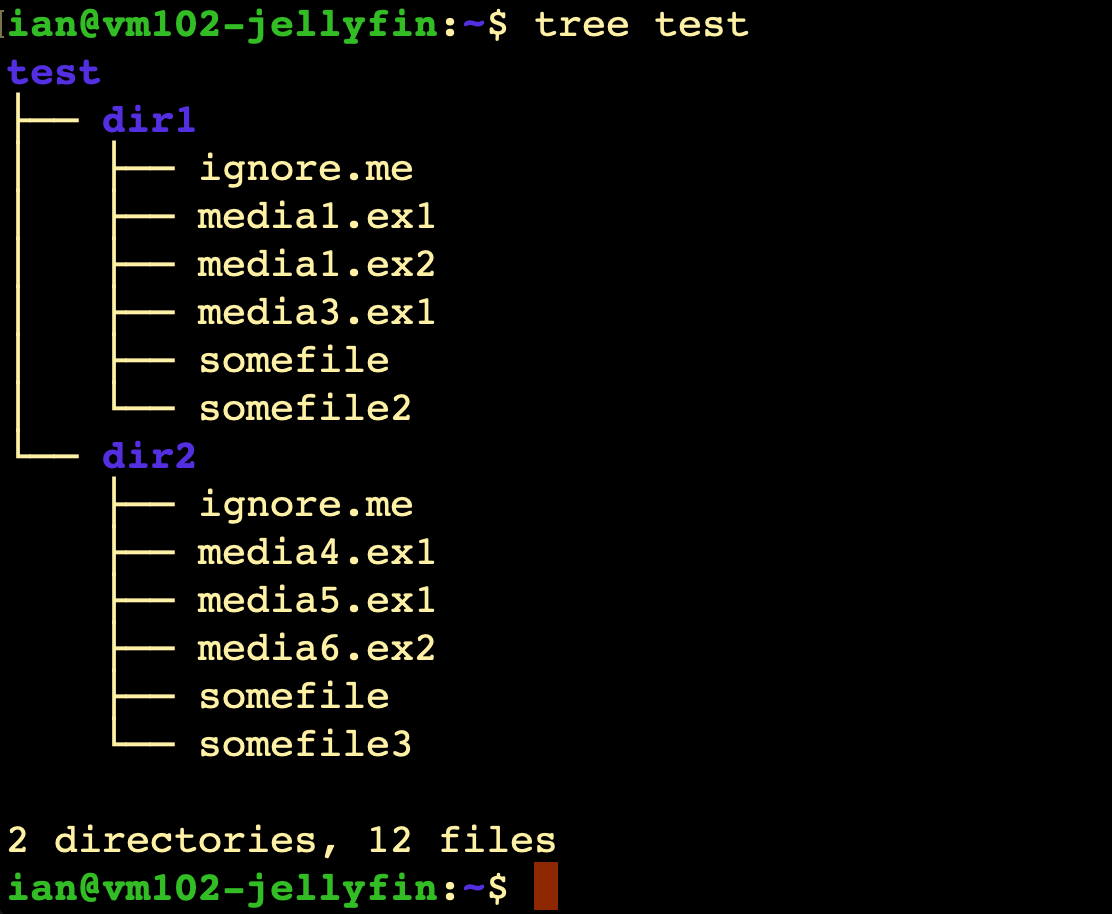
This is actually the output of the tree command on a test directory I’ve created in my home directory. (I had to install it - sudo apt install tree).
What I need to end up with is something that recursively lists all the files, with one file per line, and it needs to include the directory tree to reach it. I should be able to pipe it through something to ignore lines that are just directories (and any other fluff).
ls
My go to for listing files is ls -all, perhaps than can help us? It lists one line per file (along with permissions etc), so if we add -R for recursive, that could be it. Here’s the output for ls -all -R test
test:
total 16
drwxr-xr-x 4 ian ian 4096 Mar  6 16:36 .
drwxr-xr-x 4 ian ian 4096 Mar  6 16:36 ..
drwxr-xr-x 2 ian ian 4096 Mar  6 17:01 dir1
drwxr-xr-x 2 ian ian 4096 Mar  6 17:01 dir2

test/dir1:
total 8
drwxr-xr-x 2 ian ian 4096 Mar  6 17:01 .
drwxr-xr-x 4 ian ian 4096 Mar  6 16:36 ..
-rw-r--r-- 1 ian ian    0 Mar  6 17:01 ignore.me
-rw-r--r-- 1 ian ian    0 Mar  6 17:00 media1.ex1
-rw-r--r-- 1 ian ian    0 Mar  6 17:00 media1.ex2
-rw-r--r-- 1 ian ian    0 Mar  6 17:01 media3.ex1
-rw-r--r-- 1 ian ian    0 Mar  6 16:36 somefile
-rw-r--r-- 1 ian ian    0 Mar  6 16:36 somefile2

test/dir2:
total 8
drwxr-xr-x 2 ian ian 4096 Mar  6 17:01 .
drwxr-xr-x 4 ian ian 4096 Mar  6 16:36 ..
-rw-r--r-- 1 ian ian    0 Mar  6 17:01 ignore.me
-rw-r--r-- 1 ian ian    0 Mar  6 17:01 media4.ex1
-rw-r--r-- 1 ian ian    0 Mar  6 17:01 media5.ex1
-rw-r--r-- 1 ian ian    0 Mar  6 17:01 media6.ex2
-rw-r--r-- 1 ian ian    0 Mar  6 16:37 somefile
-rw-r--r-- 1 ian ian    0 Mar  6 16:37 somefile3
So we get one line per file, but the directory is on it’s own at the beginning of each directory listing.
find
Based on this post , there is a command, find, that might do what we want. The simple version would be find test (remember test is the directory name).
ian@vm102-jellyfin:~$ find test
test
test/dir2
test/dir2/ignore.me
test/dir2/media4.ex1
test/dir2/somefile
test/dir2/media5.ex1
test/dir2/somefile3
test/dir2/media6.ex2
test/dir1
test/dir1/media3.ex1
test/dir1/ignore.me
test/dir1/somefile
test/dir1/media1.ex1
test/dir1/media1.ex2
test/dir1/somefile2
Well that is real close, but there’s no way to discern between a file and directory. In that same post, it;s suggested to use the -ls option to see some more detail. Let’s try find test -ls
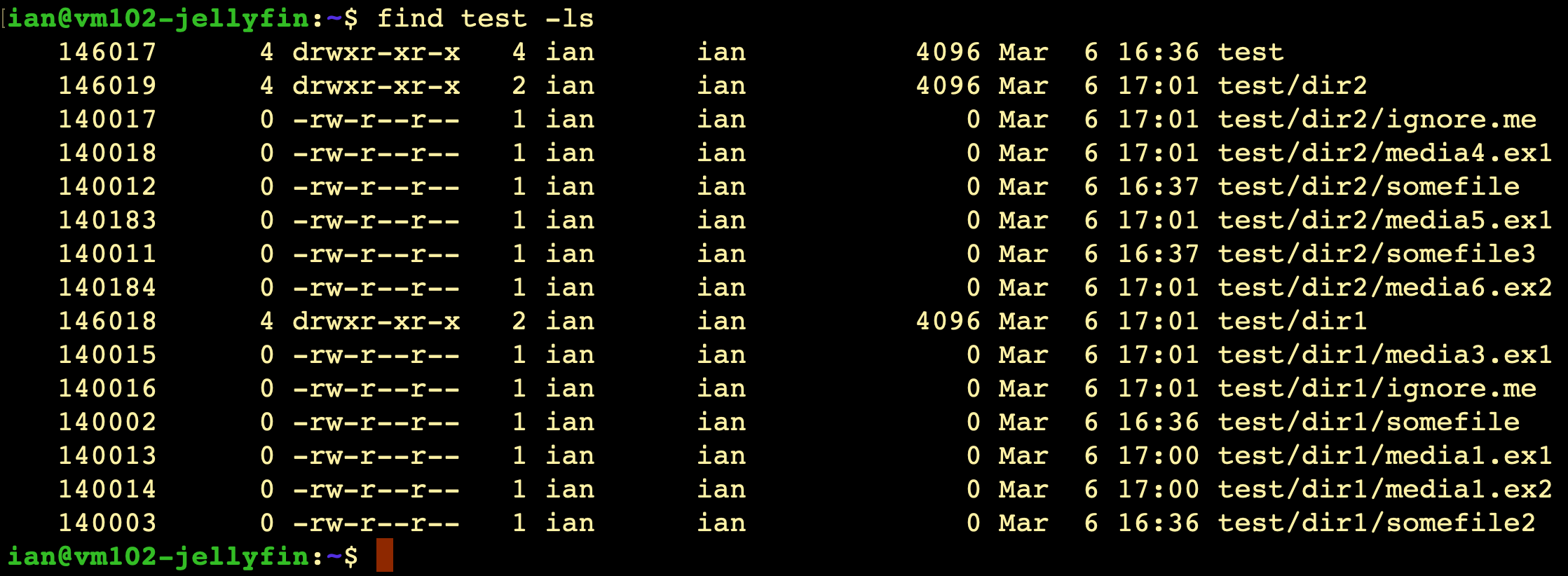
This looks pretty close. If there was someway of using that ’d’ in the first position of the permissions output to eliminate those lines, we’d be well on our way. I have a feeling this is a grep question. I have some basic grep, so for example I know I could pull all of those directories with find test -ls | grep ' d', or even invert it with the -v flag to get just the files (which is out eventual goal).
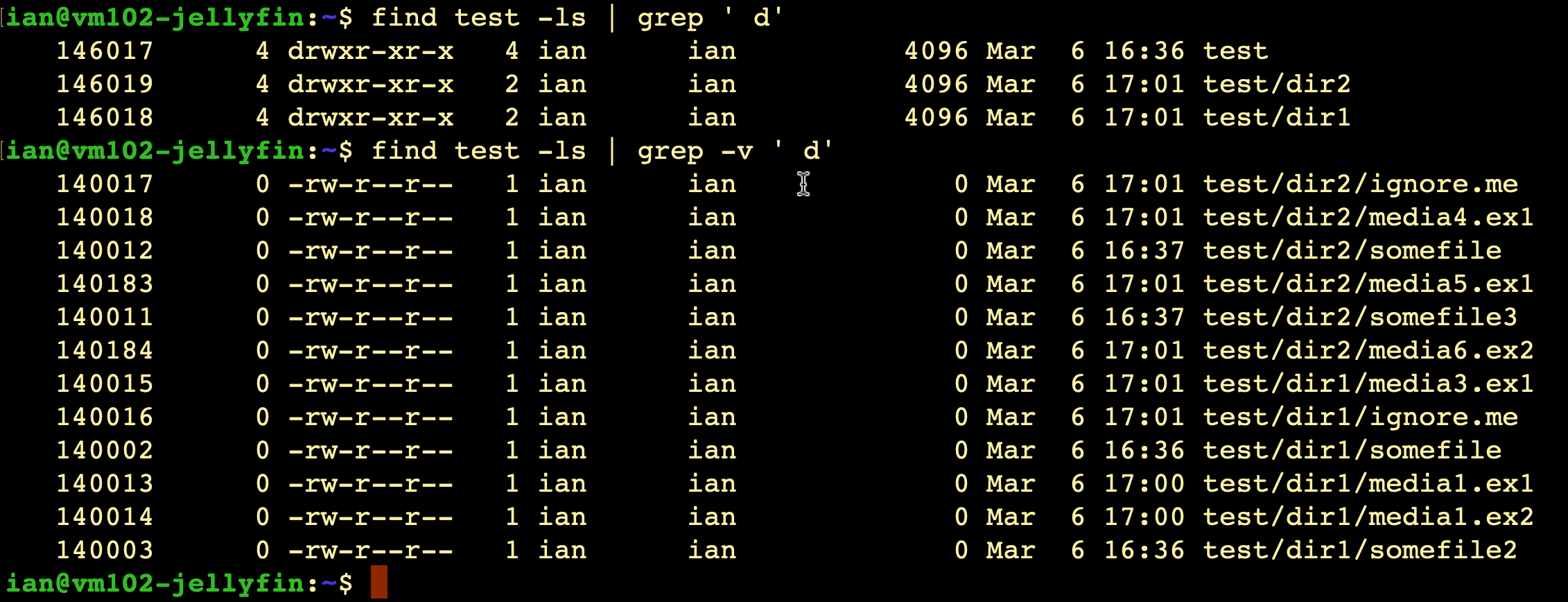
However, this is pretty hacky. A space followed by a lowercase could easily occur in a filename. What I really need to do is look at just that column which I think is character number 18. Off to Stack Exchange I guess…
grep with regex
Okay, it turns out we can use regex with grep. I’m no expert in that either, but in regex the caret ^ represents the start of the line, a fullstop represents any character, and we can repeat that however many times we want by following it with a number in (escaped) curly braces. Something like '^.{17}d' should do it.
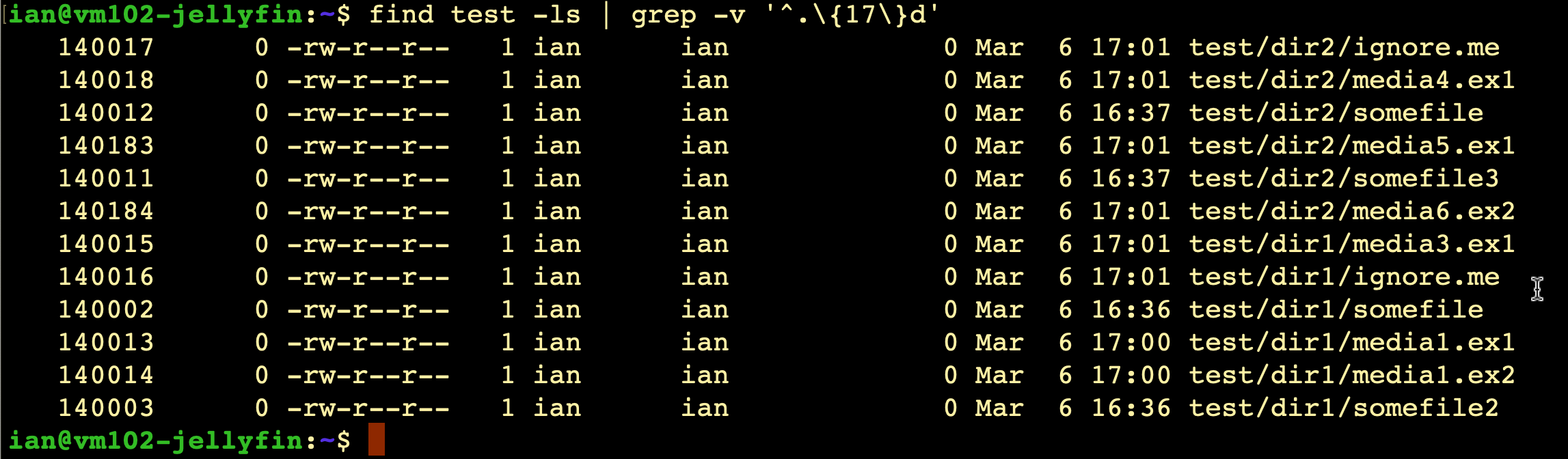
Okay! We’re getting close. I also want to ignore all the metadata and just see the media files. This can be determined by the extensions - probably .avi .mp4 .mkv .mv4. With this test data, we’ll pretend it’s .ex1 and .ex2
Combining grep tests with logical or
I guess I could build some sort of super regex combined with the first one, but I’m only dealing with thousands of files, not millions so the extra overhead of piping through another grep is not going to be a drama, and I can simplify my work. In the same way that the caret ^ marks the start of a line, the dollar $ marks the end of it. So to just get the .ex1 files something like '\.ex1$' should do it. The backslash at the start is to escape the period, because here we want that to mean a literal full stop, and not a wildcard for any character.

Nice, but remember I’ve got a big list of extensions, so I need to logical or a few together. This is done by putting the expressions with a pipe between them. I had a couple of goes at this with no luck and that familiar feeling of being out of my depth with regex. However, there’s a grep way out of this, because the grep flag -e allows us to OR matching expressions.

We’re definitely getting somewhere. You might think at this point that the chance of a directory name ending in .mp4 or one of the other media extensions is no low we could ignore it, and you’d probably be right. But as a matter of programmer pride, I never like to leave a future problem, so I’ll be keeping the directory rejecting grep. So now my command looks like:
find test -ls | grep -v '^.{17}d' | grep -e '\.ex1$' -e '\.ex2$'
Any experienced regex people would be pointing out the match for .ex1 .ex2 can easily be merged into a simple expression, but remember when I do this for real I’ve got a list of more complex extensions to test for.
cut
All that text at the beginning of these lines is not needed. Surely I can trim that off somehow? Yep - there’s a command cut that does exactly that. The -b flag specifies which byte to extract, and this can also be a range. putting a dash after the position number says to output all of the bytes after that position. So if we applied cut -b 5- to the string 123456789, the output would be 56789

Bingo. Just one more problem. In my data, I have a heap of files with a valid extension but I want to exclude them based on their file name. Every directory with a movie has a trailer named trailer.mp4, so I need to eliminate them. To simulate this, lets add in another extension with our test data.
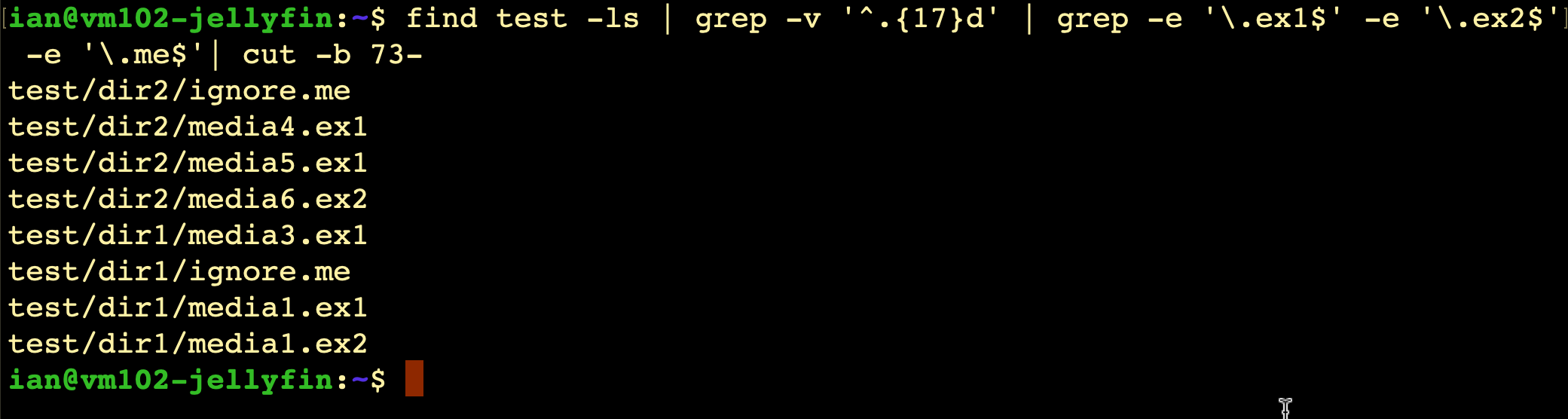
So I want to take out the lines that include ‘/ignore.me’. I should be able to do this with another grep -v regex on a line end. Something like grep -v 'ignore.me$'
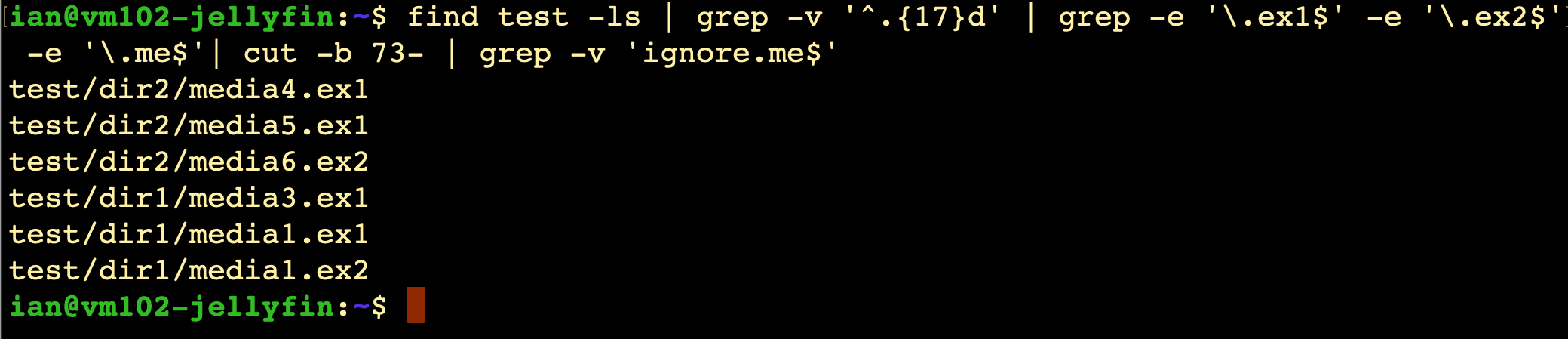
And we’re done! I’ll just direct this into a file, run it on both disks and pull them into Excel to separate the file names and directories, and sort them to compare.