rsync basics
26 Mar 2023
I’ve started down the path of improved storage management, including embracing the 3-2-1 mantra. I’ve settled on a RAID6 NAS for local, mirrored to an off-site NAS, and an offline local USB drive.
While I’ve been setting those up, my services have been live, so files have been changing on my main storage, which I’ve then switched to the bigger NAS, and I’ve been trying to keep data in sync by remembering what changes have been made where, and manually replicating them. That’s not sustainable and not the plan.
Beyond Compare
Many years ago, on Windows, I paid for a file/text comparison app called Beyond Compare - it says on their website that these are perpetual licences, and I’ve had many years of value out of it. I think I bought it about the same time I dabbled in version control thanks to the excellent book Code Complete (this link is to the second version, but I’ve had both over the years).
If you have to do manual syncing jobs between different directories or machines, this is an excellent graphical tool to do that with. I have never tried any other software because it’s always just done exactly what I needed with no hassle. Highly recommend.
However, doing things manually is no way to do backups - you need a setup that runs without human intervention so it actually gets done.
rsync
I never fail to be amazed at the substantial but unassuming command line tools from the Linux world, and this is another one. rsync is perfect for this specific job - of keeping my remote backup in sync with the production storage. Here’s a few examples of how it works.
Let’s say I’ve got two directories in my home folder called localdir and remotedir. localdir has some files in it and I want them copied to the remotedir. rsync can do that for us with this command. The -a flag does a few things, including recursing into directories and preserving some of the file attributes when it copies files. I found if I didn’t do this, and just used -r for the recursion, rsync’s system for checking for changes didn’t work.
rsync -a localdir/ remotedir

Okay, that’s not impressive, I could have done the same thing with cp to copy those files. And actually I could do that for my remote backup as well, except there’s no point burning up resources for copying identical files on top of each other. Really we just want to copy the files that have changed, or new files that have been added.
Let’s try that by editing file1.txt, and adding a new file0.txt
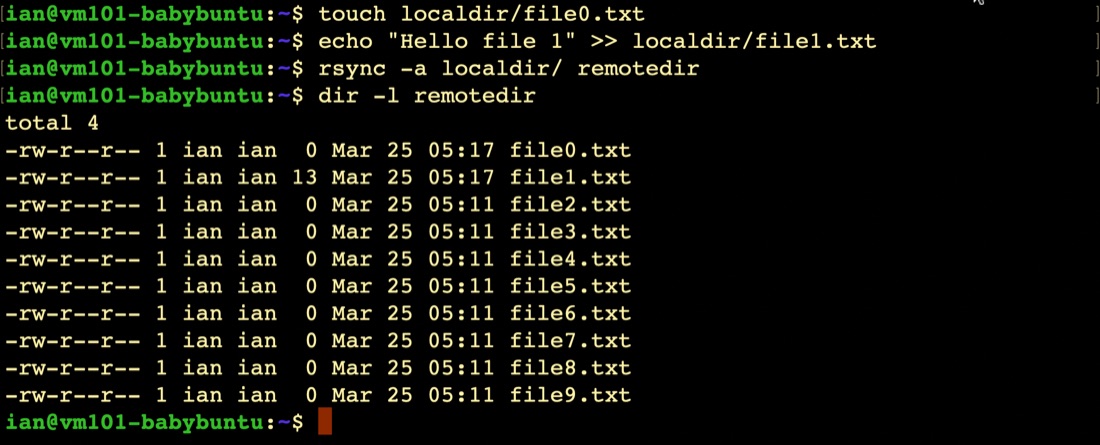
You might be thinking that perhaps rsync really is just copying all the files again. We can add a couple more flags to get rsync to tell us what is getting copied (-v for verbose, and -i which gives some output explaining how it decided a file needed copied.
Without making any changes, let’s re-run the rsync with those flags. We shouldn’t see any files updated.

So no files transferred, but if we edit a one and change the timestamp on another one, that should trigger a couple of files to be copied.
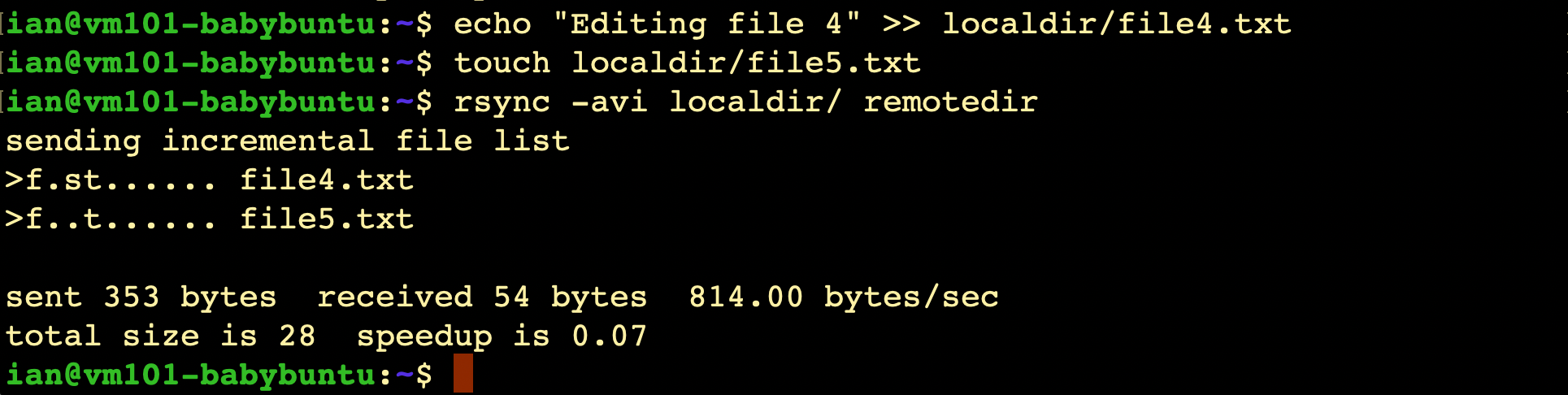
The optimisation in rsync extends further than just copying the files that have changed, the man page says “It is famous for its delta-transfer algorithm, which reduces the amount of data sent over the network by sending only the differences between the source files and the existing files in the destination.”
Deletions
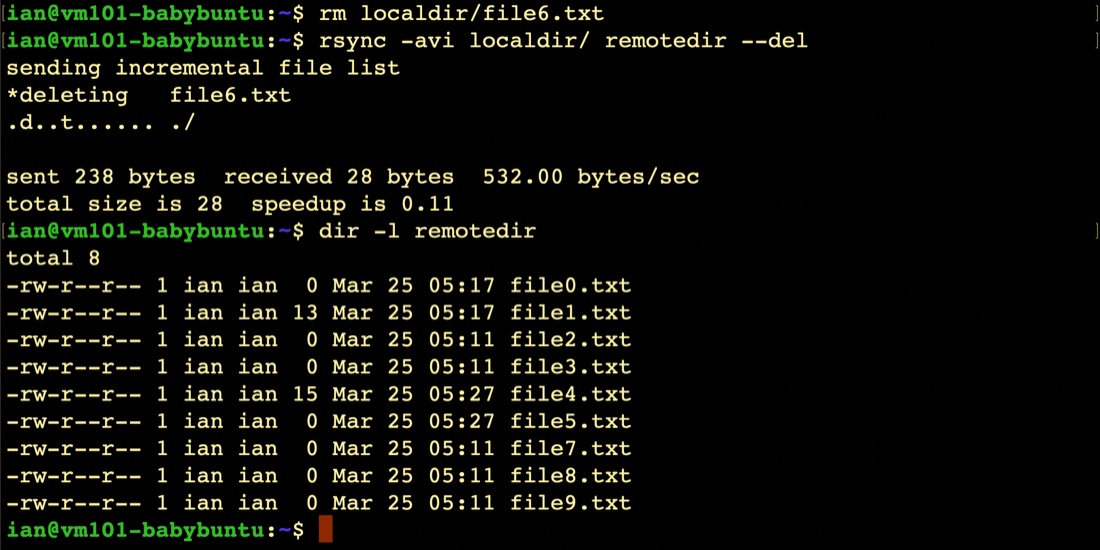
So that covers copying most of the changes in the source, but what about if a local file is deleted, does that propagate to the destination and delete the file there? Naturally, there is also an option for this; simply add --del to the end of the command:
Remote hosts
So far, all of these examples have been between directories on a single instance. What about on a remote machine? There’s a couple of steps.
First, the machine where the rsync is being executed must have ssh access to the other machine. This is just the usual ssh setup - ssh-keygen some keys if you don’t have any, then copy them over with ssh-copy-id and we’re ready to go
The second part is to add an ssh like address to the remote directory. So instead of just
rsync -avi localdir/ remotedir --del
it will be
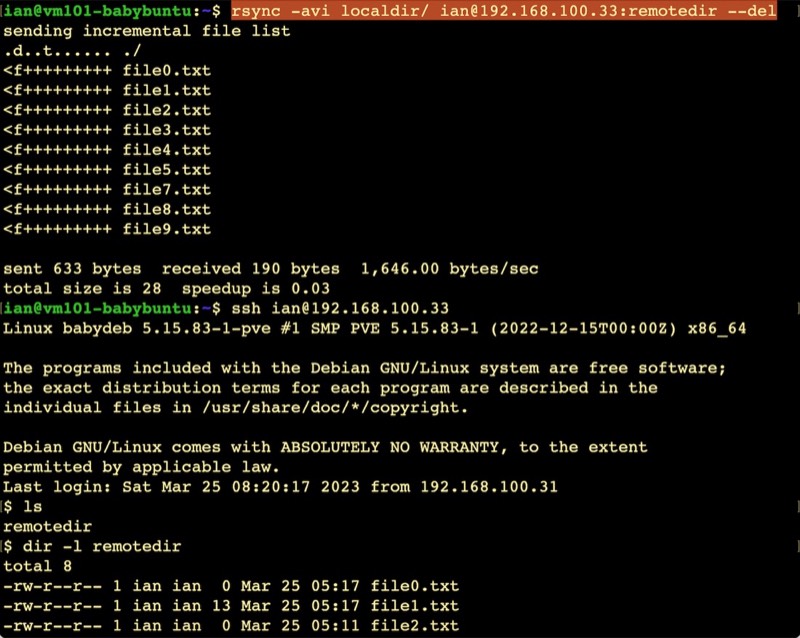
rsync -avi localdir/ ian@192.168.100.33:remotedir --del
Before I’ve run this, I’ve sshed in and created the directory remotedir on the target machine, but then it’s simple as
Reading
To figure all this out, I’ve leaned heavily on this tutorial “How To Use Rsync to Sync Local and Remote Directories ” from Digital Ocean, and for the stuff about deleting remote files when they are deleted locally, on this Stack Exchange question.
The source of truth, is the surprisingly readable man page .