rsync between Synology NAS
30 Sept 2024A while ago, I devised a complicated system where I could drop files in a web interface running on an LXD container and the files would then magically appear in a directory on a remote NAS in the morning. It turned out to not be very robust, and I gave up on it after a while.
Also, really there should be no need for it - underneath, it was just using rsync to move the files, so why not just do that direct from one NAS to another? Well, mainly because my NASs are all Synology - which I love, and they’ve been great, but in an effort to make them usable by muggles, Synology tend to somewhat complicate things for Linux command line wizards.
It turns out to be totally possible to command line rsync, including doing it over Tailscale, but there’s a couple of gotchas along the way.
rsync the Synology way
A reasonable question would be why didn’t I use the Synology rsync user interface to do all this - it’s right there in Control Panel / File Services? I did actually look at doing that, but after five minutes I couldn’t figure it out, so yeah na. It’s the command line for me.
Steps
The plan for the rest of this post is just to run through, in approximate order, the steps you’ll need to take to get rsync working from the command line to sync files between two synology NASs. It’s probably also helpful between a real system and a Synology NAS. I’m going to talk about the ’local’ NAS (where we’ll be running the rsync command) and ‘remote’ one. This is just for convenience - you might have two local or two remote NASs - I don’t judge. I’m just calling mine ’local’ and ‘remote’ for this post that so you know which device I’m talking about.
ssh
rsync works over an ssh connection, so you need to be able to ssh from one NAS to another without entering a password first. To test it, ssh into the local NAS, then without logging out, ssh into the remote NAS from the local one. If that works without asking for a password you’ve completed this step and can just ctrl-D to drop back to the local NAS.
If the issue is that it asked for a password, that just means you need to install your public ssh keys on the remote. I usually do this with the ssh-copy-id command on regular Linux, Mac and BSD systems, but that’s not available at the Synology command line so we’ll have to do it the old fashioned way.
Anything to do with ssh is stored in a hidden directory, .ssh in a user’s home directory. For example you can check you’ve got public keys with:
ls -la ~/.ssh/id_rsa.pub
These are the keys you want to add to the remote NASs authorised keys, so we’ll use ssh (with a password) to add them to the end of that file:
ssh <user>@<remote NAS address> 'cat >> ~/.ssh/authorized_keys' < ~/.ssh/id_rsa.pub
You need to substitute your remote NASs username and address, so mayby it would look like this:
ssh nas1_admin@83.78.2.105 'cat >> ~/.ssh/authorized_keys' < ~/.ssh/id_rsa.pub
When you execute this, it will ask for the remote password, but once it’s worked you should be able to ssh in and it allows that without using a password.
Tailscale out
Perhaps you didn’t get as far as needing the ssh password, because when you tried to ssh to the remote, ssh didn’t even recognise the domain. If you are using Tailscale to connect your devices (which I recommend) then there are two tricks needed.
Trick one is to get around the fact that since DSM 7, Synology have prevented (for good security reasons) external packages from making outbound connections. So you’ll be able to use Tailscale to access the Synology web interface, or even ssh into it, but you won’t be able to ssh out of it. When I first discovered this, I was running ip a at the command line in the local NAS and noticed that the tailscale IP was not even listed - it was as if Tailscale wasn’t running, but I knew it was since I had ssh’d in with the Tailscale address.
Tailscale have a fix for enabling outbound connections via Tailscale on Synology , you need to run a thing on reboot to enable the TUN.
Trick two is that even after you’ve done that and rebooted and can see the tailscale interface when you run ip a, you still won’t be able to use the Tailscale ‘magic’ DNS but will have to use the Tailscale IP address for the remote when you ssh (and later rsync) to it. So I can’t use:
ssh nas1_admin@NAS-01
as I would normally from my laptop, I have to use ssh nas1_admin@104.43.22.181 If you are not sure of the Tailscale IP for your remote, have a look at your machines list .
Turn rsync on
Via the web interface on both Synologys, you’ll need to enable rsync. The setting is in Control Panel | File Services | rsync
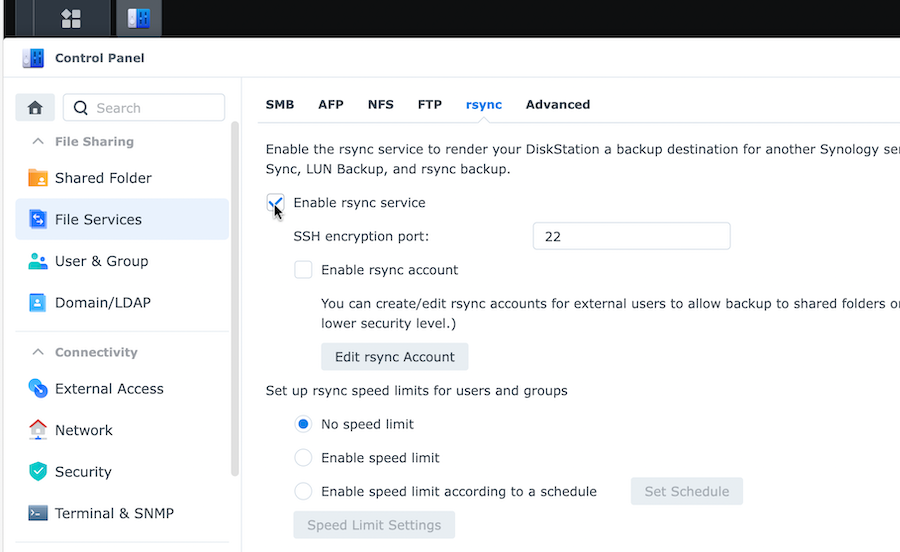
Leave the port as 22 and don’t bother with the other settings, but do hit Apply at the bottom to save the change.
Give it a try
We’re now at the stage where you should be able to ssh into the remote NAS from the local one without being asked for a password, and rsync is turned on both ends, so in theory, you should be able to do something like this:
rsync -rvitn /volume1/ nas1_admin@104.43.22.181:/volume1
I’m not going to go into all the flags for rsync (the internet has plenty of good guides for that) except to say that the ’n’ on the end of the flags in the command above means that no files will actually be moved, it will do a ‘dry run’ and tell you what it would have done if you let it.
Note that if you have a jazillion files, this could take a while, you might be better to limit it to a smaller sub directory such as /volume1/media/music/napster/Metallica/

The other bit of free rsync advice I’ll give you is to look carefully at the source and destination directories in the command above. The source sub directory has a trailing ‘/’, the destination does not. If you mess this up you’ll be making directories inside your directories dawg.
In theory once you’re at this point, everything should work. But here’s a couple of other bumps / thoughts.
@eaDir
Synology has a bunch of hidden directories with metadata stuff. My advice is don’t mess with them, but also don’t sync them over either. Tell rsync to ignore them. Same for the recycle bin.
rsync -rvitn --exclude '*@eaDir*' --exclude '#recycle*' /volume1/ nas1_admin@104.43.22.181:/volume1
Permissions
The user that you’re ssh’ing with needs to have permissions to all the places you are rsync’ing files to. Even though I’ve only ever had one user for each of my Synology NAS’s, and everything has been done by that one user either through the web GUI or command line, the files and directories on my NAS have a mixture of owners (my user and root) and permissions. Someone smarter than me could probably figure out why - and if your NAS has to include files from multiple users etc, you are going to need to do that. Because I like sledgehammers, all I did was ssh into the remote and:
sudo chown -R nas1_admin:users /volume1/media
sudo chmod -R 775 /volume1/media
Throttling bandwidth
If I saturate the downlink at my remote site while I’m rsync-ing a bunch of files, the users there will be unhappy when they can’t stream video reliability or if they’re getting killed in online games due to lag.
rsync has a flag for that. If we want to limit the transfer bandwidth to 500KB it could look like:
rsync -rvitn --bwlimit=500 --exclude '*@eaDir*' --exclude '#recycle*' /volume1/ nas1_admin@104.43.22.181:/volume1
Get destructive
If you only want to sync the files one way from your local to remote, then we can add a flag that will delete any files on the remote machine that are not present on the local one. Obviously use with care, and run with the -n flag first to see what’s going to get chopped.
rsync -rvitn --bwlimit=500 --exclude '*@eaDir*' --exclude '#recycle*' /volume1/ nas1_admin@104.43.22.181:/volume1 --del
Do something else
The first few times you do this, it will be exciting watching the terminal window as rsync carefully checks for each file and directory and copies them over as needed, and it will also be helpful to see what errors might pop up so you can sort them out.
Eventually though, it will be so routine and error free you’d rather do something else, so you’ll wander off and leave it, then curse when you return to find your laptop turned itself off due to inactivity and wrecked the rsync. Don’t panic, rsync is robust and will pick right up next time you run it without damaging any files, but you might also consider doing it all on remote control.
On the local NAS, create a file called sync-media.sh
#!/bin/bash

nohup rsync -rvitn --bwlimit=500 --exclude '*@eaDir*' --exclude '#recycle*' /volume1/ nas1_admin@104.43.22.181:/volume1 > sync_media.log 2>&1 &
Make it executable:
chmod +x sync_media.sh
Once you run it ./sync-media.sh you can log off and let it do it’s thing.