Running Javascript in VS Code
27 Dec 2022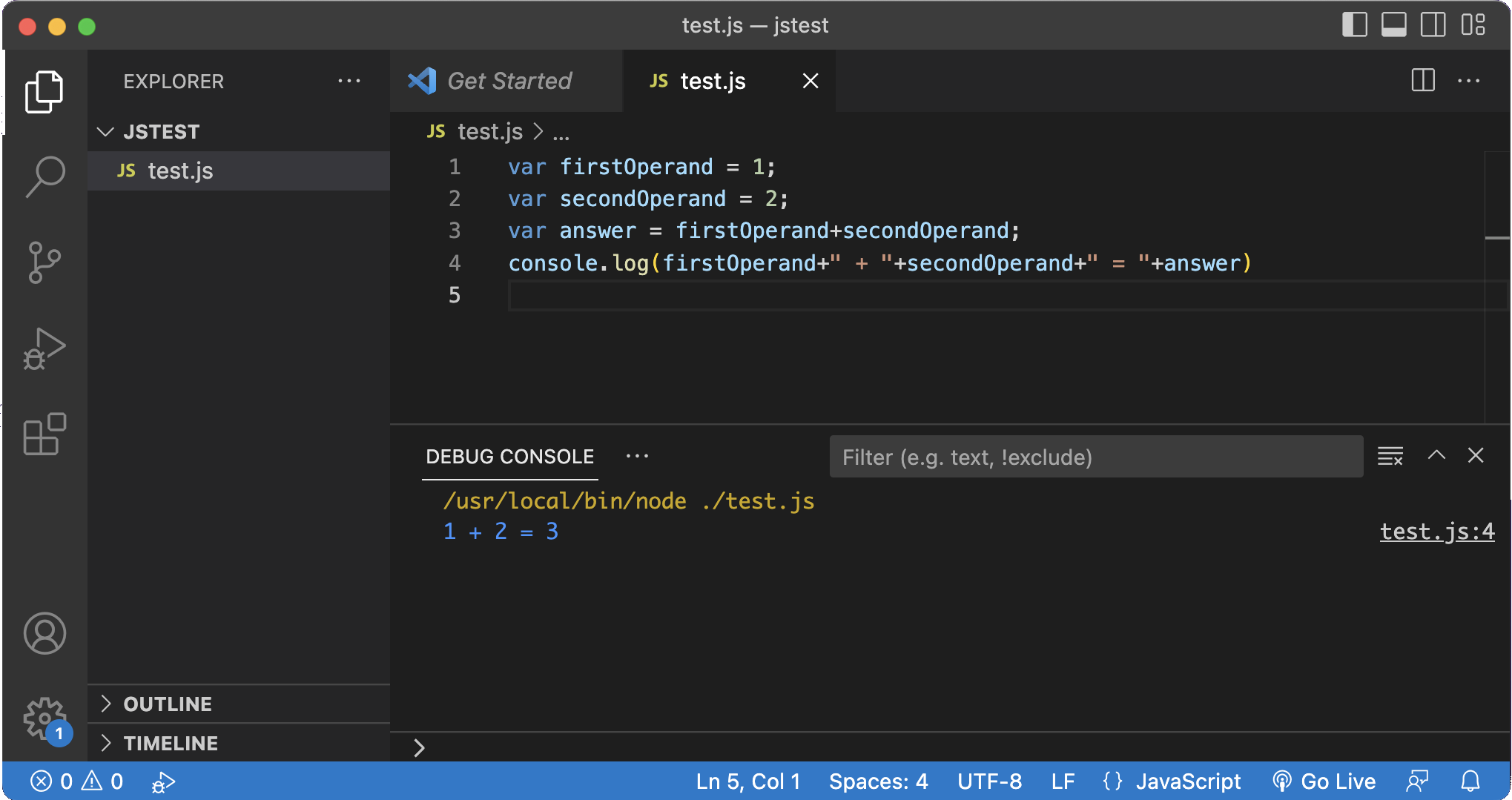
I’ve been using the Live Server plugin to see HTML & CSS updated as I edit, and that will also be useful when I start using Javascript for web development, but as you can see above, I’m not quite up to that. It seemed there should be a way to run JS in VS Code, and it turns out it’s easy.
You just need something installed that can run Javascript. Node.js is the obvious choice, and you’re going to need it later in your development journey. Just install Node.js then the first time you try to run some JS in VS code, it will ask you what to use, select Node and you’re in business.
I found out about this from here . I didn’t worry about Code Runner - just using Node.js worked for me without any fiddling beyond installing it (this is on Mac though - your Windows mileage may vary).
While I’m doing handy hints for dev tools, I discovered last night that the baby webserver that Live Server is running, isn’t just available on the local machine, it’s available to anyone on your network. Instead of using 127.0.0.1:5500, use the IP address of your development machine (but still port 5500 if that’s what you’re using). It’s an excellent way to look at your layout on phones etc, or, I guess, to see what other devs at your company are working on :- )