Solved DNS Issues - Proxmox, LXC, Ubuntu, Tailscale
6 Oct 2023
I’ve picked up an new TP-Link WAP with Omada, so I wanted to spin up an Ubuntu 20.04 LXC to run the controller software in, and ended up spending a couple of hours figuring out why things where not working.
The initial problem was I was having connectivity issues pulling down the updates for all the packages required. I went down a bit of a tangent because I installed an apt cache the other day, so I was looking for problems there. Eventually I narrowed it down to DNS not working and started A/B testing like this:

A more seasoned sysadmin probably would have been looking at the /etc/resolv.conf a bit earlier where the glaring hint was. I’ll get to that in a second, but first a bit about my setup.
I’m running Proxmox 8.0.4 on one of my HP G2 800 Minis (love these little power-frugal gems ) and I use Tailscale to tie all my network (my homelab here, and two remote locations) together. The Tailscale version on this node is 1.48.1
You can see in the table above, that a LXC using the Ubuntu 20.04 template had no domain name resolution, but the Debian 12 (and Debian 11 I tried earlier did). The /etc/resolv.conf on the Debian containers looked like this:
nameserver 192.168.100.1
And on the Ubuntu container
# --- BEGIN PVE ---
search tailaf96a.ts.net
nameserver 100.100.100.100
# --- END PVE ---
192.168.100.1 is my local DNS which is provided from the DHCP, but clearly Ubuntu is not using that. The PVE comments tells me it’s Proxmox messing with my container, and that’s the Tailscale DNS server number in there. The container does not have a route to 100.100.100.100 so that DNS is not going to be able to resolved anything.
So, that’s a bit weird, but easily fixed by just editing this back to set the nameserver to 192.160.100.1 right? Well, yes - if you do that, it works, but then as soon as the container is rebooted, the Tailnet DNS gets written back in. Those blocky PVE comments are probably part of the automated system for doing that. So, what’s going on here?
There’s two screens for network configuration when you’re creating an LXC container in the Proxmox GUI.
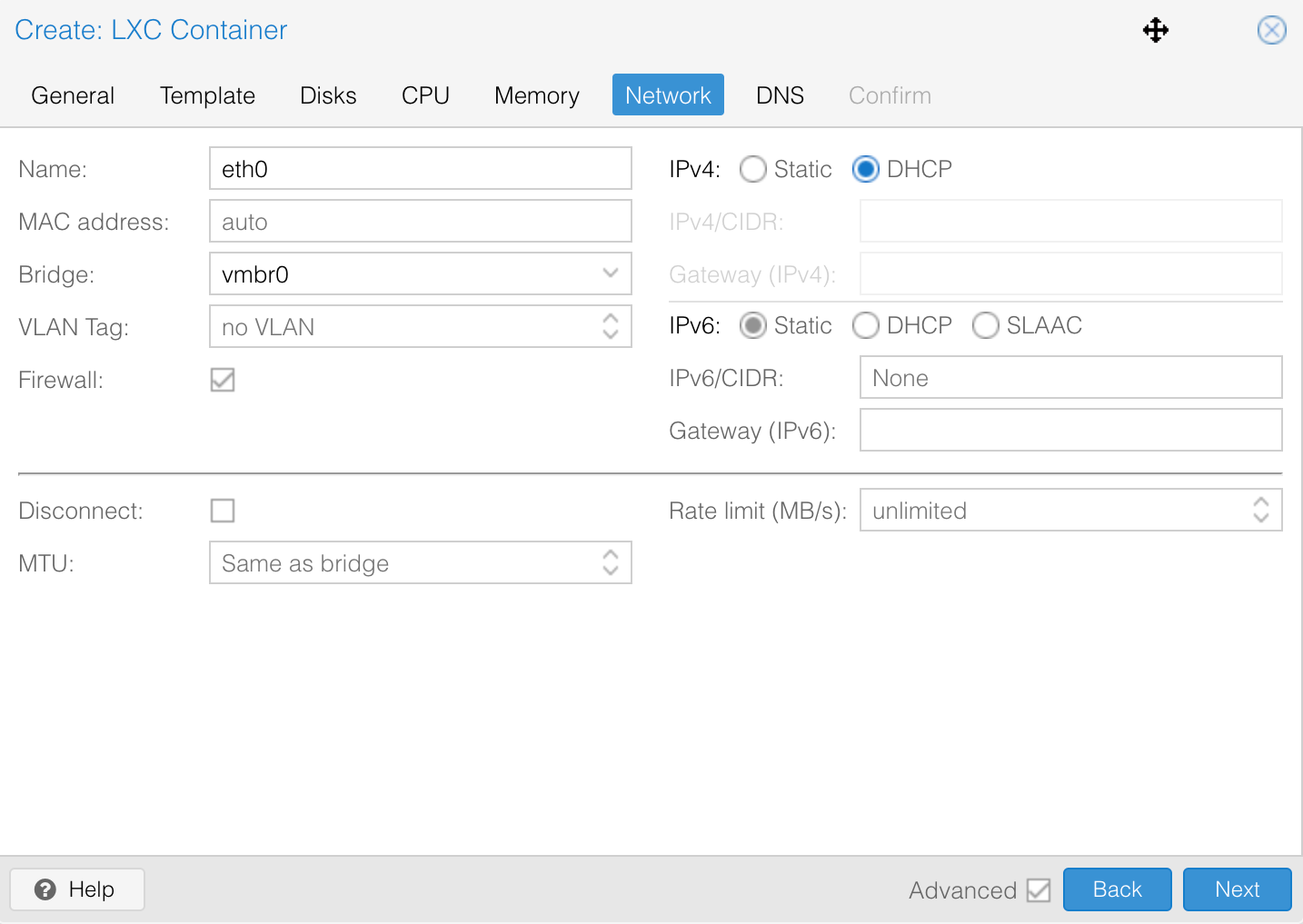
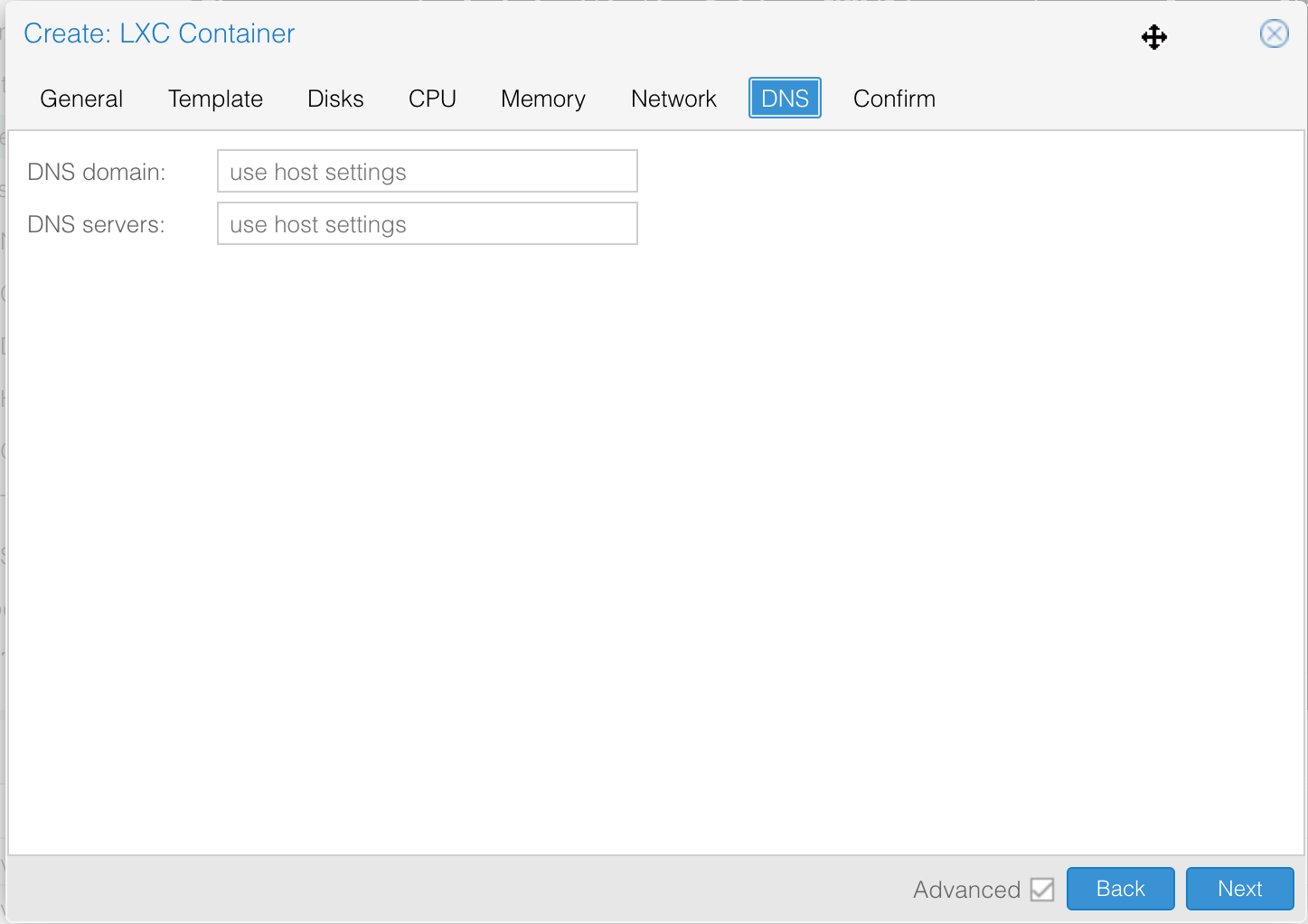
There’s no option in the GUI to just say “Use the DNS settings provided by the DHCP server”, although we’ll see later, there is a work around for this.
Since I’d been leaving the DNS domain: set to use host settings. You might reasonably wonder what the Proxmox node /etc/resolv.conf looks like:
# resolv.conf(5) file generated by tailscale
# For more info, see https://tailscale.com/s/resolvconf-overwrite
# DO NOT EDIT THIS FILE BY HAND -- CHANGES WILL BE OVERWRITTEN

nameserver 100.100.100.100
search tailaf96a.ts.net local
So actually, although I was thinking there must be some bug with Ubuntu since Debian was working how I expected, it’s the other way around - Ubuntu and Proxmox are working together to do exactly what the settings have told it to - to use the host settings. And actually, the Debian containers are not working correctly (although they were working how I expected). The process of Proxmox making these types of changes is documented in the Admin Guide . I’d actually never seen that guide till today (although there is a large “Documentation” button in the top right of the web GUI), but it looks pretty great so I’ll be revisiting it.
Solution 1
The first solution is just to specify the DNS address in the GUI - then our container works exactly as the PVE developers intended. A slight downside is that if I change the network configuration in future and update the DNS address in the DHCP server (which is the logical way to do that) then it won’t update for this container and domain name resolution will stop working for it.
If I do that, the /etc/resolv.conf looks like this:
# --- BEGIN PVE ---
search tailaf96a.ts.net
nameserver 192.168.100.1
# --- END PVE ---
And it all works fine.
Solution 2
This post on the Proxmox Forums lead me to a second solution. It’s possible to stop Proxmox from adding the host by adding a little signal file with
touch /etc/.pve-ignore.resolv.conf
When Proxmox sees that. it won’t mess with the /etc/resolv.conf file, so if that’s been edited to:
nameserver 192.168.100.1
It will be left alone, and things will work fine. This is not quite what I’d like - I’d really prefer it picks everything up from DHCP, but I don’t know enough about how that works in Linux to fix it, yet.