Sorting out Node package dependencies when cloning old repos
6 Sept 2023
If you clone an old node project and npm install it, you’ll most likely get a bunch of errors and warning messages. If you just decide to yolo it and run the project, you’ll get a bunch more.
I’ve been doing this exact thing. I want to add some auth to my app, and I’ve been following WebDevSimplified ’s video about using passport . I was building into my app without really understanding what I was doing, ran into problems and decided just to clone his repo and integrate the code into my app. The repo is four years old.
The reason this is a problem is that npm uses package.json and package-lock.json to specify the versions of different packages. This is great, since it means you can clone a repo and know you are using the exact same versions of each package that everyone else using the repo is using. However, given enough time it also becomes a problem - packages are updated to address security vulnerabilities in their own code, or in their dependencies all the time.
To untangle this mess, it’s worth understanding what’s going on with these two files.
package.json
The package.json file doesn’t just store package versions, it has a heap of other project configuration stuff - like the starts script, project name and other meta data that we’re not really interested in here. What we’re interested in is the dependancies, so let’s have a look at a sample.
"dependencies": {
  "lodash": "^4.17.21",
  "express": "~4.17.1",
  "axios": "2.6.0"
}
Unsurprisingly, we’re looking at some JSON. In this case, key value pairs consisting of the package name, and then a version, but the version sometimes has some punctuation in front of it. The actual number is the version that was pulled down when we said something like npm install lodash. In the case above, that was version 4.17.21
The caret ^ in front of it, means this version, or any future version up to but not including the next major version. So npm install is free to grab whatever the current version is - maybe 4.18.34 or 4.99.99 - but not 5.0.0 or anything after that.
This is a sensible restriction. In most projects a major version denotes a breaking (not backward compatible) change, so it makes sense to allow any future improvements and bug fixes, but to not allow breaking changes. For this reason, this is the default, so if you don’t manually edit your dependencies, this is what they will be set to.
If you want to be slightly stricter, you use the tilde ~ in front of the version number as shown above for the express package. In this case, you’re specifying the minimum version of the package, but allowing only patches, and not minor version changes. So in the case of ~4.17.1 it would be fine to install 4.17.2 or 4.17.9 but not 4.18.0
The last case is no punctuation in front of the version number, in which case we are locked into that version. This is what’s happening with the axios package above. npm install will only fetch 2.6.0, even if there’s a bug fix 2.6.1 available.
For a long time, package.json was all that was available, and beautiful thing that it is, there was still an issue.
package-lock.json
Even though, in the example of "axios": "2.6.0" we’ve firmly locked axios to version 2.6.0 by putting it in the package.json file with no prefix on the version number, some changes are still possible - how so?
Most non-trivial packages you use will themselves depend on other packages. These are called transitional dependancies. In the case of axios (which is a http client to pull web pages into node) it depends on seven other packages that do more specialised things such as handling streams, understanding mime types and so on.
If you want code bases to be completely reproducible, then we also need to lock all the versions of the transitive dependencies. To do this, package-lock.json was introduced in Node v5.0 in 2017. Here’s a snippet out of the file for an app using axios.
    "node_modules/mime-types": {
      "version": "2.1.35",
      "resolved": "https://registry.npmjs.org/mime-types/-/mime-types-2.1.35.tgz",
      "integrity": "sha512-ZDY+bPm5zTTF+YpCrAU9nK0UgICYPT0QtT1NZWFv4s++TNkcgVaT0g6+4R2uI4MjQjzysHB1zxuWL50hzaeXiw==",
      "dependencies": {
        "mime-db": "1.52.0"
      },
      "engines": {
        "node": ">= 0.6"
      }
    },
The Mess
Running npm install causes npm to look at both of those files to work out what packages to download. It creates the node_modules folder and puts all those packages in there so we can require them. When I tried that with this four year old project, this is the first of three pages of error messages I got.
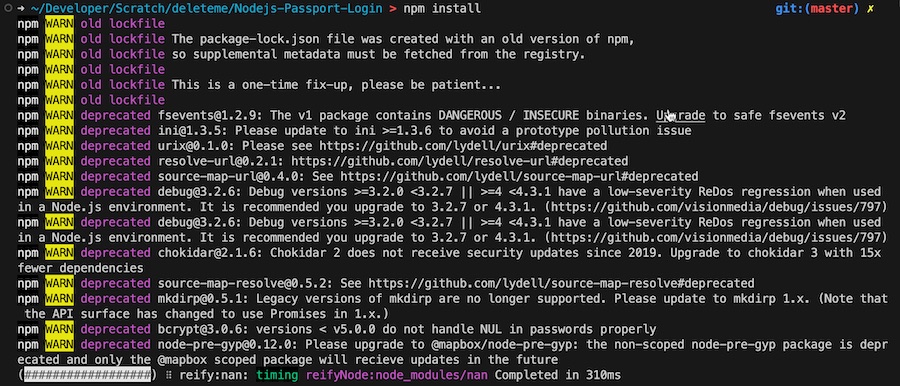
Most of the rest were errors from bcrypt - and you don’t really want to run old cryptology code.
So, we’re in a bit of a bind here. The package version specified by the package developers doesn’t work any more. We can (and will shortly) ignore those, but of course then we’re risking that some breaking change in one of the packages will break the app code in some other way. Nevertheless, that’s what we need to do, but we’ll do it starting from the least risky to the most risky.
- Delete
package-lock.json- if you trust the developers of the packages being used (and you shouldn’t be running them if you do not) then letting them decide the relative risks with updating the transitive dependencies is probably a reasonable bet. We can achieve that by deleting or renamingpackage-lock.jsonand re-runningnpm install. - Edit
package.jsonto allow minor version changes - maybe all of the package versions in here have the caret ^ in front of their version number to allow them to be updated to the latest minor version and patch without changing the major version. If they do not, then try adding the caret to each one. - Allow the latest version - an option we didn’t talk about when adding carets or tildes is that we can actually tell npm to just download the latest version. You don’t often see this, but if you put in a wildcard it will just grab the most recent. This is a bit more of a nuclear option, so it’s probably worth having a look at the 2000 lines of errors I had, and seeing if you can make an intelligent guess about which package is troublesome, and starting from there, doing them one at a time.
"dependencies": {
  "axios": "*"
}
In my case there was lots of bcrypt sounding errors, so that was my first try - I set that to the wildcard version, and the number of lines of warning/error output dropped from 2249 to 14. Also the process actually completed this time - I had a node_modules folder and a new package-lock.json. Included in the 14 lines of output was advice that there was a number of security vulnerabilities that could be fixed by running npm audit fix --force
npm audit will let you know of any known security vulnerabilities in your installed packages. If you add the fix --force option it will update them to the minimum version to address those vulnerabilities. This is basically just doing what we did in the previous step, but a bit smarter. In general, it’s going to be safer to have to fix some code than to ship code with known vulnerabilities, so if you are offered this choice, go ahead and run that.
- Test everything. You’ve just pulled a heap of new code in this project. It needs tested.