SwiftLint
10 Oct 2022
I was watching a Tim Ruscica video about the things that highly effective developers do, and it called to mind a book I read years ago called Code Complete . It is the only book I ever owned that I immediately purchased the new edition when it came out. It was about the meta stuff around programming that is the difference between coding and developing. In particular, it got me invested in source control and testing.
If you’ve been reading along, you’ll know I am keen to leverage the great tools available to support quality software development, and one I haven’t tackled till this week is a linter.
Linters are tools to enforce (or at least suggest) rules to improve your code that are not strictly necessary (the compiler hasn’t enforced them) but they make your code better, or at least prettier, in other ways. I gather the most popular linter for Swift is SwiftLint .
I installed it by downloading and running the .pkg . Then in any Xcode projects you want to use it in, you go into Build Phases for the current Scheme in your project and add a new script that runs SwiftLint on the files in the project’s folder. There’s a good step by step here by Vineet Choudhary. You should end up with something like this:
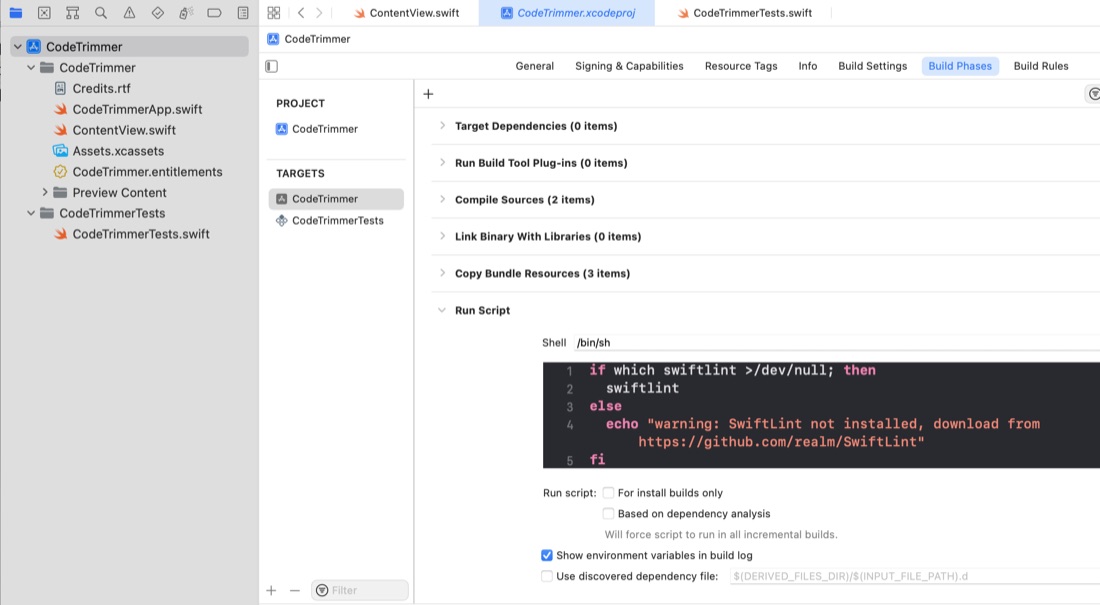
Now when you Command-B to build your project, the linter will run and (especially the first time) add some extra warnings and errors.
SwiftLint has many rules. Some are default rules (these are the most widely accepted ones) and some are optional. Turning rules off or on, or altering their parameters is done using a swiftlint.yml config file in the top level folder of your project.
Here’s an example from mine , where I want to alter a rule:
vertical_whitespace:
    max_empty_lines: 2
There’s a rule called vertical_whitespace. It throws a warning if there is more than one consecutive empty line in a file. I use two line gaps all over my code to signify a separate method or function, so that does not work for me. The config change above changes it to allow two empty lines. This same config file can also be used to disable any of the default rules, or enable any of the optional rules.
Rules can also be disabled and enabled in your code with special comments. For example, in my tests, I have enormous multi-line strings which don’t follow proper indentation for a deliberate reason, so at the top of this file I have:
// swiftlint:disable line_length
// swiftlint:disable indentation_width
You can turn rules back on as well. For example in this code snippet I have code that the linter wants me to write as a trailing closure, but I’m not sure how to do that in this situation yet - so I turn the rule off before it, then back on.
func stripSpaces(_ codeLines: String ) -> String {
    // break into lines
    var lines = codeLines.components(separatedBy: "\n")
    var minCount = Int.max
    // step though the lines and count how many spaces, save the minimum amount
    for line in lines {
        // swiftlint:disable trailing_closure
        let leadingSpaces = line.prefix(while: { $0 == " " }).count
        // swiftlint:enable trailing_closure
        minCount = leadingSpaces < minCount ? leadingSpaces : minCount
    }
    // step though the lines again, and trim the min amount from each line
    for index in 0..<lines.count {
        lines[index] = String(lines[index].dropFirst(minCount))
    }
    // stitch it back up
    return lines.joined(separator: "\n")
}
My strategy with the linter was to turn all the optional rules on, then run it and go through to consider each of the optional rules I’ve transgressed to decide if it makes more sense to me to change the code or eliminate the rule.