Apr. 19, 2023

Since I’m constantly standing up Linux virtual machines and containers - almost always of the apt variety, I’m constantly typing in:
apt update
apt upgrade
Then hitting enter again to allow whatever installation is needed to proceed. I’ve noticed in some of the commands I’ve been pasting in from installation instructions or StackExchange solutions have been separated by characters that look like it allows several commands to be run one after the other. To cut a long story short, the commands above could be entered like this with double ampersands:
Apr. 17, 2023
I’ve been furthering my Linux education by playing with some desktop distros in VMs, but it’s not a great experience accessing them through the Proxmox web GUI. The alternative to this is to use a good SPICE client on the remote desktop, but there is not a simple good solution for this for MacOS.
I’ve been playing with the idea of picking up an old i3/i5 Thinkpad - these are around the AUD130 mark on eBay, to run a Linux distro with the main idea being to use it to SPICE into my VMs.
Apr. 14, 2023

I’ve been using this rsync command to backup files from my NAS to a USB drive. The –excludes are to avoid copying over some junk hidden files - some created by MacOS and some by Synology.
sudo rsync -rvit --exclude '*@eaDir*' --exclude '.DS_Store' /volume1/media/ /volumeUSB1/usbshare1-2/media --del
The .DS_Store files seem to be dropped by MacOS every time I view a directory on the NAS from my MacBook. They’re not doing any harm, and they presumably do something handy for the Mac - remembering the view settings for that folder or some such. Nevertheless, they annoy me. It makes sense to not back them up - they don’t serve any useful purpose in that context.
Apr. 10, 2023

A few weeks ago , I was very excited to be able to take a snapshot of a virtual machine, copy it across the network from that Proxmox node, copy it back across the network to a different Proxmox node, start it there, and have it up and running, without it noticing it was actually on different hardware.
Backing up a VM is pretty simple, you just click on the node, choose Backup and click the Backup Now button. The ease, and completeness of backing up a VM is one of the main reasons I’m using Proxmox for my systems.
Mar. 30, 2023

With all those earlier rsync bumps out of the way, I was ready to try my first rsync backup at the command line to sync my movies directory on the NAS to a (NTFS formatted) USB drive plugged into the same NAS. This is to be one of the simplest since there’s no remote server involved, just copying from mount point directory to another - so no drama with remote permissions.
Mar. 26, 2023

I’ve started down the path of improved storage management, including embracing the 3-2-1 mantra. I’ve settled on a RAID6 NAS for local, mirrored to an off-site NAS, and an offline local USB drive.
While I’ve been setting those up, my services have been live, so files have been changing on my main storage, which I’ve then switched to the bigger NAS, and I’ve been trying to keep data in sync by remembering what changes have been made where, and manually replicating them. That’s not sustainable and not the plan.
Mar. 8, 2023

I’ve spent a few hours over the weekend migrating a media library from an external USB drive to the NAS, and in the process reorganised it, and in many cases bulk changed file names. I’ve also added a heap of metadata.
I’d like to check that I haven’t missed any files, but a side by side listing of each data source won’t do the trick, so I’ll probably end up pulling the data into a spreadsheet, but I’d like to get as close as possible with Linux-fu first.
Mar. 5, 2023

Unix, and therefore Linux, was built from the ground up as a multi-user system. Thanks to this, great security is baked in, for example every file has permission attributes for it’s owner, the group the owner is a member of, and then everyone. For example, it might be a good idea if I can read, write and execute my own files, but the other members of my group can just read them, and any other user on the system has none of those rights.
Mar. 1, 2023

I had Jellyfin working nicely in an LXC container in Proxmox, but could not get Tailscale working in the container. Since this is going to be an important part of accessing my media away from home, I decided it was probably worth the extra bulk to run JellyFin in a VM.
Following my own instructions , I had the mount command in the /etc/fstab file so it would persist across reboots. It looked a bit like this:
Feb. 27, 2023
A couple of weeks ago, I posted about the sudoers’ file , and how there was a special tool for editing it since breaking it is a bad idea, and that in fact I needn’t bother, since I can just add my user to the sudoers’ group with:
usermod -a -G sudo ian
That worked (on Unbuntu) since /etc/sudoers contained a line saying:
# Allow members of group sudo to execute any command
%sudo	ALL=(ALL:ALL) ALL
I tried the same trick on a fresh Debian install today, and no dice:
Feb. 22, 2023
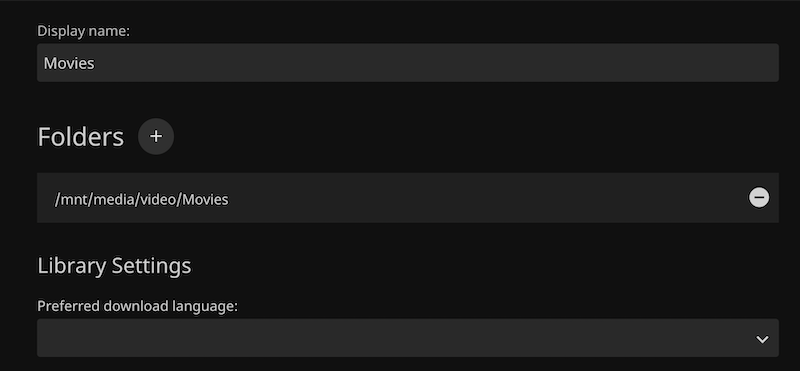
After being so blase about the file permissions when mounting the share to the Linux file system, and testing that root could read and write to the share, I ran into problems immediately when trying to add the media folder as a library in Jellyfin - getting the error “The path could not be found. Please ensure the path is valid and try again.”
I definitely had the path correct - I could copy it from the dialog and cd to it at the CLI. So I suspected it was a permissions thing. The app might not have read permissions for the directory.
Feb. 18, 2023

Many modern Linux distros will auto-mount USB drives - they just pop up in the graphical file manager as users would expect. When you’re running server, older, or smaller versions, that’s probably not going to be the case, and you’ll have to do it old school.
Let’s look at some basics. [lsblk](https://man7.org/linux/man-pages/man8/lsblk.8.html) will list the ‘block’ devices. Your output will almost certainly be a bit different than this.
root@pve:~# lsblk
NAME                         MAJ:MIN RM   SIZE RO TYPE MOUNTPOINT
sda                            8:0    0 119.2G  0 disk
├─sda1                         8:1    0  1007K  0 part
├─sda2                         8:2    0   512M  0 part /boot/efi
└─sda3                         8:3    0 118.7G  0 part
  ├─pve-swap                 253:0    0   7.7G  0 lvm  [SWAP]
  ├─pve-root                 253:1    0  39.8G  0 lvm  /
  ├─pve-data_tmeta           253:2    0     1G  0 lvm
  │ └─pve-data-tpool         253:4    0  54.6G  0 lvm
  │   ├─pve-data             253:5    0  54.6G  1 lvm
  │   ├─pve-vm--100--disk--0 253:6    0    10G  0 lvm
  │   ├─pve-vm--101--disk--0 253:7    0    10G  0 lvm
  │   ├─pve-vm--300--disk--0 253:8    0     8G  0 lvm
  │   ├─pve-vm--102--disk--0 253:9    0     4M  0 lvm
  │   └─pve-vm--102--disk--1 253:10   0    32G  0 lvm
  └─pve-data_tdata           253:3    0  54.6G  0 lvm
    └─pve-data-tpool         253:4    0  54.6G  0 lvm
      ├─pve-data             253:5    0  54.6G  1 lvm
      ├─pve-vm--100--disk--0 253:6    0    10G  0 lvm
      ├─pve-vm--101--disk--0 253:7    0    10G  0 lvm
      ├─pve-vm--300--disk--0 253:8    0     8G  0 lvm
      ├─pve-vm--102--disk--0 253:9    0     4M  0 lvm
      └─pve-vm--102--disk--1 253:10   0    32G  0 lvm
If you look at the type column, you can see this machine has one disk, with three partitions, and the last partition has a heap of logical volumes. Let’s plug the thumb drive in:
Feb. 8, 2023
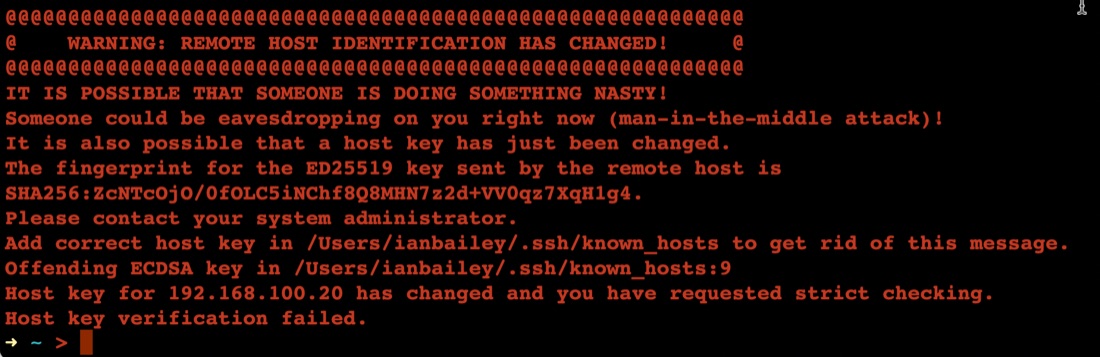
The first time you connect to a new server with ssh, it asks you something like:
➜ ~ > ssh ian@192.168.100.20
The authenticity of host '192.168.100.20 (192.168.100.20)' can't be established.
ED25519 key fingerprint is SHA256:ZcNTcOjO/0fOLC5iNChf8Q8MHN7z2d+VV0qz7XqH1g4.
This key is not known by any other names
Are you sure you want to continue connecting (yes/no/[fingerprint])? yes
Warning: Permanently added '192.168.100.20' (ED25519) to the list of known hosts.
Once you’ve said yes, it adds the server ‘fingerprint’ to the known hosts file, then next time you ssh there, it feels safe - we know this server.
Feb. 6, 2023
A smart thing to do after setting up a server on the internet, is to set up SSH keys and then turn passwords off for SSH. The reason for this is that scanning for open port 22 on IP addresses, then brute forcing password files on them is pretty much hacker 101. So if you have passwords turned on, and especially if you have a weak password you are really inviting someone to take over your server as root and add it to their botnet army for liking Putin’s twitter posts or whatever.
Feb. 4, 2023
Even though it’s my server, I still have a pang of guilt when this happens.
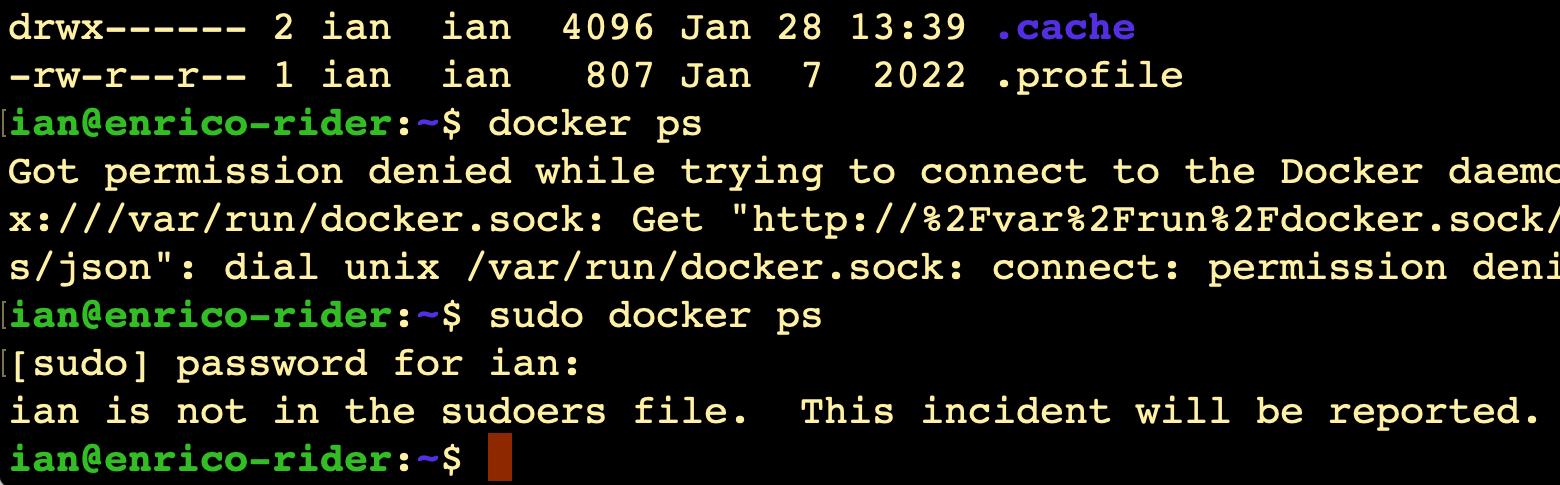
I always imagine Richard Stallman (or someone with a similar 2000’s database administrator beard) looking at me disappointedly and shaking his head slowly.
It does raise the question though - since it’s my server, shouldn’t I be getting a text message from CERN or something?
Where is this report?
(Relevant xkcd )
Like everything, the answer is ‘it’s logged’. We can use the journalctl command to look at the logs, on this server that’s been running less than 20 hours, there’s already several thousand lines to look through if you just enter journalctl, so I’m going to just send all the high priority logs to a file: