Sep. 3, 2023

Now I’ve added NVME drives to my nodes, plus added an external NMVE RAID, I’ve got quite the collection of storage options. For one of my nodes, it looks like this:
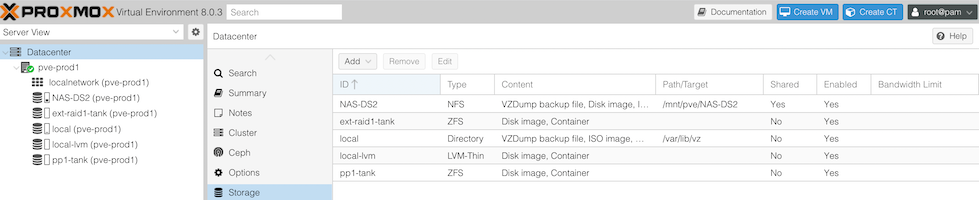
- The 256GB NVME the OS is installed to
- The 512GB SSD, currently running ZFS
- The Synology NAS - 4 x 6TB drives in RAID 5 on a 1GB switch
- A pair of 256GB NVME sticks in an external USB3 enclosure set up as a mirrored ZFS pool.
For my dev VM’s I often set them up to have their storage on the NAS - it’s just super easy to move them around then. The production VM’s currently have their storage on the SSD (that machine hasn’t had the NVME upgrade yet), but obviously with all these options, it’d be interesting to think about what goes where.
Apr. 10, 2023

A few weeks ago , I was very excited to be able to take a snapshot of a virtual machine, copy it across the network from that Proxmox node, copy it back across the network to a different Proxmox node, start it there, and have it up and running, without it noticing it was actually on different hardware.
Backing up a VM is pretty simple, you just click on the node, choose Backup and click the Backup Now button. The ease, and completeness of backing up a VM is one of the main reasons I’m using Proxmox for my systems.
Mar. 11, 2023
I’ve been really happy with my two bay Synology NAS - a DS216j. The Synology’s seem to have great reputation for just pushing on. Mine is loaded up with two 8TB Seagate Barracudas in RAID 1 leaving me with a one drive failure redundancy.
I guess a more hard-core host-er than me would be building their own array and using Unraid or ZFS or something. I’m pretty comfortable with the Synology off the shelf system; it’s a good match for my (low) level of expertise, and more robust than my previous storage system of a USB external drive.
Feb. 18, 2023

Many modern Linux distros will auto-mount USB drives - they just pop up in the graphical file manager as users would expect. When you’re running server, older, or smaller versions, that’s probably not going to be the case, and you’ll have to do it old school.
Let’s look at some basics. [lsblk](https://man7.org/linux/man-pages/man8/lsblk.8.html) will list the ‘block’ devices. Your output will almost certainly be a bit different than this.
root@pve:~# lsblk
NAME                         MAJ:MIN RM   SIZE RO TYPE MOUNTPOINT
sda                            8:0    0 119.2G  0 disk
├─sda1                         8:1    0  1007K  0 part
├─sda2                         8:2    0   512M  0 part /boot/efi
└─sda3                         8:3    0 118.7G  0 part
  ├─pve-swap                 253:0    0   7.7G  0 lvm  [SWAP]
  ├─pve-root                 253:1    0  39.8G  0 lvm  /
  ├─pve-data_tmeta           253:2    0     1G  0 lvm
  │ └─pve-data-tpool         253:4    0  54.6G  0 lvm
  │   ├─pve-data             253:5    0  54.6G  1 lvm
  │   ├─pve-vm--100--disk--0 253:6    0    10G  0 lvm
  │   ├─pve-vm--101--disk--0 253:7    0    10G  0 lvm
  │   ├─pve-vm--300--disk--0 253:8    0     8G  0 lvm
  │   ├─pve-vm--102--disk--0 253:9    0     4M  0 lvm
  │   └─pve-vm--102--disk--1 253:10   0    32G  0 lvm
  └─pve-data_tdata           253:3    0  54.6G  0 lvm
    └─pve-data-tpool         253:4    0  54.6G  0 lvm
      ├─pve-data             253:5    0  54.6G  1 lvm
      ├─pve-vm--100--disk--0 253:6    0    10G  0 lvm
      ├─pve-vm--101--disk--0 253:7    0    10G  0 lvm
      ├─pve-vm--300--disk--0 253:8    0     8G  0 lvm
      ├─pve-vm--102--disk--0 253:9    0     4M  0 lvm
      └─pve-vm--102--disk--1 253:10   0    32G  0 lvm
If you look at the type column, you can see this machine has one disk, with three partitions, and the last partition has a heap of logical volumes. Let’s plug the thumb drive in:
Feb. 3, 2023
Once you’ve got Proxmox installed, you can point your web browser at the IP for the physical server, and use the port 8006. Log in as root using the password you entered during the install. If you just accepted all the defaults during the install it will look something like this:
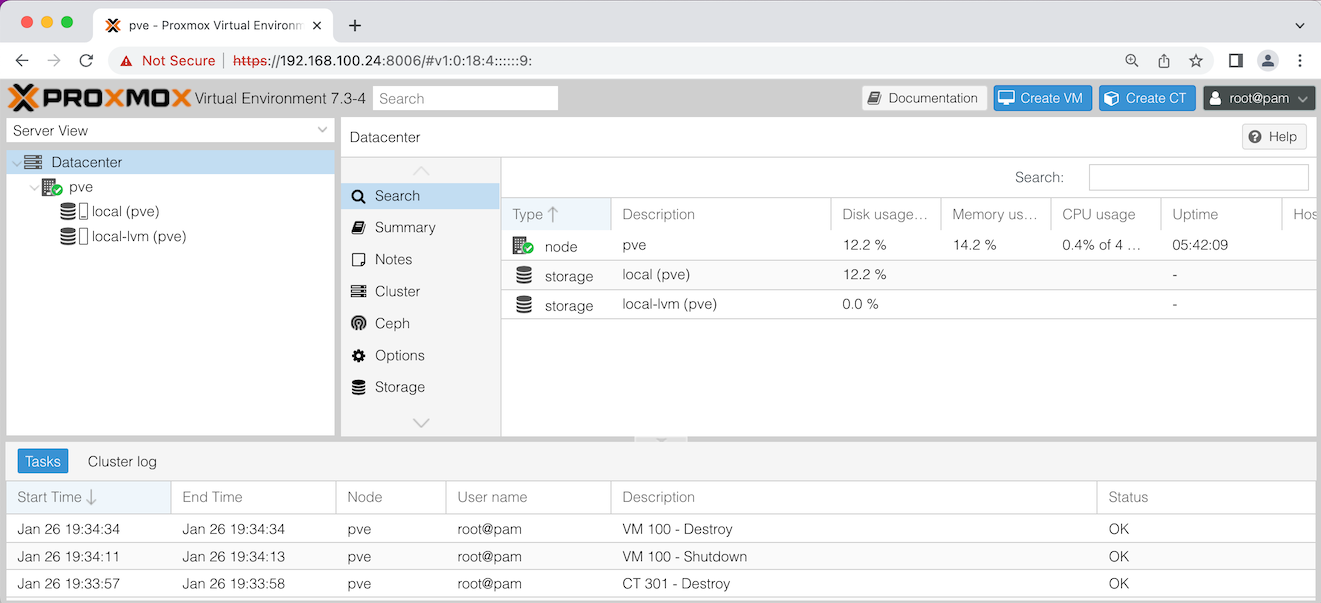
Let’s discuss what you’re seeing in that ‘Server View’ on the left there. pve is the name of my node - this installation of Proxmox on my physical server. If you named your server something different during the install, it will be show that name here.