Dec. 10, 2022
Continuing on with the demo project from yesterday, in which we used the ImageRenderer class to turn a view into an image, today we want to let the user share it somehow.
Typically, apps have a button using the square.and.arrow.up SF Symbol to share something from the current screen. It’s probably not an accident that it’s literally the first symbol in the app.
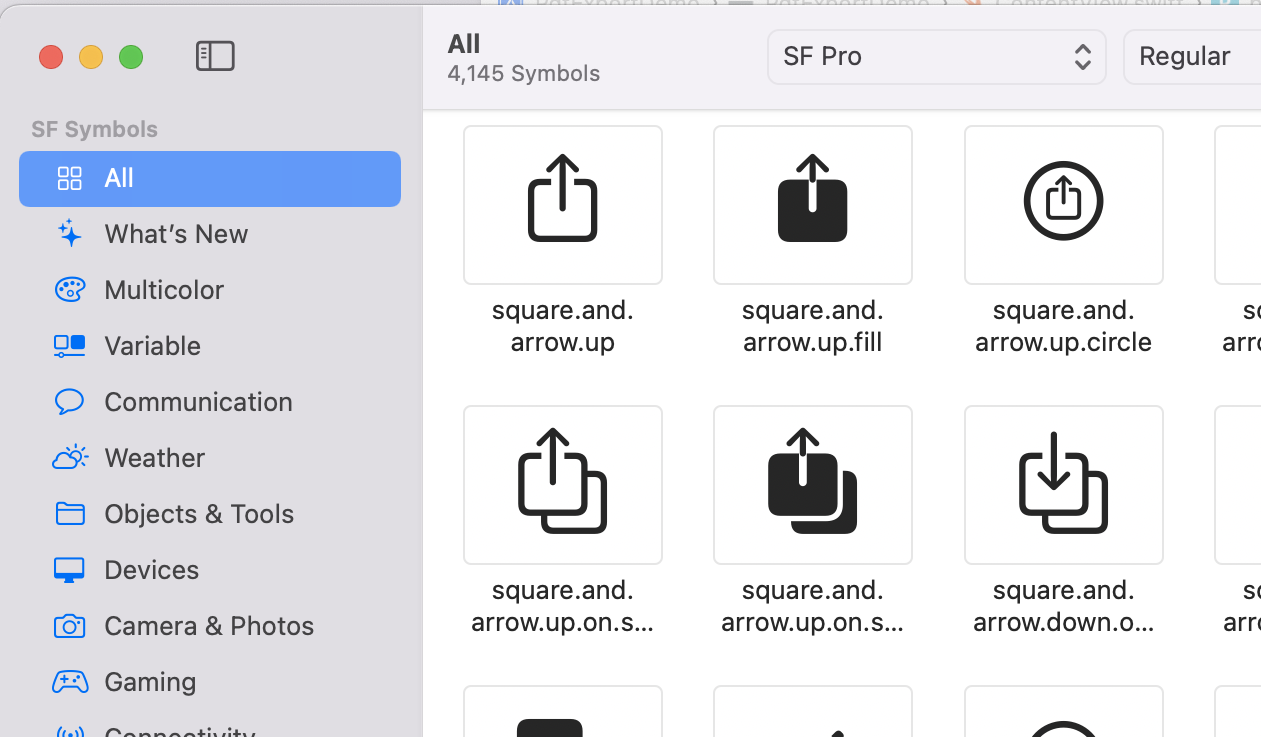
Pressing it generally opens the “share sheet” which has options for opening whatever is being shared in another app, printing it, saving it to photos, or whatever.
Dec. 8, 2022
ImageRenderer () is a SwiftUI class that creates an image from a view. You just initialize it with the view, then extract a cgImage (Core Graphics) or uiImage that can be cast to a SwiftUI Image.
I’ll need a view to work with, so here it is; a crude version of my behaviour ticket.
struct TicketView: View {
    var body: some View {
        ZStack {
            Color(.cyan)
                .frame(width: 300, height: 350)
            VStack {
                Text("Fred Bloggs")
                    .font(.largeTitle)
                Text("")
                HStack {
                    Text("Putting rubbish in the bin")
                    Image(systemName: "trash")
                }
                .foregroundColor(.purple)
                Text("")
                Text("Green Faction")
                Text("")
                Text("")
                Text("\(Date().formatted())")
            }
        }
    }
}
Here it is, with a couple of buttons underneath:
Dec. 7, 2022
A few hours after I speculated about pausing work on the tickets app because outputting the tickets was too far out of my expertise, a helpful instance of the Baader–Meinhof phenomenon threw up some help in the form of this tweet from @FloWritesCode . It turns out this was an addition in iOS16 announced at WWDC that makes this straightforward.
As soon as I googled around about it I also found good solutions that wrapped the old code to provide similar functionality. So that’s a lesson for me about not assuming something’s hard before I’ve spent some time investigating it. I took that lesson and applied it to rendering to a PDF, and of course, @twostraws has a code example for that from three days ago!
Nov. 21, 2022
I’m noodling around making sure I understand how Core Data works. Thought I’d start with a master/detail app with an array of structs, then replicate it in a Core Data implementation. I’m using an array of this struct for my data:
struct Garden {
    var id = UUID()
    var name = ""
    var address = ""
    var plants: [Plant] = []
}
And I thought this code to load up some sample data was pretty sweet.
Nov. 6, 2022
Another set of challenges for a #100DaysofSwiftUI tutorial app. Project 11 was a book tracking app - the big new thing was using CoreData. Here’s the challenges for it .
Right now it’s possible to select no title, author, or genre for books, which causes a problem for the detail view. Please fix this, either by forcing defaults, validating the form, or showing a default picture for unknown genres – you can choose.
Nov. 5, 2022
In C world, if we want to pass a parameter down into a functional call, and allow the receiving function to change it’s value, we’d pass a pointer to the variable. Something like this:
#include <stdio.h>
#include <stdlib.h>

void increment(int* b) {
    *b=*b+1;
}

int main() {
    int a = 5;
    increment(&a);
    printf("%d", a);
    return 0;
}

// prints '6'
For youngsters, what’s happening is that we’ve set the value of a to 5, then passed the memory address of a into the increment() function. That’s what the @a means.
Nov. 2, 2022
Day 52 of #100Days was the challenges to the Cupcake Corner app - an app that allows you to build a one-row order, encode it as JSON and submit it to an API with a URLSession. To allow the order to be passed around, it’s an @ObservedObject which meant that a few extra hoops needed to be jumped through to make it Codable.
1) Whitespace validation
The tutorial app validates the order address by checking that each field is not empty, but it can be fooled by just entering some spaces. The first challenge was to fix that.
Oct. 23, 2022

SwiftUI does some property wrapper magic to (very efficiently) refresh your views, but what if you want to force a refresh for some reason? Here’s the techniques I’m currently using to do that.
The tricks are below, but just so you can see them in context, here’s the sample app we’re working on. It’s a list of cars so you can keep track of how many of each kind you own. Here’s our data:
Oct. 22, 2022

I’m writing the Habits list based app from #100Days and had a working MVP, then for some reason, decided to refactor by changing the subview I’d written as a function, into a struct. Some time later, I discovered that my list items were not updating correctly, so detective time.
I talked a little bit about the architecture yesterday - the item is a struct, and there’s a class containing an array of the items. Something like this:
Oct. 20, 2022
When I was first programming professionally, it wasn’t long before I noticed that there were patterns to the sort of bread-and-butter things I was writing most times - the majority of the small business applications I wrote tracked several entities; for each entity there needed to be add/edit/delete screens, there would be some business rules around those things, and some reports and search functionality.
Oct. 15, 2022

I’ve watched Paul’s solution to the Moonshot challenges (the solutions are one of the perks of being a Hacking With Swift subscriber). When I’m solo learning like this its one of the few ways I can get any feedback on my coding, so I highly value it, and usually write one of these posts as a way to ensure I reflect on it.
Oct. 6, 2022
I was listening to the StackTrace app this morning (episode 169 - “Choosing What Bugs to Ship” ) and one of the ideas discussed was taking the time to automate some of your development processes, partially to save time, but also because if you make a process simple and quick, you’ll be more likely to do it multiple times to improve quality.
Coincidentally, I’d been thinking about how often I paste some code from Xcode in order to display it in one of these blog posts. If it’s from the middle of a method, it will generally be indented a long way in, and there’s no point in displaying it like that (especially for a mobile reader) so I usually manually delete a heap of spaces from each line to left align it whilst keeping the needed indentation.
Oct. 5, 2022
So, I’ve been working on translating the UI design created by the external designer into SwiftUI, and have done all of the easy bits:
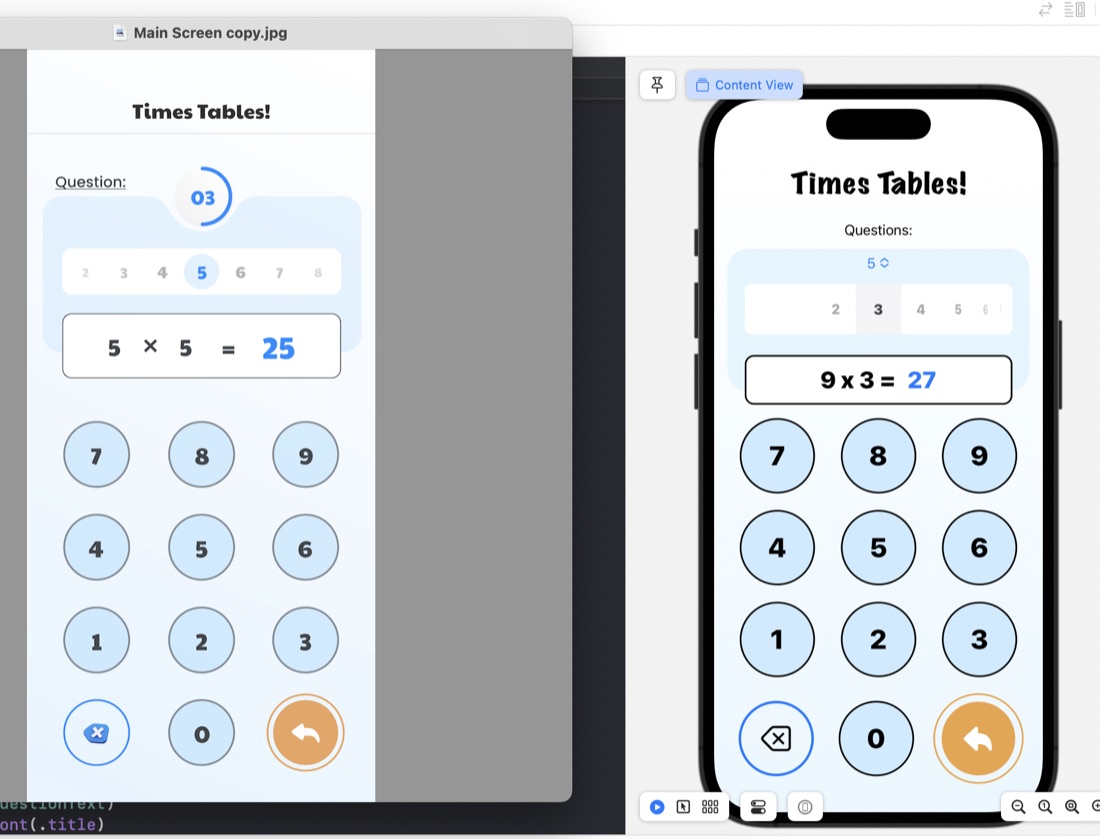
The rounded rectangles for things like the question display/number input are just ZStacks of roundedrects filled, then stroked:
ZStack {
    RoundedRectangle(cornerRadius: 10)
        .fill(.white)
        .padding(.horizontal)
    RoundedRectangle(cornerRadius: 10)
        .stroke(.black, lineWidth: 2)
        .padding(.horizontal)
    HStack {
        Text(questionText)
            .font(.title)
            .fontWeight(.heavy)
        Text(calculatorDisplay)
            .font(.title)
            .fontWeight(.heavy)
            .foregroundColor(.blue)
     }
}
.frame(maxWidth: 350)
.offset(y: 15)
Something I have learned in the process is the .offset modifer. This is what’s used to move a view from where SwiftUI would have placed it, and is what I’ve done to create that overlapped style where the question display/number input is sitting halfway over the bottom of the blue rounded rectangle. This is in the last line of the code above: .offset(y: 15) This is moving the whole ZStack down by 15. A trick to watch with this is that since you’ve messed with SwiftUI’s arrangement, it doesn’t then shuffle everything else around this - you need to manually deal with making some space below it.
Oct. 1, 2022
The challenge for Day 35 of 100 Days of Swift UI was to create a simple times tables drilling app. I’ve met all the requirements, so I’ll move on, but I am struck by how ugly it is. Making better looking apps needs to be added to my goals. Especially since this app is intended to appeal to children, and is at the end of a few lessons on animation, this is definitely a weakness of mine at the moment.
Sep. 28, 2022
I’m on the challenges for Day 35 of 100 Days of SwiftUI , and despite Paul’s very clear warning:
Important: It’s really easy to get sucked into these challenges and spend hours…
I have spent ages fiddling around, but of course still learning. My issue is not so much getting stuck on bugs, rather I keep wanting to do things I don’t know how to do.
One issue was solved for my by the wonderful Fireside Swift podcast. I’m working through the old (Steve & Zac) episodes, and they did one on the UserDefaults just when I wanted to be able to persist the multiplication table selection the user had made (this challenge app is a multiplication tables drill app for kids).
Sep. 24, 2022
I had a look at Paul’s version of the challenge to animate the Guess The Flags app, and like me he’d hit on altering the amount of each animation depending on if it was the clicked on flag, but he’d done it with a lot less code - using the ternary operator in each of the modifiers - versus my approach of filling in an Int array for each of the effects and altering them depending on the user selection.
Sep. 23, 2022
It’s a very Apple-thinking thing to be learning about making beautiful and intuitive user experiences this early in a programing tutorial as I am with the 100 Days of Swift UI series. Here’s a quick look at three different ways of doing animation in SwiftUI Views.
Implicit animation
An implicit animation in SwiftUI is when you add a .animation() modifier to a view. It needs to be bound to the value that’s changing so the framework knows to animate when that value changes, and the nature of the change.
Sep. 19, 2022
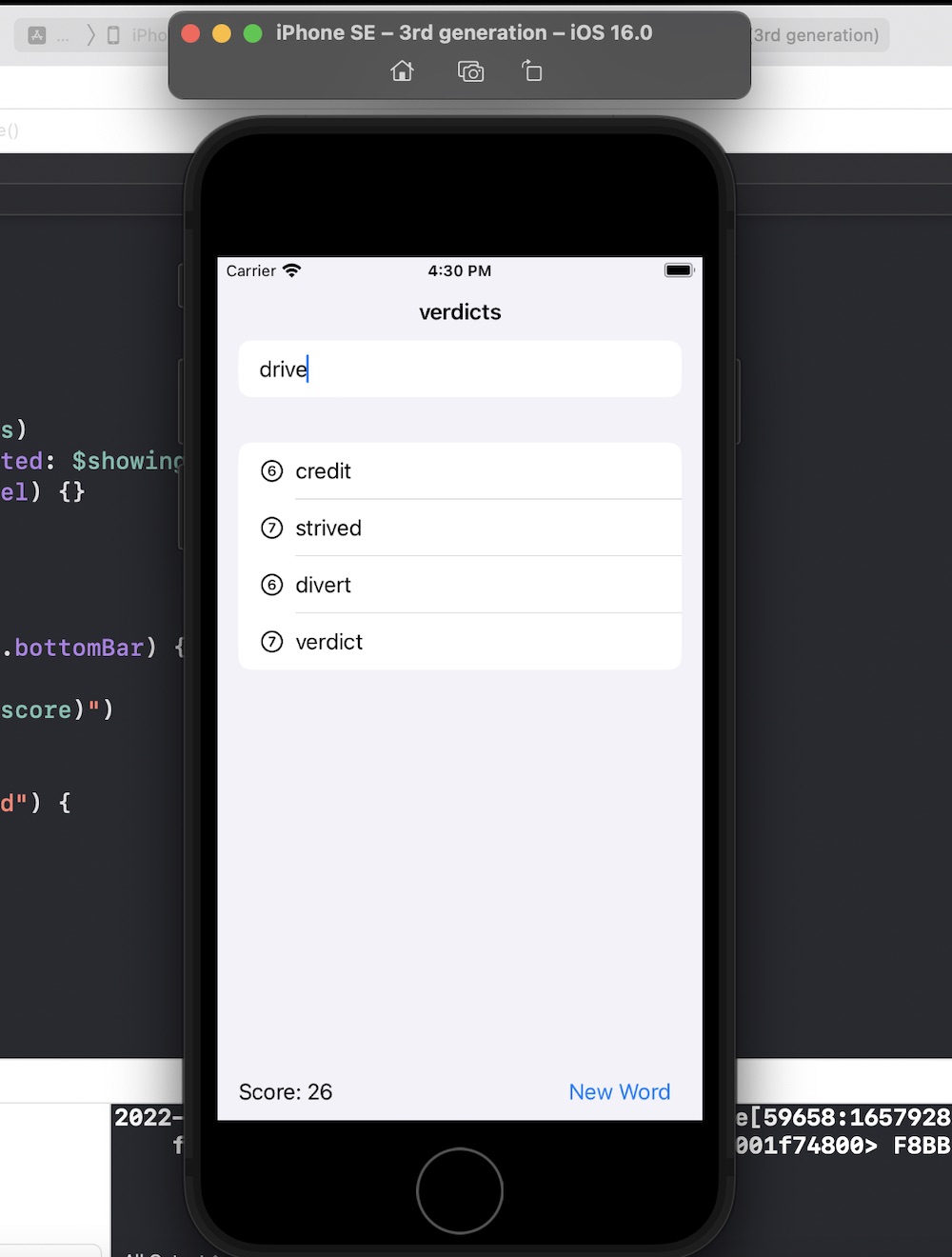
Another 100 Days of Swift UI project wrapped up - this time a scrabble like word game. New techniques included saving a large text file in the app bundle and loading it (via a string) into an array on launch of the view. Also a short adventure into UIKit to use a UITextChecker.
Source .
Sep. 19, 2022
As is my practice now, after completing the challenges for Project 5 , I reviewed Paul’s solution (which is only available to subscribers) to see what he’d done better so I could learn from it.
Most of the differences where not of much significance, but there was a couple of things I picked up:
When the user had pressed the reset button, to empty the array of word guesses from the previous turn, I had
Sep. 14, 2022
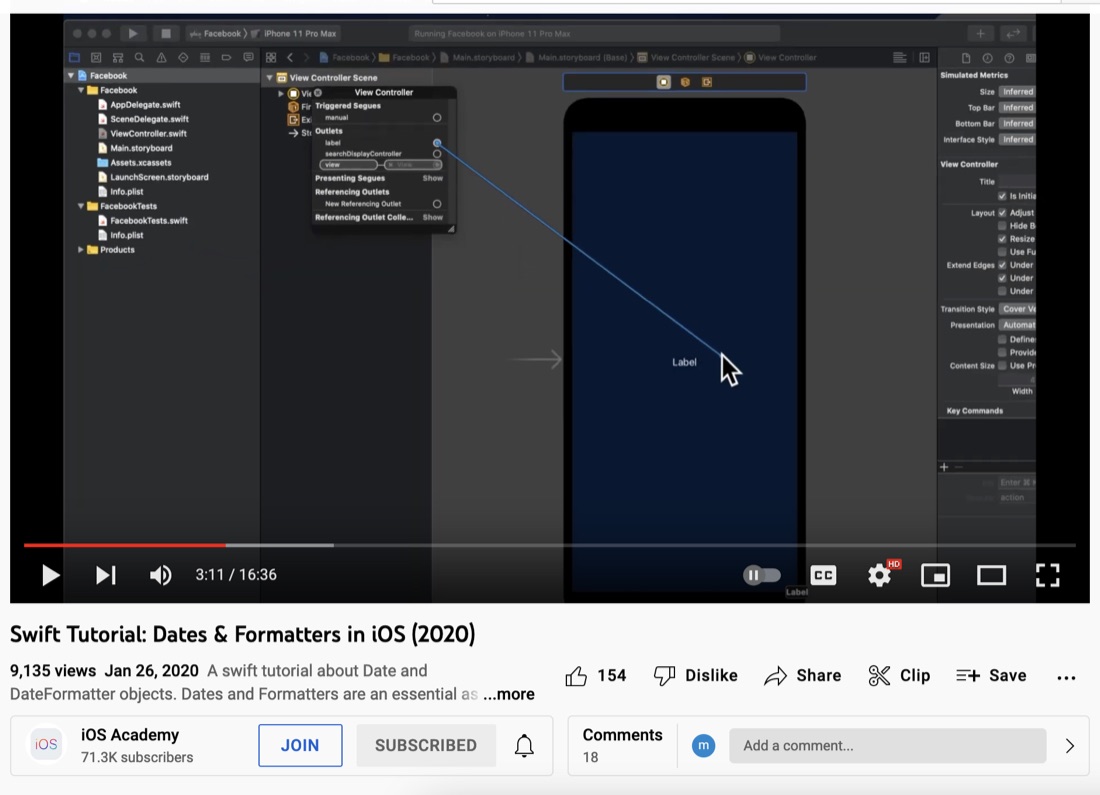
I’m on Day 26 of 100 Days, and didn’t grok the dates on my first read through, so I’ve read a couple of other explanations and sat down with a coffee and thought I’d see what YouTube had for me on the subject. I seen a few great iOS Academy videos, so this one seemed like a good choice.
I haven’t seen enough to say if it is a good or great explanation of dates, calendars and date components in Swift yet, but man, getting to the stage of writing useful code when using storyboards and UIKit takes a while! It’s literally 3:42 in to the video before there’s enough infrastructure done for “hello world”.