Jul. 28, 2025
Ghostty is a terminal application that I don’t really need (it’s listed features either already exist in the MacOS terminal, or seem so esoteric or marginal that I can’t imagine any real benefit from them in my normal use), but I wanted to be one of the cool kids, so I thought I’d give it a try.
After fiddling around with the themes for a bit I renamed it to ’term-ghosty.app’ so I’d remember to use it (ie when I pop up spotlight and type ’term’ it will come up) and got on with my day. Ten minutes later I’d run into a problem.
Sep. 30, 2024
A while ago, I devised a complicated system where I could drop files in a web interface running on an LXD container and the files would then magically appear in a directory on a remote NAS in the morning. It turned out to not be very robust, and I gave up on it after a while.
Also, really there should be no need for it - underneath, it was just using rsync to move the files, so why not just do that direct from one NAS to another? Well, mainly because my NASs are all Synology - which I love, and they’ve been great, but in an effort to make them usable by muggles, Synology tend to somewhat complicate things for Linux command line wizards.
Apr. 12, 2023

I was doing updates on all my nodes and VM’s today, and backing up the VMs that aren’t already on a backup schedule. On my dev machine I have a Debian LXC container that I mostly just use for trying out Linux commands and playing around. I used to have a backup of it that I used a lot - after playing around I like to set it back to a fresh install plus my ssh keys - but I lost it somehow when moving the VM to new metal.
Apr. 10, 2023

A few weeks ago , I was very excited to be able to take a snapshot of a virtual machine, copy it across the network from that Proxmox node, copy it back across the network to a different Proxmox node, start it there, and have it up and running, without it noticing it was actually on different hardware.
Backing up a VM is pretty simple, you just click on the node, choose Backup and click the Backup Now button. The ease, and completeness of backing up a VM is one of the main reasons I’m using Proxmox for my systems.
Apr. 4, 2023
I’m in the process of shuffling disks around as I move towards my 3-2-1 storage arrangements. I thought after my extensive rsync adventures I’d mirrored everything everywhere, but then realised, with a sinking (no pun) feeling, after I’d repurposed a drive out of the 2 drive Synology as a USB caddy drive and wiped it, that I’d forgotten my audio book directory. All my rsync fiddling around had been on the video subdirectory of the media folder, not the whole media directory that included my audiobooks.
Mar. 28, 2023
The reason I’ve been figuring out rsync is to setup my backup strategy. Eventually this will partly be managed with scheduled tasks (ie cron jobs) running rsync. I wanted the SSH in and try this out, since I didn’t know some basic things like the mount points of the shares.
Mount points
My first issue was to find the paths to all my data. This turned out not to be a drama. Each of the volumes you create when the NAS is set up are just in the root directory. This includes any USB drives plugged in.
Mar. 27, 2023
The Synology operating system DSM (I’m on DSM 7.1.1) is Linux, but its highly customised for the purpose of making running a complicated Linux NAS doable for less technical users.
Due to that, some things that are routine in a regular distro, require a few more steps to jump through to get them to work. SSH-ing in to a Synology with keys is one of those things.
Should you?
Before you do start fiddling around, it’s probably worth mentioning that almost all the things you might want to do on the Synology can be accomplished through their web interface, or by installing a ‘package’ from the Package Center. For example, if you need to run a cron job, that’s done through the Control Panel ‘Task Scheduler’. If you need TailScale installed to easily access it over Wireguard, there’s a TailScale package. In general it’s probably easier and safer to do things their way.
Mar. 21, 2023
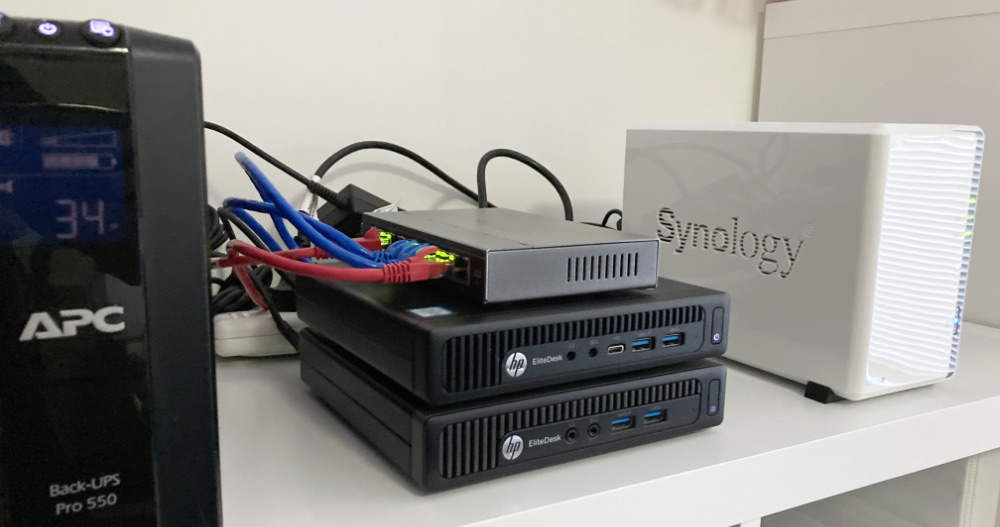
I went over mounting a Synology NAS share on a Mac or Linux host a while ago . Now I’ve populated a new NAS, and I want to copy my data over to it. I could mount them both to my laptop, and the data flow would look like this:
NAS1 - switch - wifi - laptop - wifi - switch - NAS2
Since I’m copying 4TB, it will take a few hours, and if I forget what’s going on and close the laptop, or take it outside of my wifi the transfer will die, and I won’t be sure which files are patent. What might be better would be something like this:
Feb. 20, 2023
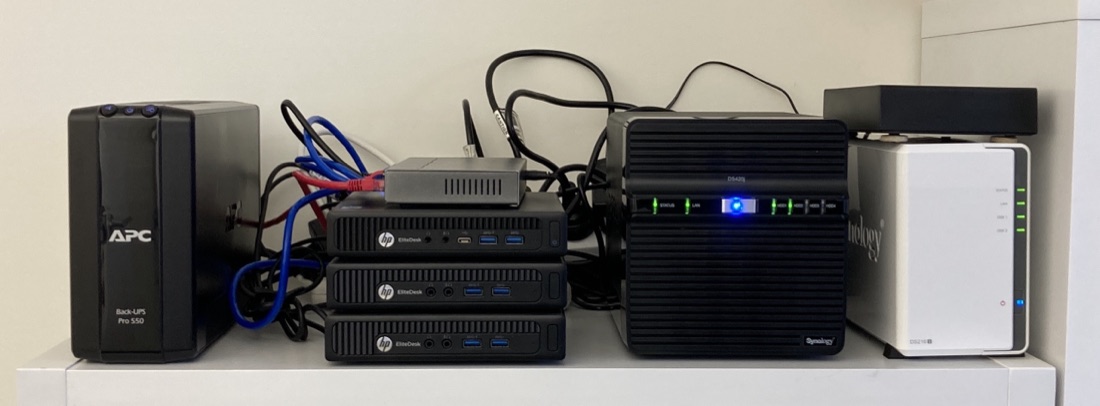
I picked up a Synology DS216j NAS from eBay to use for storage for the rapidly growing home lab. The eventual plan is that as well as my VM backups, it will host the media library, and eventually (when this has all proved itself reasonably bullet-proof) my current DropBox contents. That won’t all fit on the 2x2TB drives that the DS216j came with, and I have a pair of 8TBs on hand, but I wanted to set it up and checked it all worked.