Continuing on with the demo project from yesterday, in which we used the ImageRenderer class to turn a view into an image, today we want to let the user share it somehow.
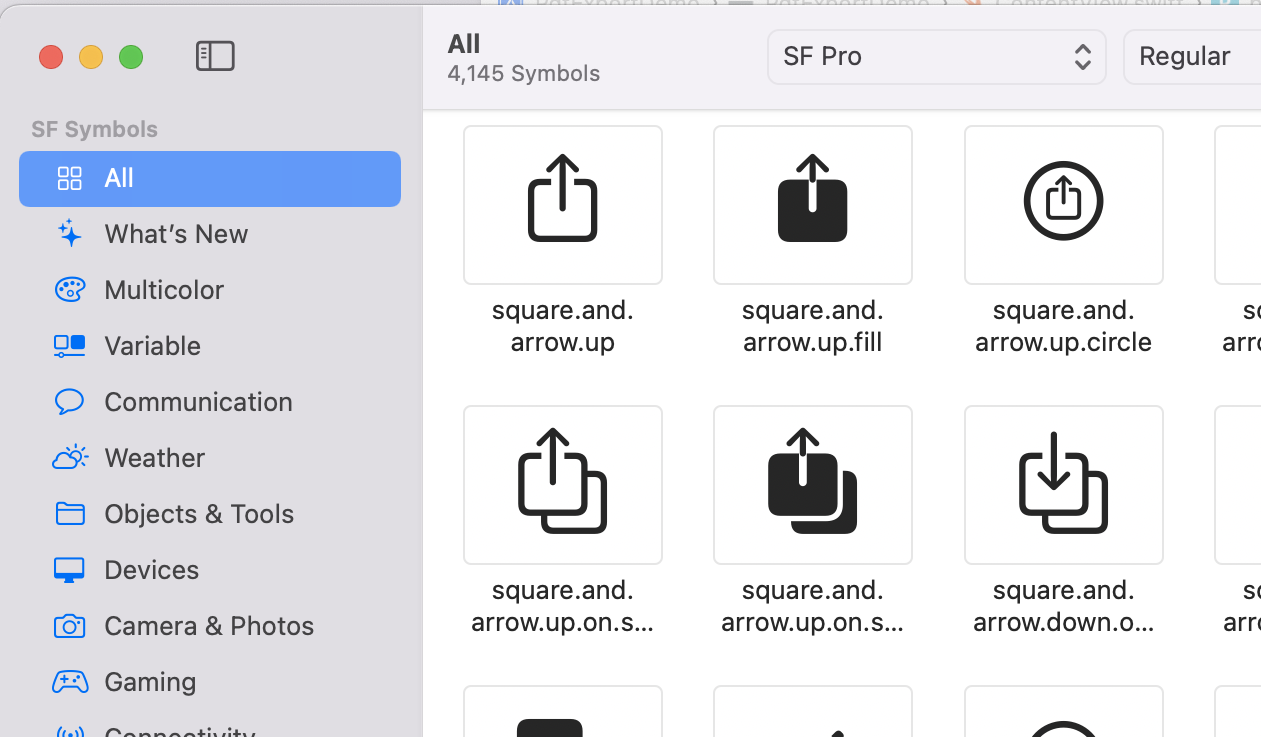
Typically, apps have a button using the square.and.arrow.up SF Symbol to share something from the current screen. It’s probably not an accident that it’s literally the first symbol in the app.
Pressing it generally opens the “share sheet” which has options for opening whatever is being shared in another app, printing it, saving it to photos, or whatever.
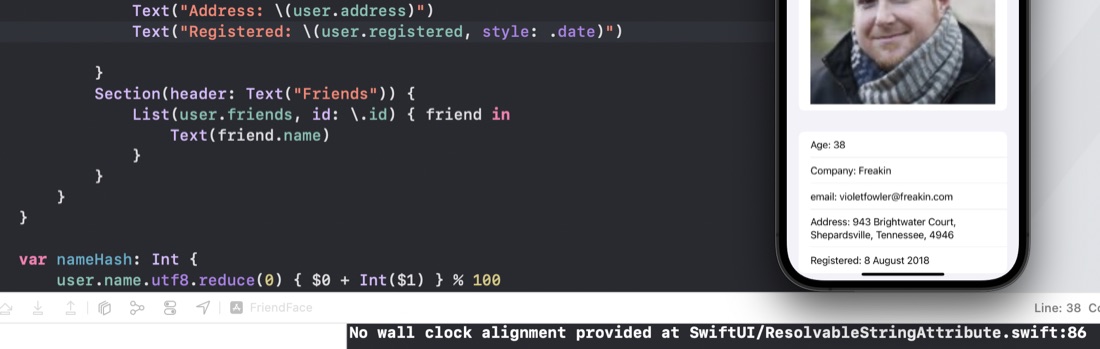
When I was working on the Day 60 app, I noticed I kept getting a message in the console “No wall clock alignment provided at SwiftUI/ResolvableStringAttribute.swift:86” every time I went into the detail view. Via elimination by commenting bits out, I’ve narrowed it down to a date formatting call. Here is the code to reproduce it in Xcode Version 14.0.1, Swift 5.7.0.127.4
struct ContentView: View {
    var body: some View {
        Text("Date: \(Date(), style: .date)")
    }
}
It’s to do with the style - if I change it to .time or .relative the message does not appear.
The Day 60 Milestone is a demo app that vacuums up some JSON and displays it in a list in a NavigationView that links to a details page. Nothing super strenuous, the steps were something like this:
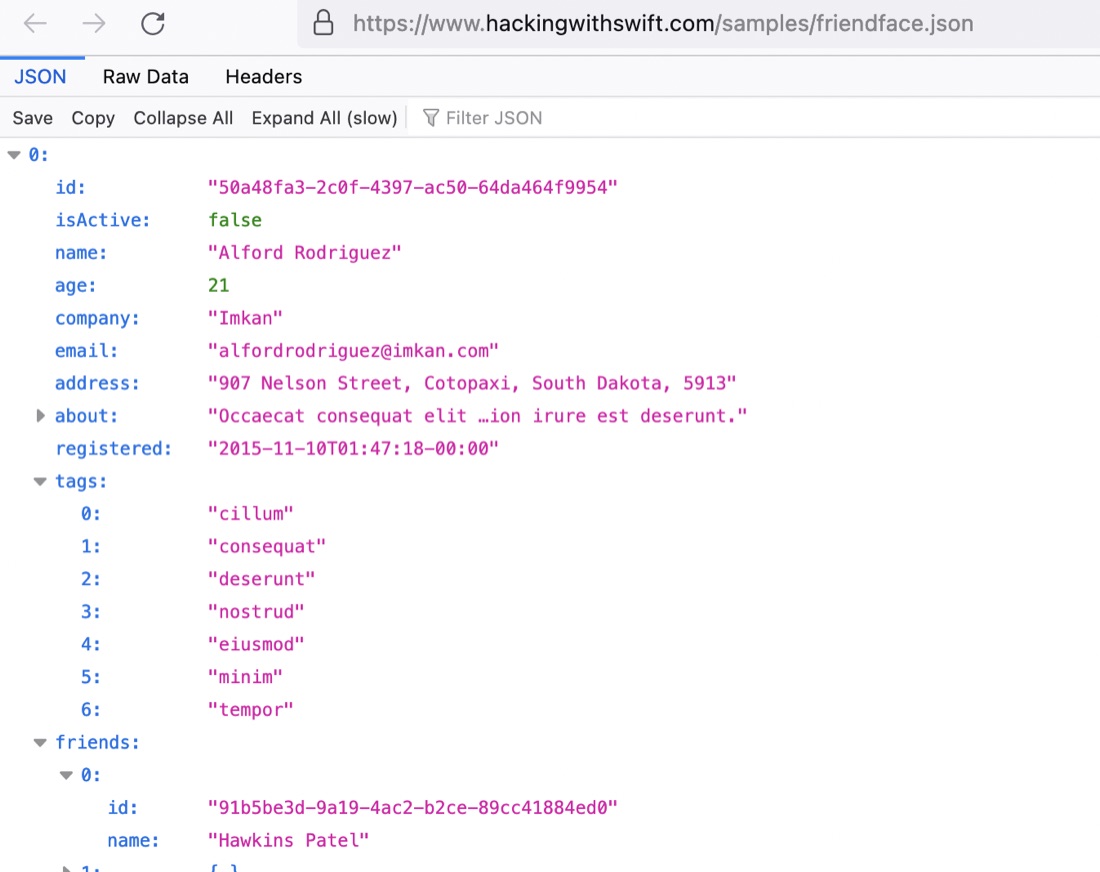
Download the JSON and have a look at the structure. Firefox has a simple JSON viewer built in, so it was straightforward to see this is an array of users, which along with some (mostly string) properties contains an array of tag strings, and another array of friends.
Project 12 was a series of code tutorials around developing CoreData concepts rather than a real app, but the challenges are based on a very small app that uses a subview to allow dynamic (ie changeable at runtime) filtering of a list of data. The reason this would be tricky is that the @FetchRequest is a property of a view - and therefore mutable. The trick is to have a subview to build that part of the view, and to pass parameters into it which build the fetchrequest using an underscore.
I did so well on this one that it’s not going to make a very interesting post. My first two challenge solutions were pretty much character for character the same - so not much to report.
On the third challenge, there was a minor difference in the display process. I had done this:
let date = book.date ?? Date()
Text(date.formatted(.dateTime.day().month().year()))
    .foregroundColor(.secondary)
    .opacity(date == book.date ? 1 : 0)
Another set of challenges for a #100DaysofSwiftUI tutorial app. Project 11 was a book tracking app - the big new thing was using CoreData. Here’s the challenges for it .
Right now it’s possible to select no title, author, or genre for books, which causes a problem for the detail view. Please fix this, either by forcing defaults, validating the form, or showing a default picture for unknown genres – you can choose.
I’ve noticed Paul is inclined to ignore the preview and run his code in the simulator to check its operation. That’s valid, but it seems quicker, and reassuring, to see it in the preview as I type.
This led to a small problem with Day 53 that uses CoreData. When I added a student in the preview, it looked like this, and was immediately followed with a crash report.
As usual, here’s my thoughts comparing my attempts at the challenges to Paul’s. Usually he’s better!
1) Whitespace
The task was to validate the order address properties, not just by checking they are not empty, but also that they don’t just contain spaces. I went the bruteforce route since there was no .isEmptyIncludingWhitespace method.
var hasValidAddress: Bool {
    let trimmedName = name.trimmingCharacters(in: .whitespacesAndNewlines)
    let trimmedStreetAddress = streetAddress.trimmingCharacters(in: .whitespacesAndNewlines)
    let trimmedCity = city.trimmingCharacters(in: .whitespacesAndNewlines)
    let trimmedZip = zip.trimmingCharacters(in: .whitespacesAndNewlines)

    if trimmedName.isEmpty || trimmedStreetAddress.isEmpty || trimmedCity.isEmpty || trimmedZip.isEmpty {
        return false
    }
    return true
}
As soon as Paul mentioned extending String, I facepalmed - of course, just create the method I want on string. Paul’s is a one line extension - neater, and Swiftyier.
Day 52 of #100Days was the challenges to the Cupcake Corner app - an app that allows you to build a one-row order, encode it as JSON and submit it to an API with a URLSession. To allow the order to be passed around, it’s an @ObservedObject which meant that a few extra hoops needed to be jumped through to make it Codable.
1) Whitespace validation
The tutorial app validates the order address by checking that each field is not empty, but it can be fooled by just entering some spaces. The first challenge was to fix that.
Way back when, I was unclear about @StateObject and @ObservedObject (here , and here ). I still am.
But in today’s tutorial video, Paul clearly says that the @StateObject is for the single place in your app where the object is created, then everywhere else, use @ObservedObject. Trouble is, I just know from the Simple MVVM app I made if you wrap the single instance of the data model with the @ObservedObject, it still works.
I’ve been mucking around with the Habits app too long - it’s started to look like procrastination. It already meets the specification , so I’m calling it an MVP and moving on.
This is the first app of mine I’ve loaded onto my phone and started using, and there are a couple of things I’d like to do with it. It currently just lets you specify how many days between an activity repeating - so if you say you should go to the gym every second day, and you complete that activity on Monday, “Gym” will make it’s way to the top of the list on Wednesday. While it’s waiting in the list for Wednesday to come around, it will show the “Due” time as being exactly 48 hours after you last pressed “done” on it. But if the habit you want is to go to the gym after work at 6:00pm that’s when you want it to be due. I’d like that.
As usual, I’m spending way more time on the apps written from scratch in the 100Days series . The Habit tracking app I’m working on has been good practice, especially of the architecture of the simple list based app .
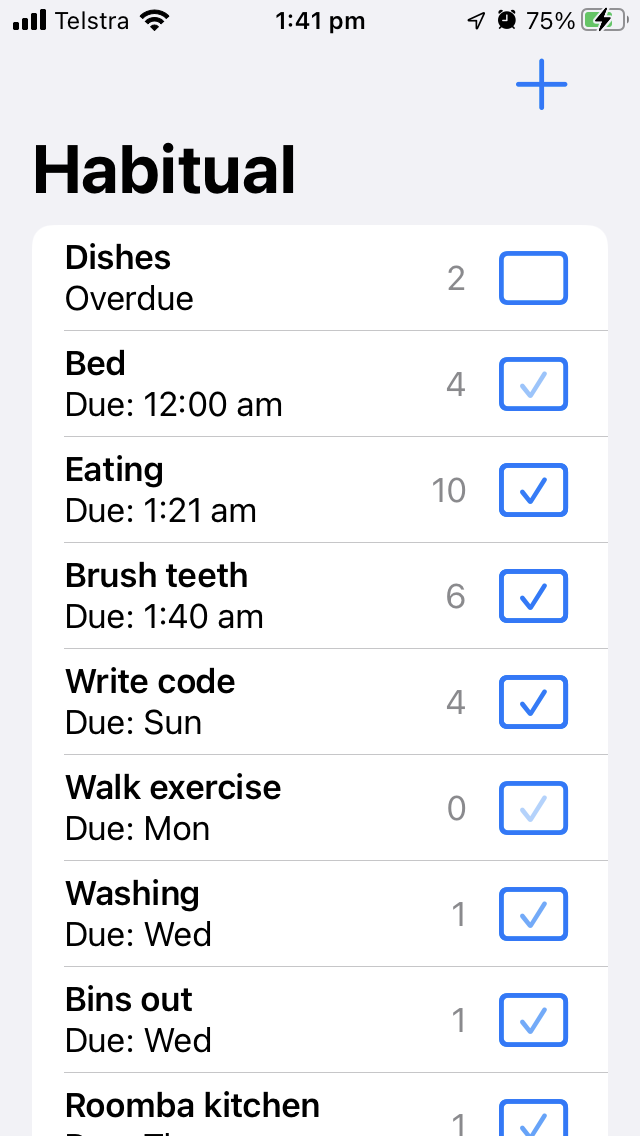
My version has a couple of refinements I quite like. I’m using a checkmark in a rectangle as the button to mark that activity as done, and I’ve added a nice fade to the checkmark as time goes on to represent the percentage of time from when it is done until it becomes due again.
SwiftUI does some property wrapper magic to (very efficiently) refresh your views, but what if you want to force a refresh for some reason? Here’s the techniques I’m currently using to do that.
The tricks are below, but just so you can see them in context, here’s the sample app we’re working on. It’s a list of cars so you can keep track of how many of each kind you own. Here’s our data:
I’m writing the Habits list based app from #100Days and had a working MVP, then for some reason, decided to refactor by changing the subview I’d written as a function, into a struct. Some time later, I discovered that my list items were not updating correctly, so detective time.
I talked a little bit about the architecture yesterday - the item is a struct, and there’s a class containing an array of the items. Something like this:
It’s a pretty safe bet that if Xcode is saying there’s an error in my code, that it’s correct, and I am in error - not Xcode. Today I came across a situation where that might not be true.
I think the purple warnings are problems detected at runtime - I’ve heard of thread problems causing purple warnings. The error I was getting was “Publishing changes from within view updates is not allowed, this will cause undefined behavior.”
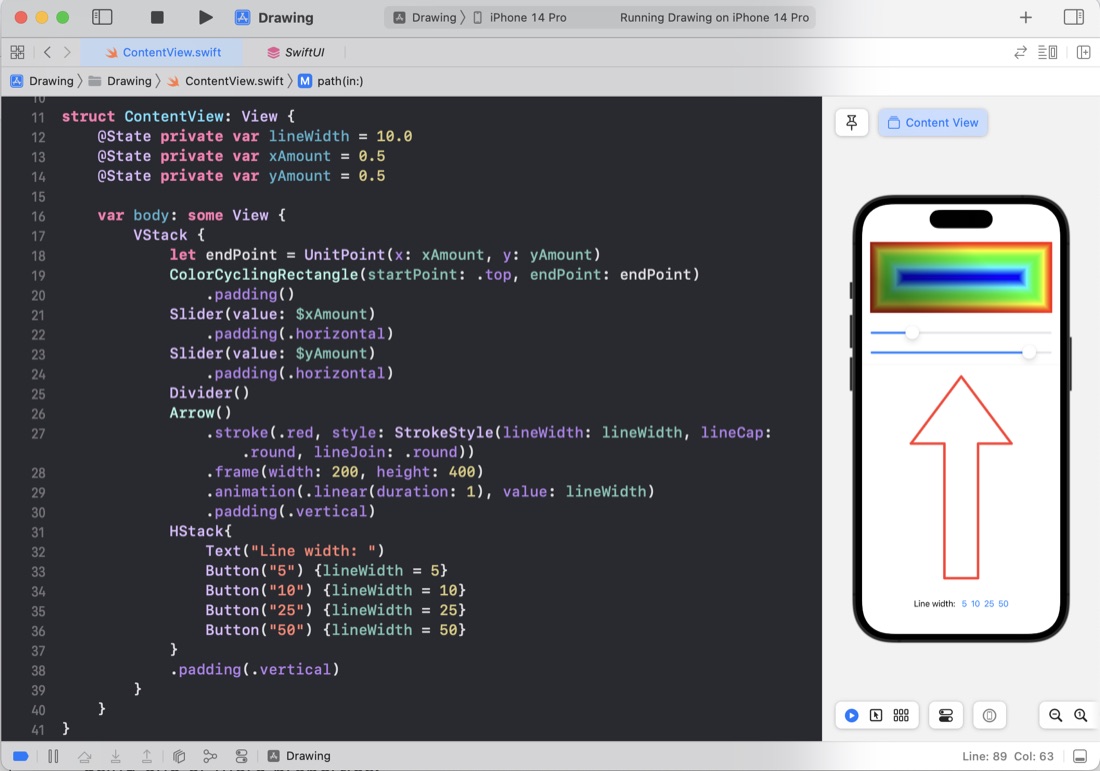
Create an Arrow shape – having it point straight up is fine. This could be a rectangle/triangle-style arrow, or perhaps three lines, or maybe something else depending on what kind of arrow you want to draw.
These few days of #100DaysOfSwiftUI we made some pretty shapes by playing around with some of the SwiftUI systems for drawing on the screen, including paths, shapes, transformations, ImagePaint, drawingGroup() to use Metal rendering, blurs, blend modes and using animatableData for animating - which I think is the solution to an animation problem in my TimesTable app I hadn’t been able to solve yet.
The little joy of something working. It’s one of the things that makes coding enjoyable. Like a good video game you have an overarching goal, but on the way you need to solve a large number of problems of variable complexity, and you get a little bit of dopamine for each one.
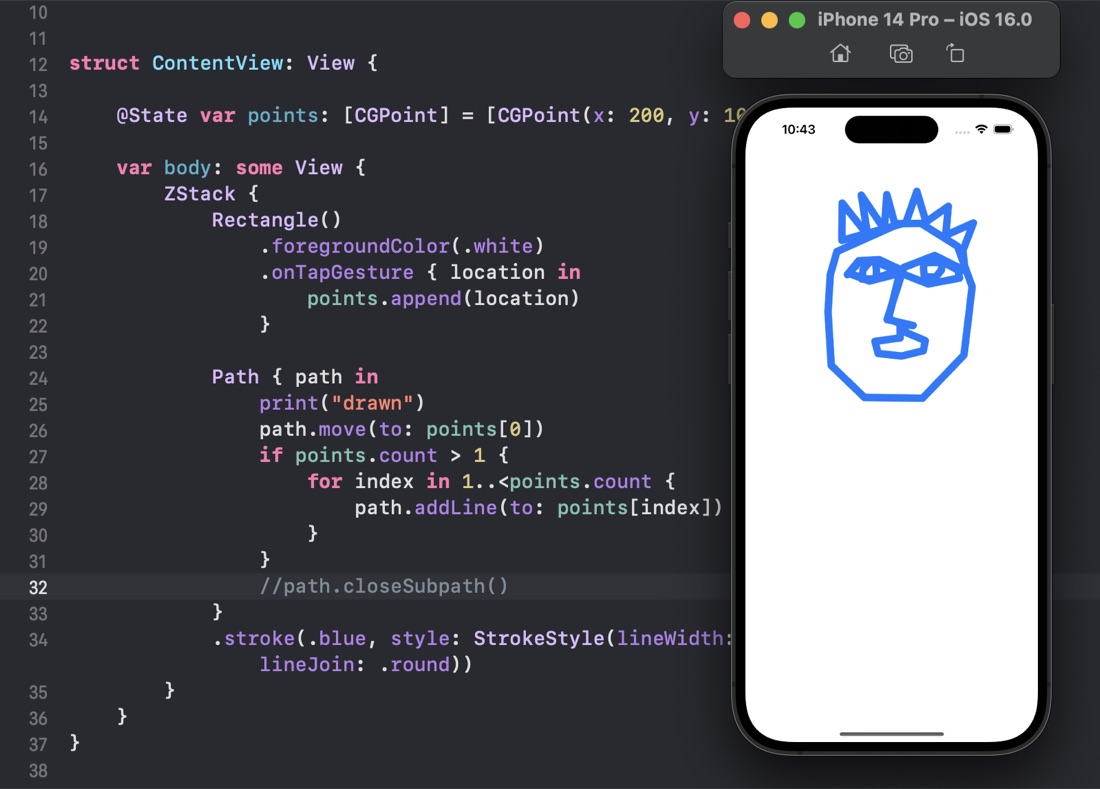
I think in every language I’ve ever learned, as soon as I know how to draw something on the screen, I start to get the urge to create a simple drawing application. When I was starting on Visual C++ and the MFC (Microsoft Foundation Classes) the book I used to get started built a drawing application as an example. It hooks into the benefit of being able to quickly see the evidence you’ve achieved something.
I’ve watched Paul’s solution to the Moonshot challenges (the solutions are one of the perks of being a Hacking With Swift subscriber). When I’m solo learning like this its one of the few ways I can get any feedback on my coding, so I highly value it, and usually write one of these posts as a way to ensure I reflect on it.