Using LXC templates in Proxmox
24 Dec 2023
I wrote a couple of weeks ago about a standard workflow I use to spin up a web service in an LXC container to add to my self-hosted collection of services. It went a bit like: do this, and then this, then this other thing. Whenever you find yourself repeating a set of steps like this, it’s usually a sign that you should be automating it. Not just to save time (although this is a key benefit) but also to improve repeatability and to avoid introducing errors.
In Proxmox, this particular task is easily systematized using container templates.
The simplest way to think of a container template is that it’s just a one-for-one snapshot of a container (ie the disk image, the configuration file that contains all the VM hardware information) all squashed up into a tarball - basically the same as a backup. This is then copied to create new containers.
If we create new containers from a template, all the software and configuration that was in the template will be present in the new container. This is obviously the desired behaviour, but it presents some issues - we probably don’t want multiple containers with the same host name, or MAC address, or SSH host keys. Some of these issues Proxmox will sort out for us, some we’ll need to tidy up manually.
| Issue | Solution |
| Host name | When you 'clone' the template in Proxmox, it will ask you the new host name. |
| MAC address | Proxmox just creates a new one with no input needed from you. |
| Machine ID | If you truncate it in the template before you save it as a template, a new one will be created then the container is. |
| SSH host keys | Manually delete them in the template before saving the template, then manually re-create them in the new container once it's booted up. |
Making the template
Create an LXC container as normal - ie chose “Create CT” in Proxmox, give it a name, choose a password, then a template, make the decisions about memory, disk, networking etc. Note that when you are choosing an official template to create it from (Apline, Debian, Ubuntu etc) , these files are almost identical to what we’ll be creating in this process.
Once that’s up and running, I ssh in and run all my apt updates and install any software or make any other changes. For me this includes:
- Making it a client of my local apt-cache .
- running ssh update and upgrades
- Copying in my SSH keys (ssh-copy-id)
- Installing sudo and adding myself as a sudo user
- Installing Docker
- Installing Tailscale, and doing the Tailscale LXC fix (but not running
tailscale up) - Installing my simple machine status server that’s used for monitoring
Once that’s all done, we’ve got a nice clean container, but with all the software and config that we need for most future containers.
Now we need to address a couple of the issues that could be caused by cloning this LXC from the table above.
- Machine ID - you could probably get away with not worrying about this, but might run into a confusing issue later. A simple
sudo truncate -s 0 /etc/machine-idwill nuke it, then a new unique one will be created when the clone container boots up. - SSH host keys - you know when you ssh into a new system for the first time and OpenSSH asks you if you’re sure you want to recognise this server? This is done by the server identifying itself with one of these keys. If these are left the same for all of the clones of our template, you’ll have to be constantly deleting the keys out of your
known_hostsfile. We can delete them now (which will make this template and any clones impossible tosshinto) or later. I choose now.sudo rm /etc/ssh/ssh_host_*
Once this is all done, we are ready to convert this container into a template. Shut it down, then if you are cautious, back it up (you can’t convert a template back into a container). Then right click on it in Proxmox and choose ‘Convert to Template". After a few seconds, it will be in your server view as a template with a slightly different icon.
Using the template
The process of using our new template is called cloning. Right click on the template in Proxmox, and choose clone. You’ll be presented with a dialogue to give it a number, choose a host name, select the clone type (you want a ‘full clone’) and where this container’s storage will be.
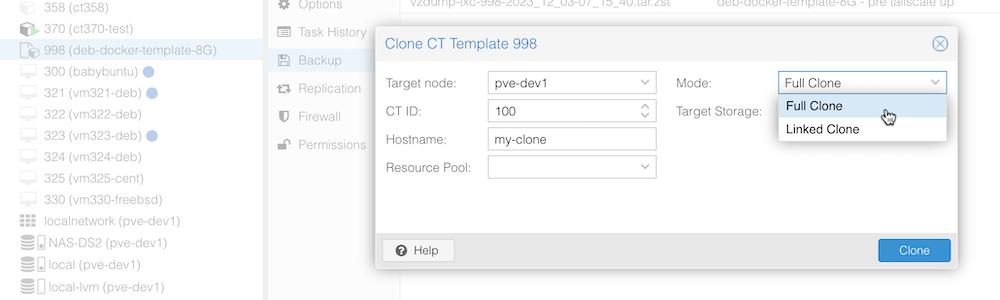
A few seconds later the new LXC container will be in your server view and can be started.
You won’t be able to ssh into this container yet as we deleted the host keys. Use the console in Proxmox to log in (with the root or sudo user credentials you set up earlier) and recreate the ssh host keys with sudo dpkg-reconfigure openssh-server
While you are here, you should probably change the passwords for both users with passwd or sudo passwd <username>
The other thing I’ll need to do to use my container with Tailscale is to run sudo tailscale up and complete the steps for that.
And we’re done. You’ve now got a container that’s identical to our template, except for the things that need to be different. You can go ahead and use it as needed now.
Resources
Here’s a couple of useful things I came across in the writing of this post:
Proxmox VE Full Course: Class 8 - Creating Container Templates - video from Jay (Learn Linux TV)
Linux Containers - from the Proxmox docs