Virtual Hosts on "Static Web Server"
22 Apr 2024I’ve been running NGINX Proxy Manager (NPM) in my homelab for a bit, and I’ve been meaning to clean up the VPS that runs most of my websites and public facing servers, so I’m considering running NGINX Proxy Manager on that VPS. While NGINX Proxy Manager wraps up the configs in a beautiful GUI, in the process you lose some of NGINXs capabilities. In particular there’s no GUI way to serve static virtual hosts from NGINX Proxy Manager.
That’s a pity, since it seems like it wouldn’t be a lot of work, but in any case we can easily just run another web server and proxy to it. I guess I could run another instance of NGINX, but on $5 VPSs memory is a bit scarce, and since my sites are extremely low traffic, perhaps something a bit lighter is in order.
An option mentioned in several posts for this exact situation is the very well named Static Web Server . It’s written in Rust, the docker image is less that 10MB, and it claims to be able to serve for virtual hosts. Let’s give it a try.
Directory Structure
My routine setup now is that everything runs in docker. There’s a directory under the home directory of my user for named for the container which holds the docker-compose.yml. Underneath that there’s two sub-directories: data - which holds all the app data, and config - which holds the app settings files.
In the data directory, I want to have sub-directories for each virtual host, then inside them a public directory which will hold the files to be served. This will allow me to keep config or other files for each virtual host in the directory above public which should not be accessible. That seems like a good arrangement so I can manage each virtual host in git and pull the sites down from a repository into their directory without things like the .gitignore being exposed to the world.
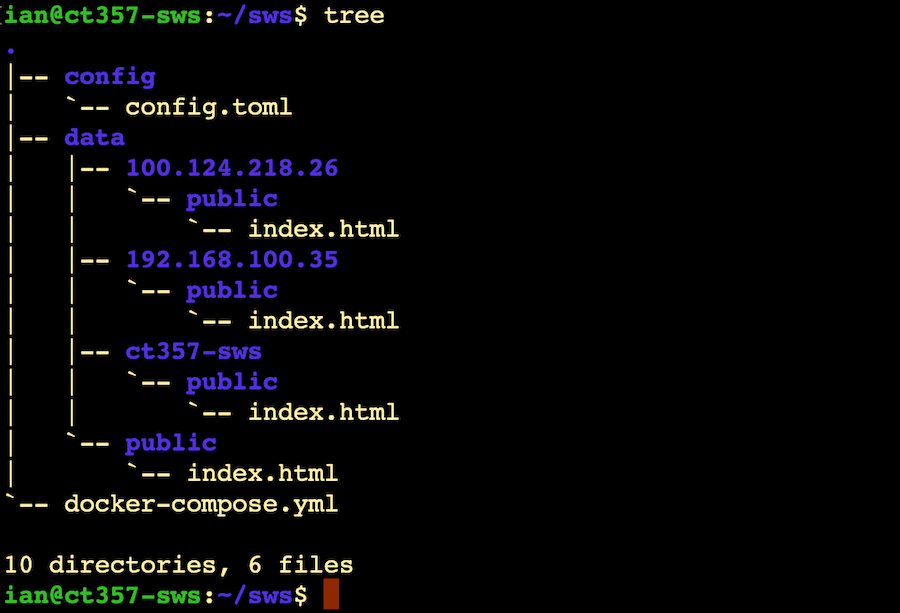
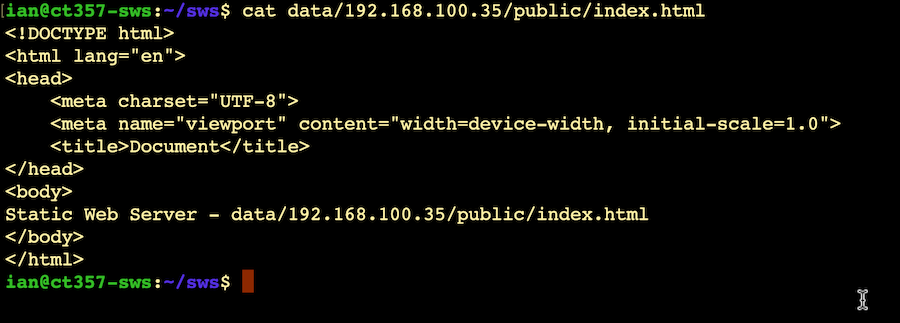
I’m running Tailscale on this VM, so it can be referred to by any of the addresses 100.124.218.26, 192.168.100.35 or ct357-sws. These are going to be stand- ins for the different virtual host names. The index.html files you can see are all different; I’ve edited them so each one just outputs the name of the directory it is being served from. eg:
Docker
version: "3.3"

services:
  website:
    image: joseluisq/static-web-server:2
    container_name: "sws"
    ports:
      - 80:80
    restart: unless-stopped
    environment:
      - SERVER_CONFIG_FILE=/etc/config.toml
    volumes:
      - ./data:/var
      - ./config/config.toml:/etc/config.toml
You’re probably familiar with docker-compose by now, but if not, the volumes lines probably need explaining. They map ‘real-world’ directories on our server, to the internal directories inside the container. This is a useful thing - we could copy our files into the container but those changes would be ephemeral, they’d be gone next time we restart the container. By creating these links, we can store the web server configs and data on our server, but from the point of view of the app, they appear inside.
An example will make this more concrete, lets look at the first line:
- ./data:/var
This is saying that the directory inside the container named /var is mapped onto the external directory ./data
Consider our file in the tree listing above ~/sws/data/100.124.218.26/public/index.html the web server running inside the container will see that file at /var/100.124.218.26/public/index.html It seems weird at first, but you soon get used to this sort of container directory mapping maths.
Config
There’s excellent documentation about Static Web Server on their web site , so I’m not going to go through the whole config.toml file, in any case, I’ve left nearly everything on the defaults. Instead, lets scroll down to the bottom and look at the virtual hosts settings.
[[advanced.virtual-hosts]]
host = "100.124.218.26"
root = "/var/100.124.218.26/public"

[[advanced.virtual-hosts]]
host = "ct357-sws"
root = "/var/ct357-sws/public"

[[advanced.virtual-hosts]]
host = "192.168.100.35"
root = "/var/192.168.100.35/public"
It works
A quick docker compose up -d, and we’re in business.

