Website in a Docker Container
11 Nov 2024Having figured out how to use the GitHub package registry, I was a bit inspired by this blog post from Florin Lipan to deliver all my little static websites as Docker containers. I’m not as focused as he is about making them tiny, but I did steal the idea of using BusyBox httpd for serving them, resulting in about 4MB containers. That’s small enough for me, and since they are all very similar, there’s a fair bit of layer reuse going on.
Here’s the setup. I dump the static (html, css, js etc) files for the website into a ‘www’ sub-directory.
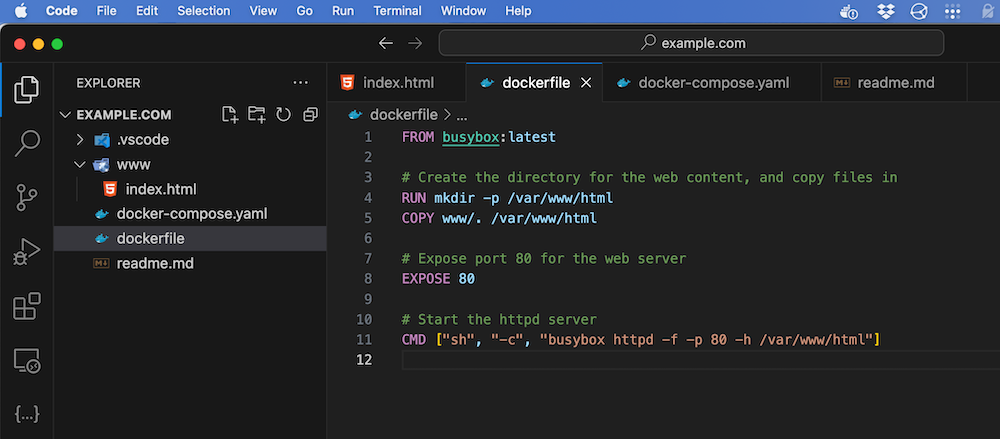
The dockerfile pulls in BusyBox then copies those files into the container. Note these are in the container, it’s not going to be bound to an external directory (where we could change them), the container carries its website files with it. Any change to the website content will require a container rebuild.
EXPOSE 80 doesn’t really do anything, it’s pretty much just documentation. Then the CMD directive starts the server on port 80 and points to the static files that we copied in earlier.
FROM busybox:latest

# Create the directory for the web content, and copy files in
RUN mkdir -p /var/www/html
COPY www/. /var/www/html

# Expose port 80 for the web server
EXPOSE 80

# Start the httpd server
CMD ["sh", "-c", "busybox httpd -f -p 80 -h /var/www/html"]
To use this dockerfile to build our container, just docker build it and give it a tag:
docker build -t ghcr.io/iankulin/example.com:latest .
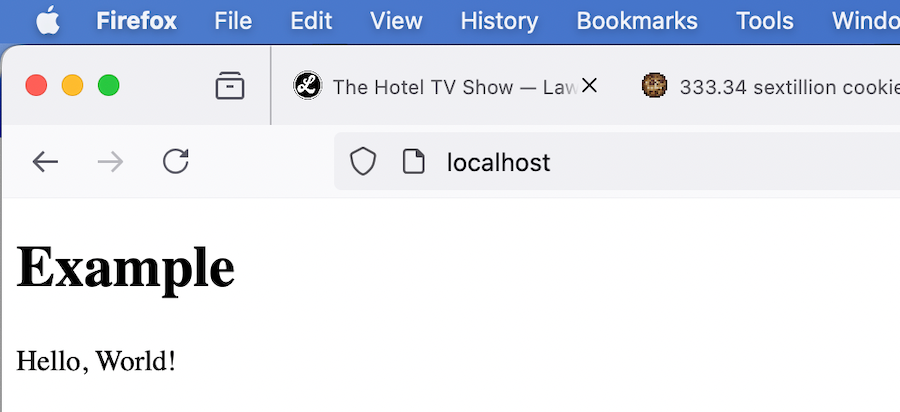
Then if we run it, and go to http://localhost, there’s our website.
docker run --name httpd-example.com -p 80:80 ghcr.io/iankulin/example.com:latest
With NGINX Proxy Manager
The docker-compose.yml file I use on the VPS host is slightly more complicated. We want each of the website containers to run in the same docker network as Nginx Proxy Manager - since docker networks have their own little dns server based on the container names, that’s going to make hooking it up trivial.
services:
  example.com:
    container_name: httpd-example.com
    image: ghcr.io/iankulin/example.com:latest
    restart: unless-stopped
    networks:
      - nginx-proxy-manager_default

networks:
  nginx-proxy-manager_default:
    external: true
Architecture
Since I develop on an M1 MacBook, but host all my workloads on regular AMD64 Linux LXC containers or VMs, I need to build for that:
docker build --platform linux/amd64 -t ghcr.io/iankulin/example.com:latest .
In actual fact, I could have built that way for the Mac as well - Docker Desktop would have just run it in a Linux VM with a small performance penalty which wouldn’t be noticeable for my purposes. Once it’s built, we push it up to the GitHub Container Registry.
docker push ghcr.io/iankulin/example.com:latest
Working with the registry is well covered in my previous post, so I won’t go into those details here.
On the host
On the host where the website is to run, I just make a directory for it and drop the docker-compose.yml in. Then docker compose up -d
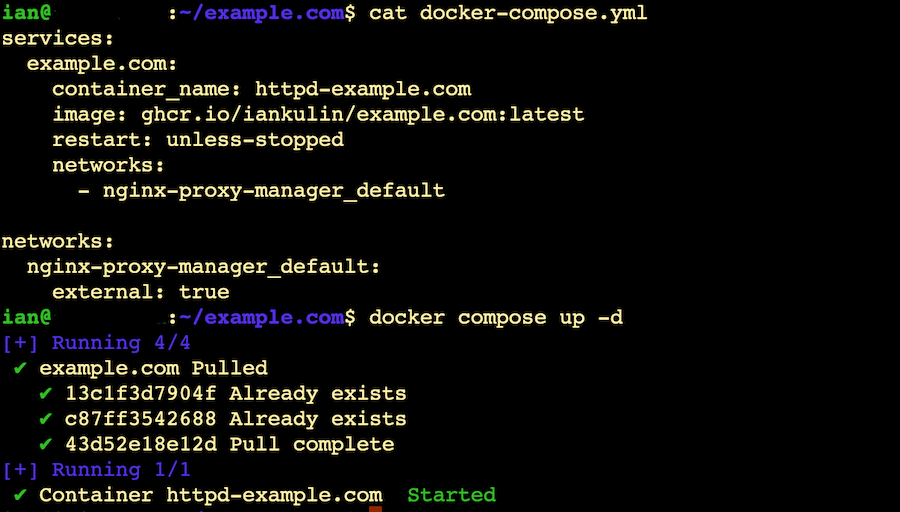
Since we’re running in the Nginx Proxy Manager docker network, when we specify the host name for the new web site for NPM to proxy to, it’s just the container name we gave it.
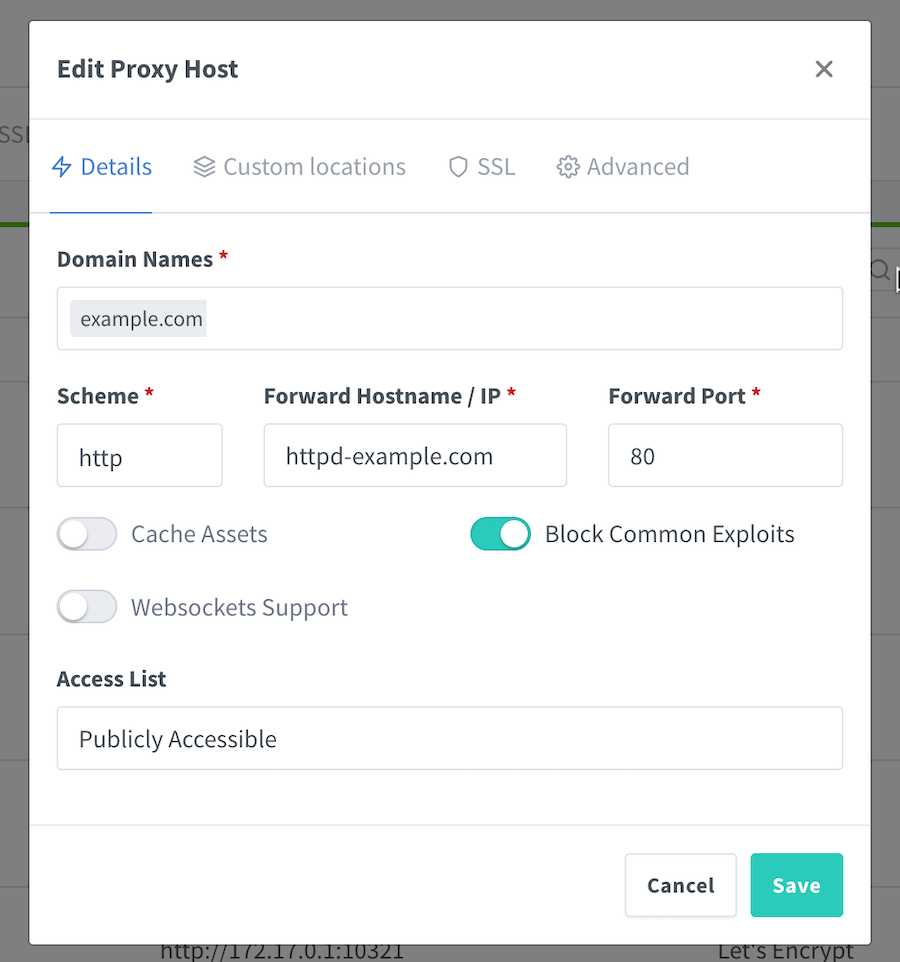
Then the DNS settings for your domain need to be pointed to this host. Once that’s propagated, you’ll be able to request the SSL certificate in NPM and your website is live.