Writing a Browser Extension
22 June 2025Web pages are mostly just a collection of HTML, CSS, and JavaScript, so if we had some way of adding some of these into a web page, perhaps from our browser we could add new behaviour to a web page, right?
Yes; users have long used tools like Greasemonkey (or similar userscript managers) to inject scripts into pages. Better still, modern browsers expose JavaScript APIs that let us interact directly with the browser itself. Enter: browser extensions.
It turns out this is quite simple to do. And, it’s well documented (here’s the step-by-step for Firefox ), but if you want, follow along with me while I solve a gripe with a browser extension for Firefox.
Extension or Add-On?
Before we get started, let’s clear up some naming ambiguity. Firefox has add-on’s - these are extensions, plus some goodies like themes. I’m going to continue to call them extensions - it’s browser non-specific and you’re using the Web-Extension API which is mostly-browser agnostic way of doing these things.
The Gripe
I often want to steal an image from the web, so I right click to open it in a new tab, and save it, only to find it’s a .webp that can’t be used for whatever I wanted to steal it for. I often notice is that the original image is a .jpg but it’s been converted (often by a SASS image conversion product such as imgx , imagekit , or sirv which apply transformations via query parameters like ?w=600). They’ll have links like this:
https://demo.sirv.com/look.jpg?w=600
or
https://demo.sirv.com/look.jpg?w=200

The solution
These are “query parameters”. It’s a smart, simple way of applying transformations to images. On the server end, the parameters are interpreted as what to do to each image. Of course, if you just remove the parameters, you get the original image.
https://demo.sirv.com/look.jpg

And if I’m stealing it, that’s what I want. So my plan is to write a browser extension that allows me right click on an image, and open it up in a new tab with all the query parameters removed.
Manifest
You might have heard about the new “Manifest 3” that limits what extensions can do (and breaks ad blockers) in Chrome? Manifest v2 remains fully supported in Firefox, and offers simpler APIs for things like background scripts, which are perfect for small utility extensions like this. Here’s our manifest.js:
{
  "manifest_version": 2,
  "name": "Clean Image Opener",
  "version": "1.1",
  "description": "Open images in new tabs with query parameters stripped",

  "permissions": ["contextMenus", "tabs"],
  "incognito": "spanning",

  "background": {
    "scripts": ["background.js"]
  }
}
The manifest is the meta-data portion of the extension. Most of these fields are pretty obvious, but let’s talk about a couple:
**"permissions": ["contextMenus", "tabs"]** - here we are specifying what permissions our code is going to need. The browser uses this to block API calls that would need any other permissions. It’s part of principle of least privilege system that makes clear to users what can be done, then builds those restrictions into the execution.
In this case were asking for "contextMenus" because we want to add something to the right click menu, and "tabs" because we want to open one with a URL we pass it.
It’s also worth noting that these are the browser functions that are being restricted - our code still has access to the web page data (ie the URL of the image we’re right clicking on) since the DOM is all in the user scope anyway - for example you can open the developer tools to access that information. This is still a potential risk though - for example if a malicious extension wanted to collect that viewed image url and export it as telemetry. Browser extensions need defenses other than the manifest for those types of attacks.
There are many different permissions - “history”, “clipboard”, “webrequest”. The important intent is that the user can reasonably be aware of what’s being asked and weigh it up against what the extension is doing for them. The first layer of security for add-ons lies with us - the developer. Browser extensions have wide access to user activity and should be kept as minimal as possible to avoid abuse or privacy leakage.
**"incognito": "spanning"** - Here we’re saying how we want the extension to work in incognito mode. In the Manifest 2 specification there are three options for incognito - “not_allowed”, “split” and “spanning”. “split” was intended to allow the extension in both modes, but not allow data to be shared between them - essentially to run separate copies of the extension in each mode. It’s not implemented in modern Firefox - I suspect because of earlier security problems, so we’re using “spanning” which should indicate to the user of the extension that data may be passed between the two modes.
**"background": { "scripts": ["background.js"] }** - we want our script to run in the background (to listen for right-clicks and act on them) so it goes in here.
Let’s have a look at the first part of background.js:
// Create the context menu item when the extension starts
browser.contextMenus.create({
  id: "open-clean-image",
  title: "Open image in new tab (no parameters)",
  contexts: ["image"],
  documentUrlPatterns: ["<all_urls>"],
});
The title: is just the text that appears in the context menu when the user write clicks on an image (this is the contexts: ["image"] part). This can happen on ["<all_urls>"] (we could have restricted it to a particular domain or sub-domain). The id: is just how we are going to reference it in the click handler. Speaking of:
// Handle context menu clicks
browser.contextMenus.onClicked.addListener((info, tab) => {
  if (info.menuItemId === "open-clean-image") {
    // Get the image URL and strip query parameters
    const originalUrl = info.srcUrl;
    const cleanUrl = stripQueryParameters(originalUrl);

    // Open the clean URL in a new tab
    browser.tabs
      .create({
        url: cleanUrl,
        active: true,
      })
      .catch((error) => {
        console.error("Failed to create tab:", error);
      });
  }
});
Not much explanation needed here due to good naming and generous comments ;-)
And that’s pretty much the whole extension. Of course there’s a stripQueryParameters() somewhere. For now, just imagine it says:
function stripQueryParameters(url) {
  return url.split('?')[0];
}
Testing
To load our new Firefox extension to try it out, go to the url about:debugging#/runtime/this-firefox where we want to “Load a Temporary Add-on” - in the open dialog choose your manifest file.
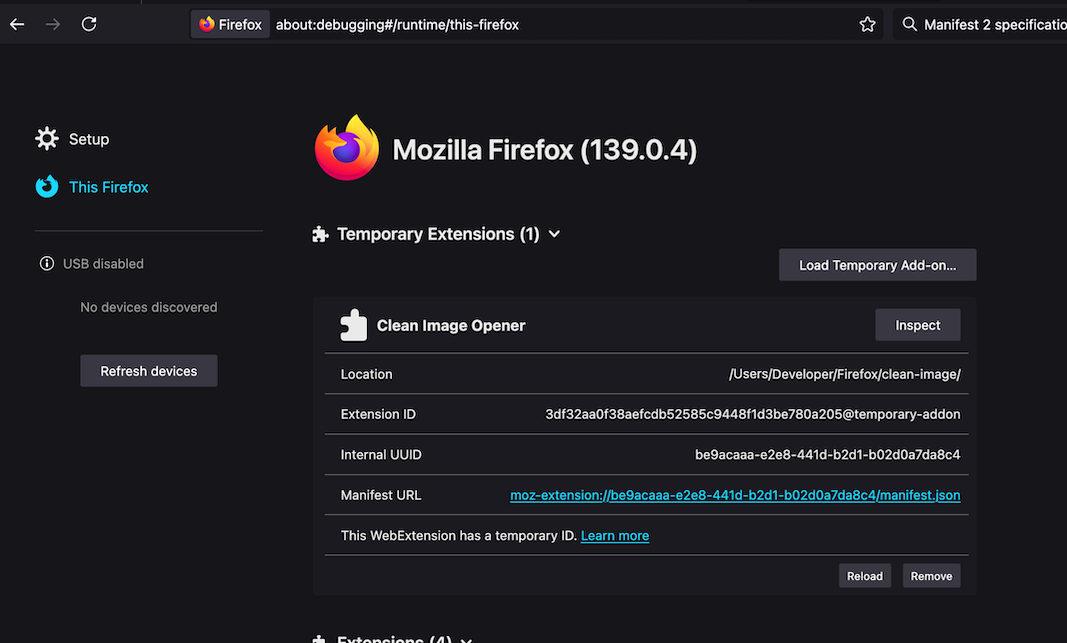
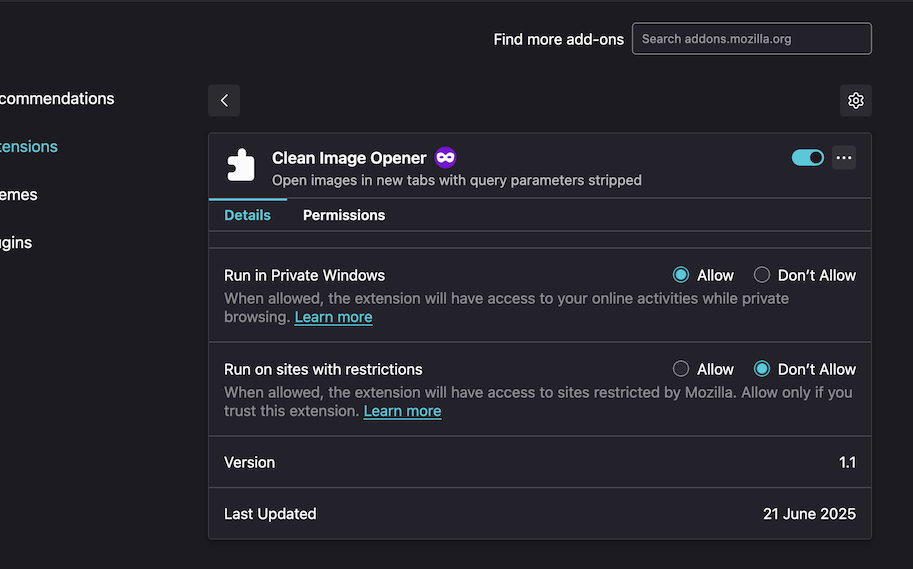
Now the extension should be working for normal browser mode, to enable it in incognito, you’ll need to head into the Firefox menu “Add-ons and themes” (about:addons ) then open the “Manage” menu for the extension and turn on “Run in Private Windows”.
Publishing
Publishing an extension to the Firefox Add-ons store could be a whole post, but it’s the sort of thing you can follow your nose through, by starting at addons.mozilla.org/en-US/developers . There is a semi-manual review process, so don’t expect it to be instant.
The source for this project is available here , or install it into Firefox from here .