ZFS Basics on Proxmox
29 July 2023
I’m a keen listener of the 2.5 Admins podcast in which there’s frequent enumeration of the advantages of ZFS as a file system. So much so, that I’ve had occasional twinges or regret about the money I spent on the Synology - although it has been boringly reliable and does everything I need.
Proxmox has some built in support for ZFS, including through the web GUI. So I’ve been itching to give it a try.
I had a 256GB M2 NVME sitting around - I bought it with the plan to try it as the root drive in one of the servers. That was when I was worried that one of the servers’ drives was about dead because the SMART data said it was at 100% use. I’ve since discovered that various companies interpret that different ways, so probably it’s 100% okay.
I started to think a little JBOD with a couple of NVME SSD mirrored drives would be a fun project. There’s no way I could do that inside the case to get the proper PCI access, but the my HP 800 G2’s all have USB 3 so it shouldn’t be terrible - probably a lot better than the spinning rust NAS over 1GB Ethernet.
I purchased this little UNITEK S1206A dual bay enclosure and another stick of 256GB Samsung SSD.
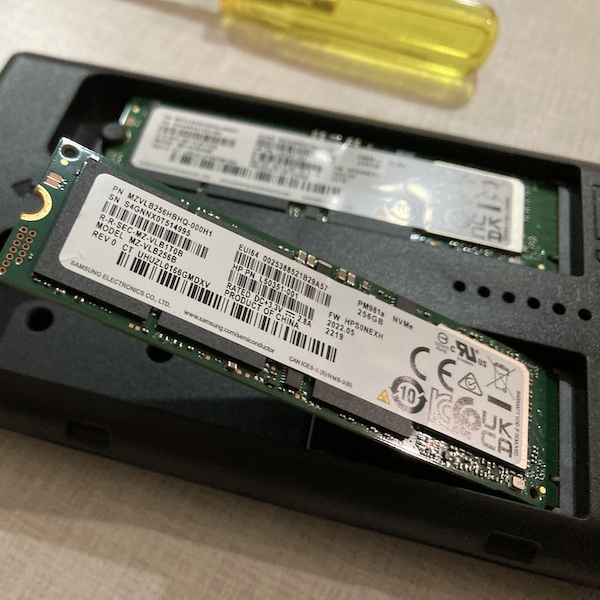
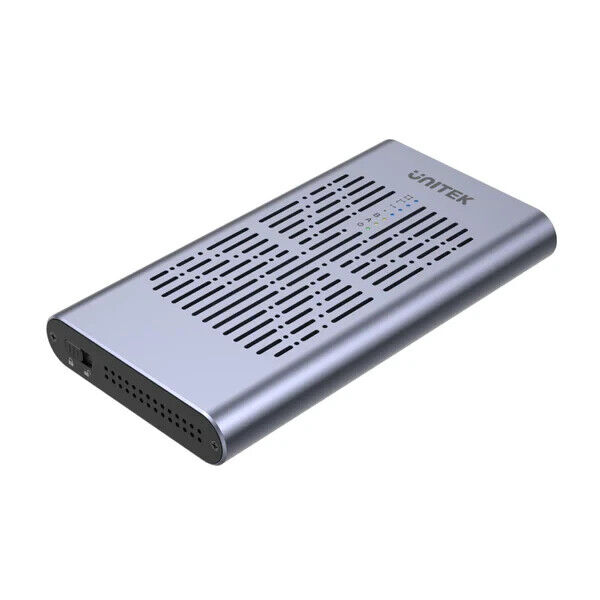
The instructions for the unit show sticking a layer of silicon over the top of the gum sticks, and then a thin piece of aluminum. I’ve heard these get hot, but it wasn’t clear to me if I should peel that paper off first. So I’ve done nothing for the moment while I do some more research.
The process of getting it set up in Proxmox was simple. If you select the node in the web interface, and go in to Disks, you can see a list of the physical disks attached. The NVME drives showed up as NTFS so I wiped them by selecting the drive and pressing the Wipe Disk button.
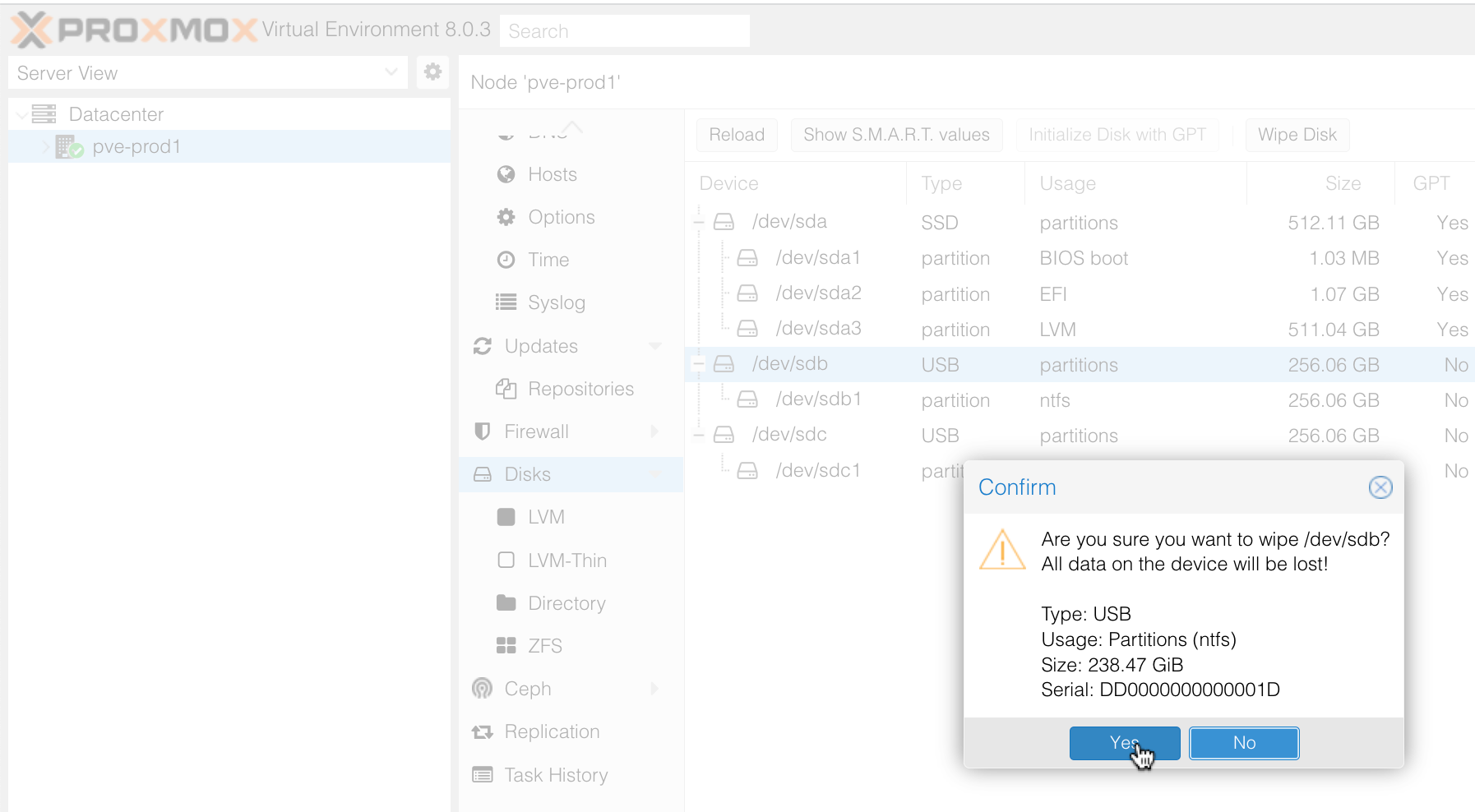
You can see on the screenshot above, that further down in the Disks list it says ZFS. That’s where you go to create the ZFS pool. I probably need to pause here, and go over some of the ZFS terminology.
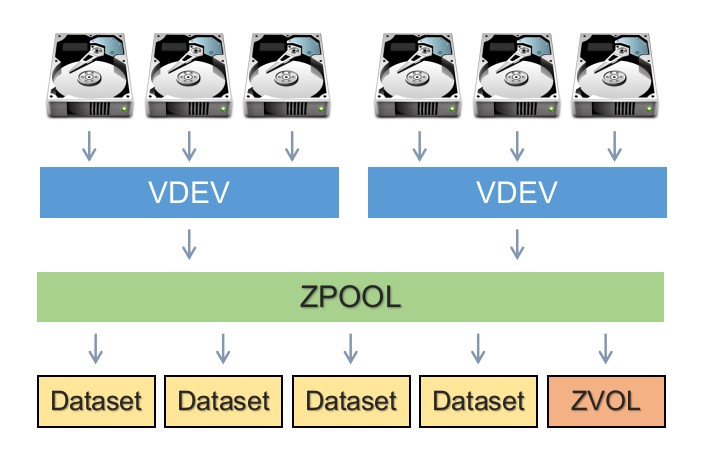
To start in the middle, we have the concept of a ZFS Pool. This is, well, a pool of storage that’s available to be used. It has a size, and we can see how much space is available. The pool is made up of vdev (virtual devices). A vdev could be a single physical drive, or multiple drives in some kind of RAID arrangement.
In my situation, with the two NVME drives, my zpool will be made up of a single vdev comprising two physical drives which have been mirrored.
In the zpool, we can create datasets where we can actually put some data. You can think of these as directories in the sense they have a name and we can create directories and store data inside them, but in ZFS, the datasets in a zpool can have different settings (such as compression, de-duplication) applied to them. This is also the level where snapshots can be taken for backups.
To create the ZFS pool in Proxmox, again select the node, then select ZFS in the list under Disks. At the top is a button for Create ZFS. Select the wiped drives, chose your RAID and give it a name. By tradition the pools are usually called ’tank’ - if you look at a few tutorials you’ll see that all over the place.
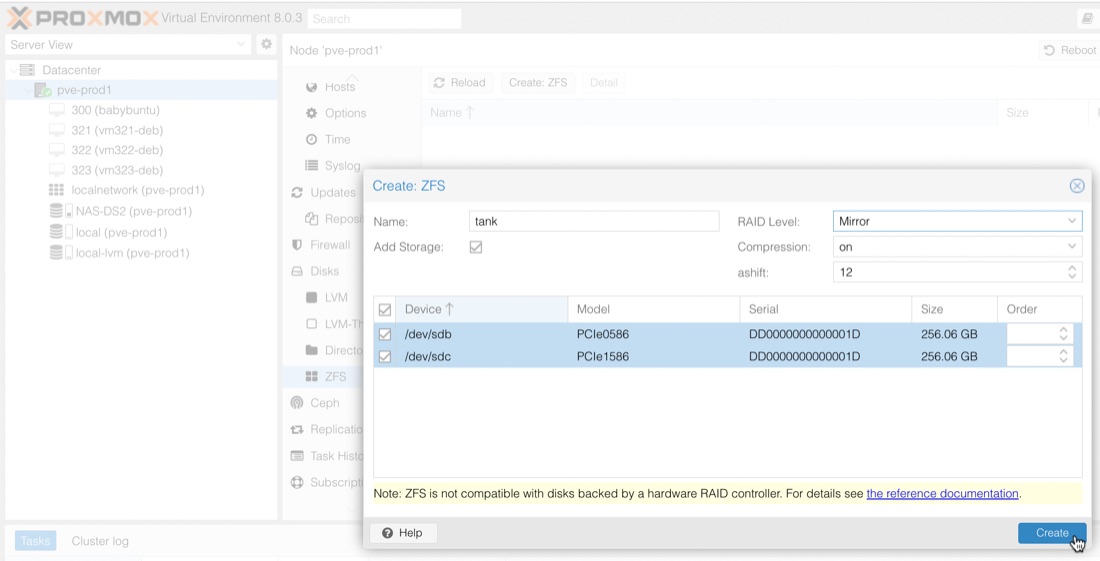
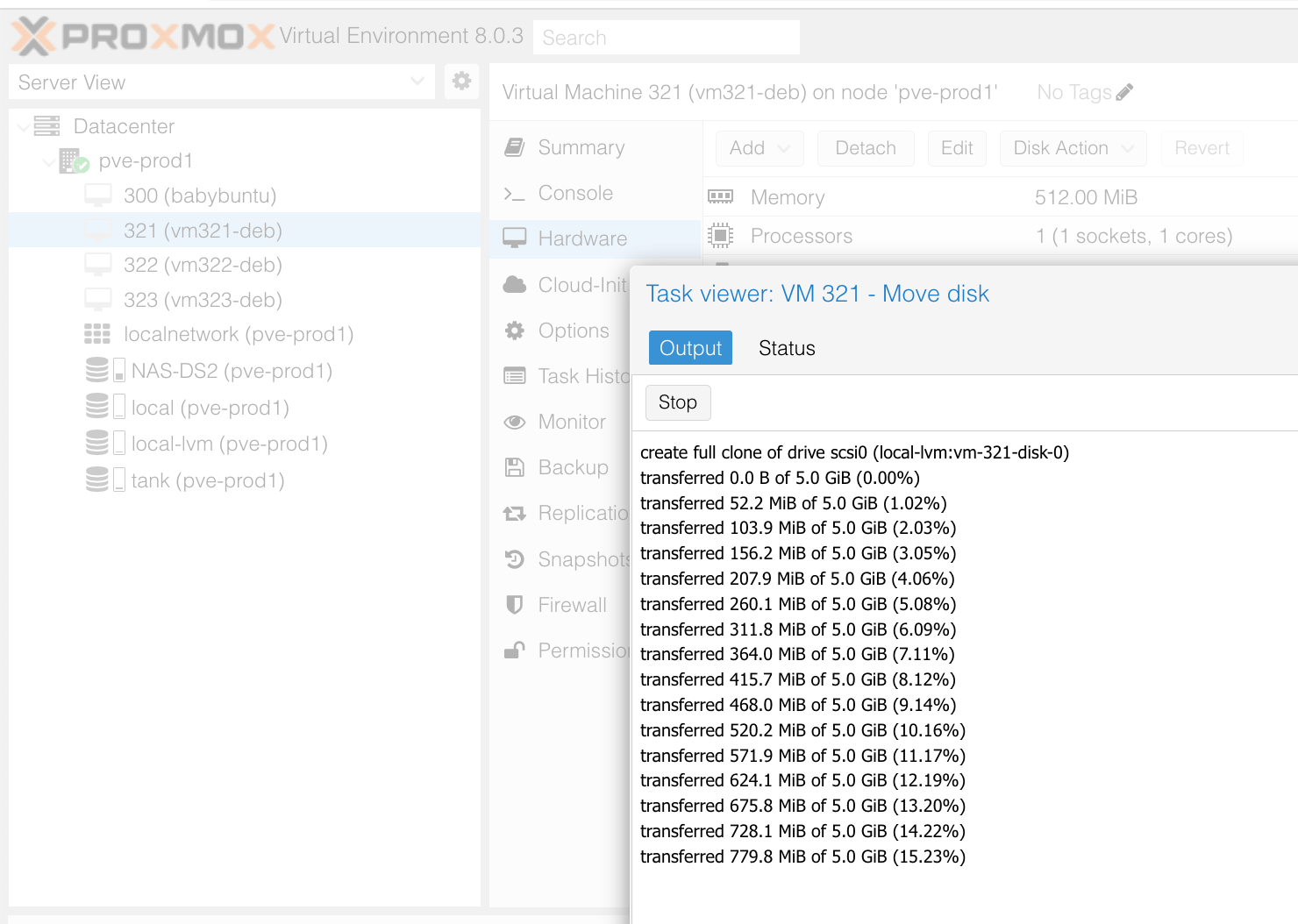
Once that was done, tank appeared as storage in the list under my node. I moved the drives of these dev guests across to it so the zpool would have something to do. I did notice that this process would rush through, then pause for a few seconds - something I haven’t noticed when moving guest droves between the NAS and internal SSDs. Early reviews of Samsung pm981 NVME SSD noted a sustained write dropoff , so this might be something to come back and have a look at later.
If we drop into the shell now, we can have a look at the datasets.
root@pve-prod1:/# zfs list
NAME                 USED  AVAIL     REFER  MOUNTPOINT
tank                32.0G   199G       96K  /tank
tank/vm-300-disk-0  16.5G   209G     6.04G  -
tank/vm-321-disk-0  5.16G   202G     1.67G  -
tank/vm-322-disk-0  5.16G   202G     1.62G  -
tank/vm-323-disk-0  5.16G   202G     1.60G  -
root@pve-prod1:/#
So my pool is tank, and there’s been datasets created for each of the VM guests’ disks. We can create a data set to start using the pool as well.
zfs create tank/temp_set
That creates a dataset called temp_set in the tank zpool. It will have been mounted for us too. Let’s create a 1 GB file in there.
root@pve-prod1:/# cd /tank/temp_set
root@pve-prod1:/tank/temp_set# head -c 1G </dev/urandom >myfile
root@pve-prod1:/tank/temp_set# ls
myfile
Then if we list the datasets again.
root@pve-prod1:/tank/temp_set# zfs list
NAME                 USED  AVAIL     REFER  MOUNTPOINT
tank                33.0G   198G      104K  /tank
tank/temp_set       1.00G   198G     1.00G  /tank/temp_set
tank/vm-300-disk-0  16.5G   208G     6.04G  -
tank/vm-321-disk-0  5.16G   201G     1.67G  -
tank/vm-322-disk-0  5.16G   201G     1.62G  -
tank/vm-323-disk-0  5.16G   201G     1.60G  -
root@pve-prod1:/tank/temp_set#
Once you’ve created a dataset, you can just use it as a regular place to store stuff. ZFS will go on doing it’s magic in the background to keep your data safe with copy-on-write and other magic. It’s good ZFS practice to do a scrub every now and then. This causes ZFS to use whatever information it’s got to check the integrity of all your data.
root@pve-prod1:/# zpool scrub tank

root@pve-prod1:/# zpool status -v tank
  pool: tank
 state: ONLINE
  scan: scrub repaired 0B in 00:00:53 with 0 errors on Tue Jul  4 20:58:16 2023
config:

        NAME        STATE     READ WRITE CKSUM
        tank        ONLINE       0     0     0
          mirror-0  ONLINE       0     0     0
            sdb     ONLINE       0     0     0
            sdc     ONLINE       0     0     0

errors: No known data errors
root@pve-prod1:/#
While I’ve been writing this post, I’ve been copying data to and fro (I’d try things out, then have to delete and repeat to get the screen shot I wanted, and at one stage I decided to change the name of the zpool so all the disk images had to be moved off then back on after I’d recreated it etc) for about 90 minutes, and I’ve just been in the server rooms to see if the external NVME enclosure is hot. It’s warm to the touch, I’d guess 40° - so not alarming for this level of use. That box is pretty well ventilated.
If you want a good summary of ZFS, particularly the thinking behind it, this is a great overview.